 Zyrox
ZyroxHow to Debug a PC That Randomly Reboots
A practical checklist for identifying whether random restarts come from overheating, unstable power, or software issues.
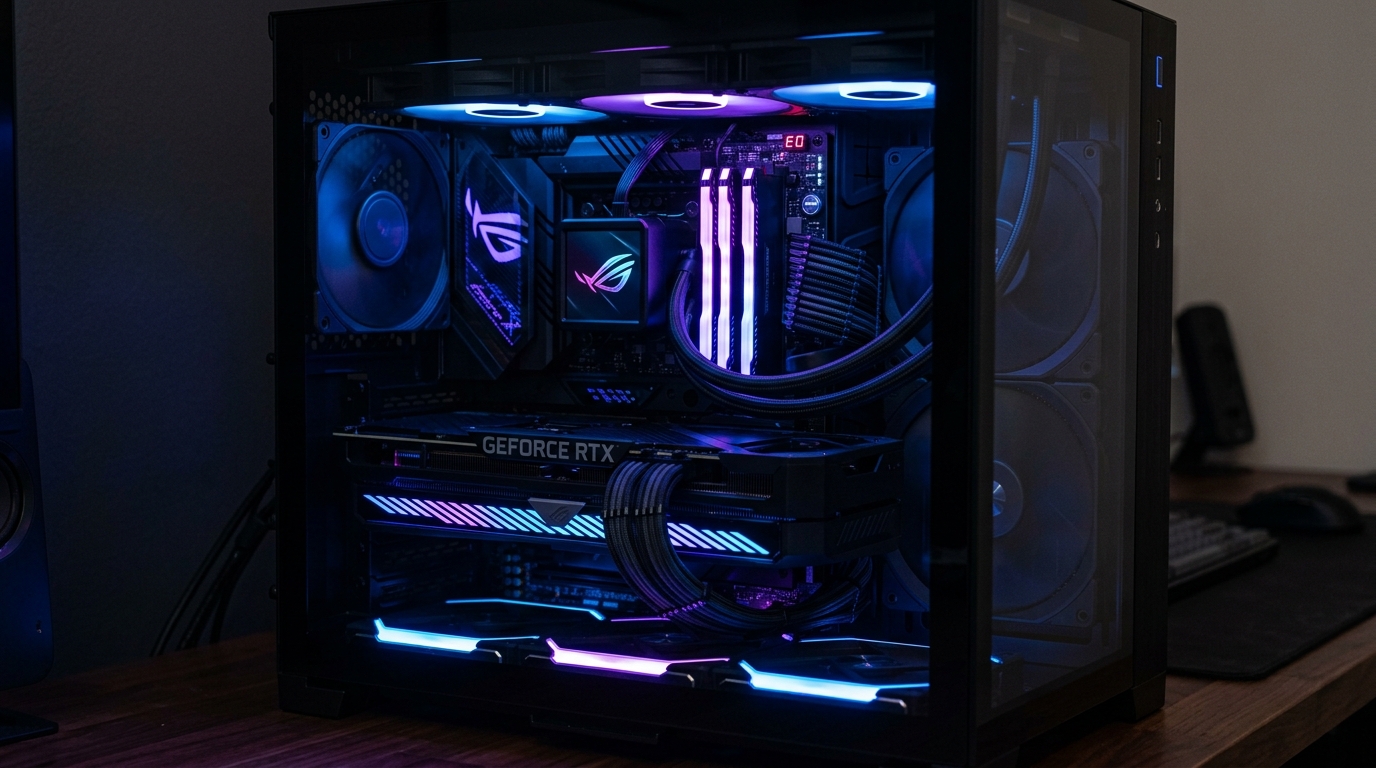 Random reboots are one of the most frustrating things a PC can do. The system doesn't warn you, doesn't leave an obvious error on screen, and the problem might not repeat for hours — or it might happen three times in a row. I've dealt with this on my own machines more than once, and the most important lesson I've learned is this: don't guess. Every reboot leaves evidence somewhere, and with the right tools you can find it methodically rather than swapping parts blindly.
This guide walks through the full diagnostic process from start to finish. By the end, you'll have a structured way to narrow down the cause without wasting your weekend or your money.
Step 1: Read the Evidence in Event Viewer
Every unexpected reboot leaves a record in Windows Event Viewer. Press Win + X and click Event Viewer. Expand Windows Logs, click System, and use the Filter Current Log option on the right to show only Critical and Error events.
You are looking for a BugCheck event. Event ID 41 from the Kernel-Power source just confirms the system restarted without a clean shutdown. But Event ID 1001 from the BugCheck source is the goldmine — it contains the actual stop code from the crash, giving you a specific direction to investigate.
Step 2: Identify the Stop Code
Blue screen stop codes point toward specific failures.
If you see IRQL_NOT_LESS_OR_EQUAL, a driver is likely accessing memory it shouldn't, often related to the GPU or network card. MEMORY_MANAGEMENT or PAGE_FAULT_IN_NONPAGED_AREA points strongly to a RAM error or a bad driver allocating memory incorrectly.
WHEA_UNCORRECTABLE_ERROR is a major hardware error at the CPU, RAM, or motherboard level, often triggered by an unstable overclock or weak power supply. CRITICAL_PROCESS_DIED means a core Windows file crashed, requiring a system file scan.
Write down whatever stop code you find. If the PC reboots too fast to read the blue screen itself, you can disable "Automatically restart" in your Advanced System Settings to force it to hold on the error screen next time.
Step 3: Analyze the Crash Dump with WhoCrashed
Windows generates a minidump file during a blue screen. A free tool called WhoCrashed reads these files and translates them into plain English.
Install it, click Analyze, and look at the "Probably caused by" line for your recent crashes. If it points to nvlddmkm.sys or amdkmdag.sys, your NVIDIA or AMD GPU drivers are crashing. If it points to ntoskrnl.exe, the kernel itself crashed, which usually indicates a RAM or hardware instability issue rather than a specific driver.
If WhoCrashed constantly blames the same driver, that's your suspect. If it blames something different every time, you likely have a hardware problem like bad RAM or a failing power supply.
Step 4: Monitor Temperatures with HWiNFO64
If the reboots only happen when you are gaming or rendering, overheating is a strong candidate. But you can't check temps after a crash because the system cools down instantly. You need to log them.
Download HWiNFO64, run it in Sensors-only mode, and go to the settings to enable "Auto-start logging to file" with a 1-second interval. Let it run in the background. After the next crash, open that log file and look at the very last entries.
If your Intel or AMD CPU was sitting consistently above 85°C to 95°C right before the crash, you have a cooling problem. If your GPU was pushing past 85°C to 90°C, it might be thermal throttling to the point of failure. If temps look totally normal, you can rule out overheating.
Step 5: Test RAM with MemTest86
RAM errors are a huge cause of random reboots. Windows doesn't always blue screen; sometimes it just resets.
Download the free version of MemTest86 and write it to a USB drive. Boot your PC from that USB drive so it runs outside of Windows, eliminating OS variables. Let it run at least one full pass (which takes an hour or two).
If you get red errors, your RAM is faulty. Try reseating the sticks, or testing them one at a time to find the bad one. If it passes with zero errors, your physical memory sticks are probably fine.
Step 6: Reinstall GPU Drivers with DDU
Standard driver updates often leave corrupted files behind. If you suspect a GPU driver issue, you need to use Display Driver Uninstaller (DDU).
Download DDU, boot Windows into Safe Mode, and run it to completely wipe your NVIDIA or AMD drivers. Once you reboot normally, download the fresh drivers directly from the manufacturer and perform a clean install. This solves a surprising amount of random reboots, especially if they started after a recent update or GPU swap.
Step 7: Eliminate BIOS Overclock Variables
Even if you haven't manually overclocked your CPU, your RAM's XMP or EXPO profile is technically an overclock. Many random reboots are caused by a motherboard struggling to run RAM at those advertised XMP speeds.
Go into your BIOS and completely disable XMP, EXPO, or DOCP. Set everything to default. If you manually tweaked the CPU or GPU, revert those too. Run the PC for a couple of days. If the crashes stop, you've found the culprit — the system couldn't handle the overclock profile.
Step 8: Identify PSU Instability
Power supply issues are tricky to confirm without a spare PSU, but you can look for clues. If your PC reboots the exact second a game launches or a heavy load starts, that's a classic sign of a PSU failing to handle a transient power spike. Also, if the PC reboots with no blue screen and no Event ID 1001 (just a hard reset), it means power was cut instantly before Windows could write a crash dump.
Check your PCIe power cables to make sure they are firmly seated. If they are, and you've ruled out thermals, RAM, and drivers, the PSU is the most likely remaining suspect.
Work through these steps methodically. Don't skip straight to buying new hardware until you've confirmed your drivers, thermals, and RAM are solid. Most of the time, the fix is free.
Related Guides
← Back to home