 Zyrox
ZyroxHow to Diagnose a Random PC Reboot Without Losing Your Mind
A hands-on guide to finding the cause of random PC reboots, covering overheating, unstable power delivery, driver conflicts, and BIOS issues.
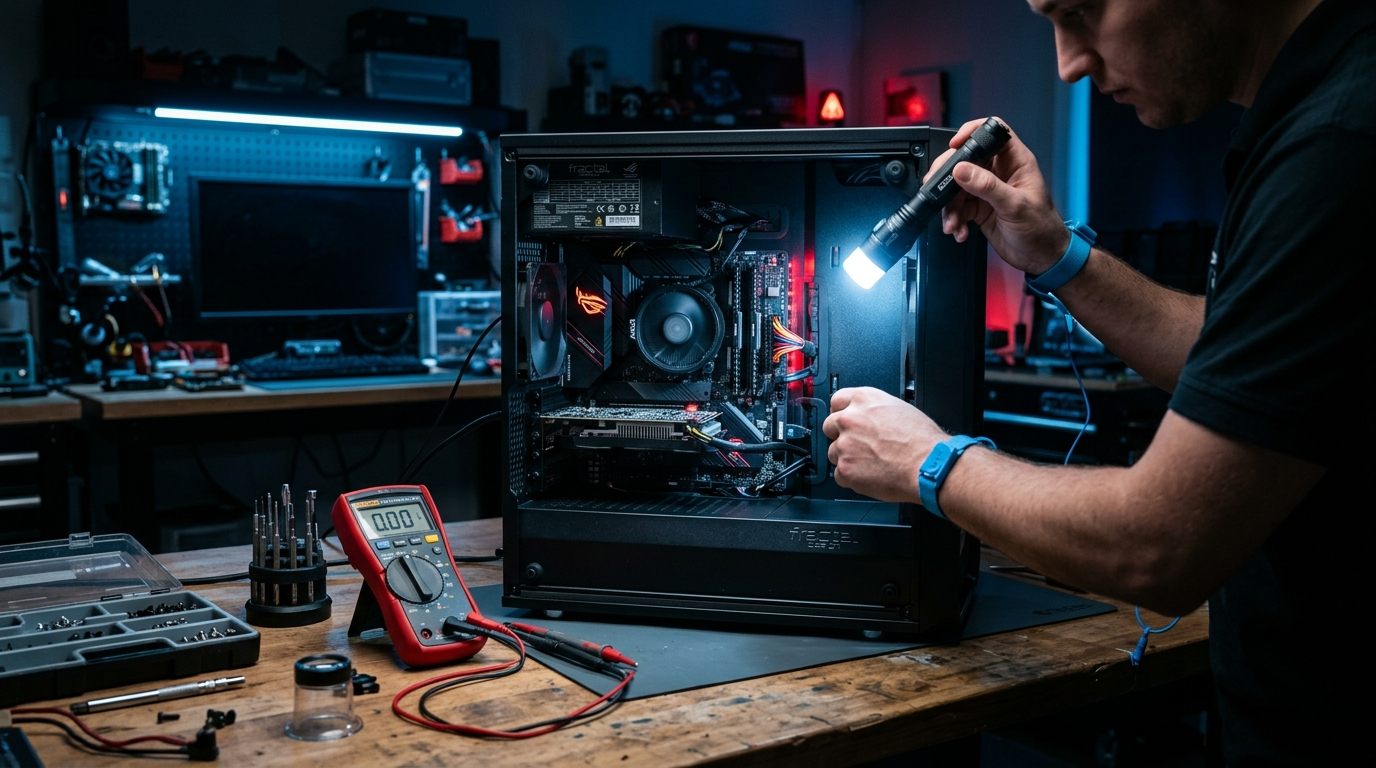
A PC that restarts with zero warning is the most aggravating hardware problem on the planet. One second you're mid-round in Counter-Strike or rendering a Premiere sequence, and the next second your monitors click off, fans spin down for half a heartbeat, and the motherboard splash screen stares right back at you.
No bluescreen. No error dialogue. Just an instantaneous reboot.
When someone brings a rig like this to my bench, they've usually spent three days blindly reinstalling GPU drivers, running useless registry cleaners, and guessing. Don't guess. PCs don't reboot out of spite; silicon either trips an electrical protection circuit, hits a critical thermal ceiling, or encounters a kernel-level stop error so catastrophic that Windows can't even draw a crash screen.
Here is the exact diagnostic sequence I use to track down the culprit.
Step 1: Decode Event ID 41 (The Bugcheck Code Secret)
Almost everyone knows to open Windows Event Viewer (Win + R → eventvwr.msc → Windows Logs → System) and look for Event ID 41: Kernel-Power.
Most people stop there because the general description just says "The system has rebooted without cleanly shutting down first." That sounds useless, but it isn't. Click on the Event ID 41 entry, switch to the Details tab, and toggle the XML View.
Look directly at the <Data Name="BugcheckCode"> parameter:
Scenario A: BugcheckCode is 0
<Data Name="BugcheckCode">0</Data>
If the code is strictly 0, Windows had zero time to react. The CPU didn't panic; power was abruptly cut or the motherboard's emergency protection tripped before the kernel could execute an interrupt handler.
- Top suspects: Power supply over-current protection (OCP), GPU transient power spikes, a failing wall circuit/UPS, or an emergency thermal shutdown (PROCHOT 105°C).
Scenario B: BugcheckCode is NOT 0 (e.g., 292, 10, 59, 270)
<Data Name="BugcheckCode">292</Data> <!-- 292 in decimal = 0x00000124 in hex (WHEA) -->
If the number is anything other than 0, the system actually blue-screened, but Windows restarted so fast (or the monitor dropped signal) that you never saw it. Convert that decimal number to hexadecimal using Windows Calculator in Programmer mode:
292decimal =0x124(WHEA_UNCORRECTABLE_ERROR): Hardware voltage fault, failing CPU core, or unstable RAM/Infinity Fabric.10decimal =0x0A(IRQL_NOT_LESS_OR_EQUAL): Driver attempted to access an invalid paging address at an elevated interrupt level (almost always bad GPU or Wi-Fi driver).59decimal =0x3B(SYSTEM_SERVICE_EXCEPTION): Corrupt system DLL or memory corruption.
Step 2: Disable Automatic Restart on System Failure
If Windows is silently rebooting on bluescreens, force it to hold the stop screen:
- Press
Win + R, typesysdm.cpl, and hit Enter. - Select the Advanced tab.
- Under Startup and Recovery, click Settings.
- Uncheck Automatically restart.
- Set Write debugging information to Small memory dump (256 KB).
Now, instead of instantly looping into a reboot, Windows will stay on the blue screen with the exact stop code and offending .sys file clearly visible.
Step 3: Parse Crash Dumps with WhoCrashed
If the crash generated a dump file in C:\Windows\Minidump, install the free utility WhoCrashed and click Analyze. It automates Microsoft's WinDbg debugger and extracts the stack trace:
- If WhoCrashed blames
nvlddmkm.sys, use DDU (Display Driver Uninstaller) in Windows Safe Mode to wipe your NVIDIA display drivers, then reinstall the clean studio or game-ready driver from scratch. - If it blames
amdkmdag.sys, execute the same clean purge for AMD Radeon drivers. - If it blames
ntoskrnl.exeorhal.dll, the OS kernel crashed. Don't blame Windows—95% of the time,ntoskrnl.exefaults happen because bad RAM or fluctuating Vcore corrupted data while the kernel was running.
Step 4: The 10-Millisecond PSU Trap (Transient Spikes)
If your BugcheckCode was 0, your PC cuts off specifically while launching heavy games, and Event Viewer shows no preceding driver warnings, your power supply is the prime suspect.
Modern graphics cards (especially RTX 3080/3090, 4080/4090, and RX 7900 XTX) generate microsecond-level load transients that can peak at 180% to 220% of their rated TDP. A 750W or 850W power supply from 2018–2020 might have high-efficiency capacitors, but older analog supervisory ICs trip Over-Current Protection (OCP) the instant a 400W transient spike hits the 12V rail.
To isolate this:
- Open MSI Afterburner.
- Drag the Power Limit slider down to 70% and click apply.
- Boot up the exact game or benchmark that caused the reboot.
- If the PC no longer reboots with the card capped at 70%, your power supply cannot handle the GPU's unfiltered transient loads. You need an ATX 3.0 / PCIe 5.0 certified PSU with dedicated 12V-2x6 power delivery.
Step 5: Thermal Throttling vs. Hard Thermal Cutoff
A common misconception: "My CPU is running hot, so it's rebooting."
Modern CPUs from AMD and Intel do not reboot when they thermal throttle. At 90°C–95°C, the processor simply scales down core frequency, dropping from 5.4 GHz down to 3.8 GHz or lower to maintain thermal equilibrium. The machine will feel stuttery, but it will keep running.
A reboot only occurs if the chip hits Tjunction Max (100°C for Intel 13th/14th Gen, 95°C for AMD Ryzen 7000/9000), triggering PROCHOT (Processor Hot) hard shutoff to prevent silicon degradation.
To verify whether heat is pulling the plug:
- Download HWiNFO64 and run in Sensors-only mode.
- Click the small floppy disk icon at the bottom right to enable continuous sensor logging to a CSV file. Set the polling rate to 1000ms (1 second).
- Put the system under load until it restarts.
- Reopen the CSV in Excel after rebooting and scroll to the final row before the crash. If CPU Package Temp shows 105°C on the final 3 rows, your cooler pump failed or your thermal paste has pumped out. If temps were sitting at 72°C right before the cutoff, temperature is 100% not your problem.
Step 6: Memory Instability & 4-DIMM DDR5 Headaches
Memory errors are notoriously erratic. They rarely cause clean shutdowns; they cause random page faults that look like software crashes.
If you are running DDR5:
- Are you running 4 RAM sticks? The integrated memory controllers (IMC) on AMD Zen 4/5 and Intel 13th/14th Gen struggle severely with four double-sided DDR5 modules. Running 4 sticks at EXPO/XMP 6000 MT/s is a recipe for random reboots. Drop memory speed to 5200 MT/s or test with just 2 sticks in slots A2 and B2.
- Run MemTest86: Flash PassMark MemTest86 to a USB flash drive, boot from the USB in UEFI mode, and let it run at least 4 full passes. If you see even one single error bit, your memory subsystem is unstable. Bump SoC voltage slightly, loosen timings, or RMA the faulty kit.
The Diagnostic Checklist
Before you throw money at new components, follow this order of elimination:
- Check Event Viewer ID 41: Is BugcheckCode 0 (hardware power drop) or non-zero (kernel bluescreen)?
- Disable Auto-Restart: Catch the bluescreen stop code instead of letting Windows reboot silently.
- Inspect WhoCrashed reports: Isolate whether a specific display driver
.sysfile is crashing the stack. - Power Limit the GPU: Drop power target to 70% in MSI Afterburner to rule out PSU transient trips.
- Log HWiNFO64 sensors to CSV: Check the exact temperature and 12V rail voltage on the final millisecond before failure.
- Pass 4 rounds of MemTest86: Ensure RAM timings and IMC voltages aren't dropping bits under load.
Related Guides
← Back to home