 Zyrox
ZyroxHow to Choose an SSD for a Laptop or Desktop Without Overbuying
A practical comparison of SSD form factors, interface options, and capacity planning for laptops and desktops. Here is my honest experience and what you actually need.
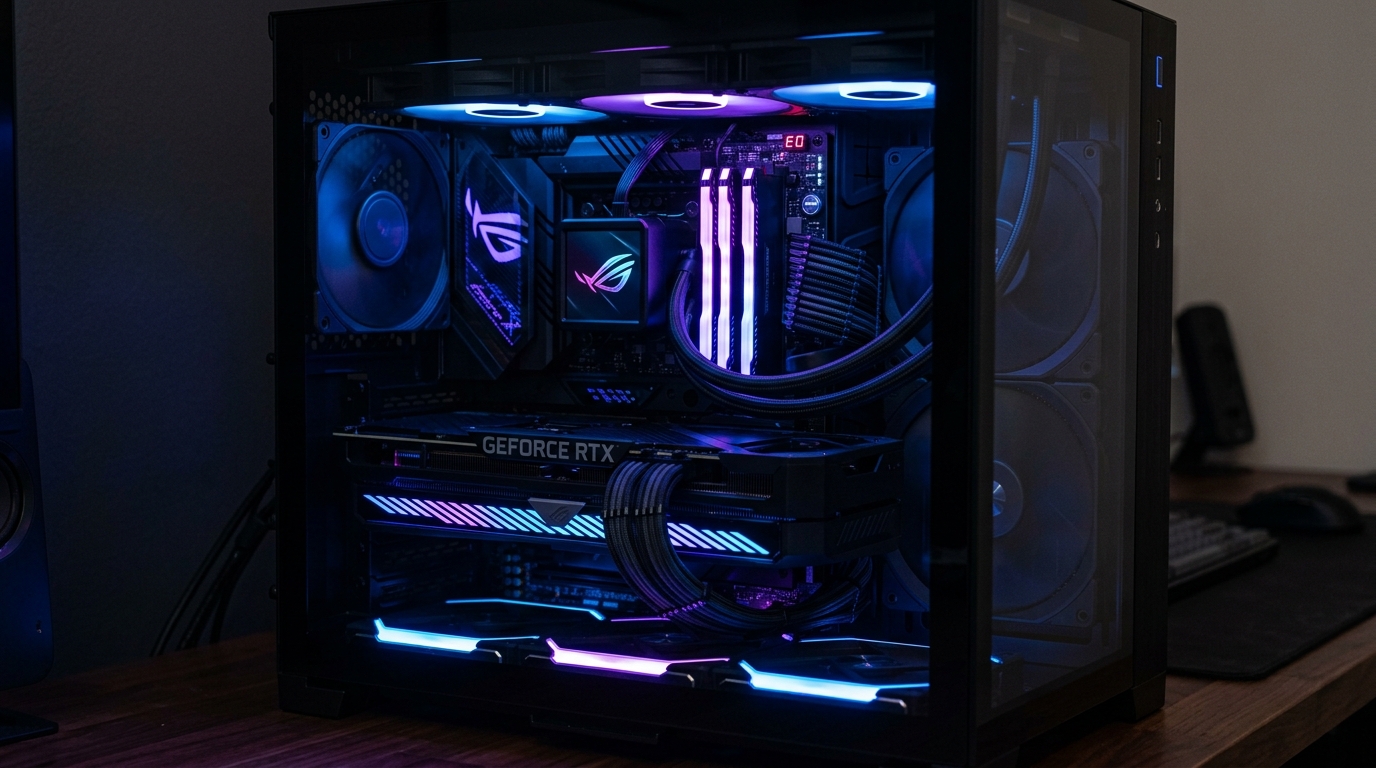 Buying an SSD for a laptop is genuinely harder than buying one for a desktop. Not because the technology is more complex, but because the constraints are invisible until you get it wrong. The wrong physical size won't fit. The wrong interface connector won't make contact. And even a technically correct drive can throttle itself down to half speed inside a laptop chassis that can't cool it properly.
I've replaced storage in enough laptops — my own, friends', machines at a local repair shop — to know that the fifteen minutes of research beforehand is always worth it.
The Size Problem Nobody Warns You About
"M.2" is a connector standard, not a specific drive size. When someone says "M.2 SSD," they could mean three completely different physical dimensions, and only one of them will fit in your laptop.
M.2 2280 is 22mm wide and 80mm long. This is the most common size. If you have a laptop made after 2018 and it has an M.2 slot at all, it almost certainly takes a 2280. Samsung 990 Pro, WD Blue SN580, SK Hynix P41 — they're all 2280.
M.2 2242 is half as long. You'll find this in some older ThinkPads and a handful of business laptops that prioritized compactness. Fewer drives come in this size, and they tend to be limited to SATA or lower-tier NVMe.
M.2 2230 is tiny. Originally for tablets, it's now showing up in the Surface lineup, the Steam Deck, and some newer Dell XPS and HP models. The WD SN740 is one of the few good NVMe drives available in this size.
Here is the point I really want to hammer home: if you buy a 2280 drive for a laptop that only accepts 2230, it physically will not fit. There is no adapter, no workaround. You just wasted your money. Always check your laptop's service manual or open the bottom panel and look at the existing drive before ordering.
PCIe Generations: Stop Overpaying for Speed Your Laptop Can't Use
On a desktop with a modern motherboard, you can buy a PCIe Gen 5 NVMe drive and hit 12,000+ MB/s sequential reads. On almost every current laptop, that same drive will run at Gen 4 or even Gen 3 speeds regardless.
Most laptop CPUs — even current AMD Ryzen mobile and Intel 13th Gen chips — route the M.2 slot through PCIe Gen 4 at best. Many budget and mid-range laptops are still capped at Gen 3. The laptop BIOS simply doesn't support Gen 5.
So buying a PCIe Gen 5 drive for a laptop is literally pointless. The drive will downshift to match the slot's capability. You'll pay Gen 5 prices for Gen 4 performance. Save that money and buy a well-regarded Gen 4 drive instead.
SATA M.2 vs NVMe M.2: They Look the Same But They're Not
This trips up more people than anything else. SATA M.2 and NVMe M.2 drives physically use similar-looking connectors. They can look nearly identical sitting next to each other on a shelf. But they speak completely different electrical languages.
SATA M.2 uses the old SATA protocol, maxing out at about 550 MB/s. Many older laptops and budget systems only support SATA on the M.2 slot. If you jam an NVMe drive in there, the laptop simply won't see it.
NVMe M.2 uses the PCIe bus and starts at around 2,400 MB/s on Gen 3 and goes up to 7,000+ MB/s on Gen 4.
The connector difference is subtle but real. SATA drives usually have notches on both sides of the connector edge (called B+M key). NVMe drives have a single notch on one side (M key). Some laptop slots accept both types, others accept only one.
Before buying anything, you need to figure out which type your laptop supports. The easiest way: download CrystalDiskInfo (free, portable, no install needed), open it, and look at the "Interface" field. It will clearly say either "NVMe" or "SATA." Cross-reference with your laptop's service manual for the physical size, and you're set.
The Heat Problem in Laptops
This is where laptop SSD buying diverges most sharply from desktop buying.
High-performance NVMe drives generate heat. On a desktop with a dedicated M.2 heatsink and good case airflow, that heat dissipates easily. In a sealed laptop chassis with two tiny fans already working overtime, it can become a serious problem.
When an SSD overheats, it enters thermal throttling — the drive deliberately slows itself down to reduce heat output. A PCIe Gen 4 drive that benchmarks at 7,000 MB/s on a desktop might sustain only 2,000 MB/s in a hot laptop during a large file transfer.
For laptops, I specifically recommend the SK Hynix Platinum P41. It consistently runs cooler than competitors in third-party testing thanks to its efficient 176-layer NAND architecture. It performs brilliantly without cooking itself.
The Samsung 990 Pro is a great drive too, but it runs hotter under sustained load. In a well-ventilated gaming laptop it's fine, but in a thin ultrabook with zero thermal headroom, it can throttle noticeably.
For budget laptop upgrades, the WD Blue SN580 is my go-to. Gen 4, reasonable performance, low heat output, great price.
Desktop Buying is Much Simpler
Desktop builds are far more forgiving. You almost always use M.2 2280 form factor. Your motherboard has heatsinks built onto the M.2 slots. PCIe Gen 4 and sometimes Gen 5 are fully supported. Thermal throttling is rarely an issue.
For a desktop primary drive, buy a Samsung 990 Pro or SK Hynix P41 in 1TB or 2TB. For a secondary game storage drive, the WD Blue SN580 2TB is excellent value. Done. Don't overthink it.
How Much Storage Do You Actually Need?
For a laptop in 2026, 512GB is technically workable but increasingly tight. The OS eats a chunk, app updates keep growing, and if you play even a couple of games, you'll be constantly managing space.
1TB is the comfortable baseline now, and the price difference between 512GB and 1TB has shrunk to the point where 512GB rarely makes sense anymore.
For desktops, start with a 1TB NVMe for the OS and apps, and add a 2TB drive for games and media if you need it. Storage is cheaper than it's ever been — don't be stingy with capacity and then spend six months deleting stuff to make room.
Related Guides
← Back to home