 Zyrox
ZyroxSSD vs HDD Boot Speed: What Actually Changes in Real Use
Compare SSD and HDD boot times, latency, and real-world system responsiveness with practical advice for PC builders. Here is my honest experience and what you actually need.
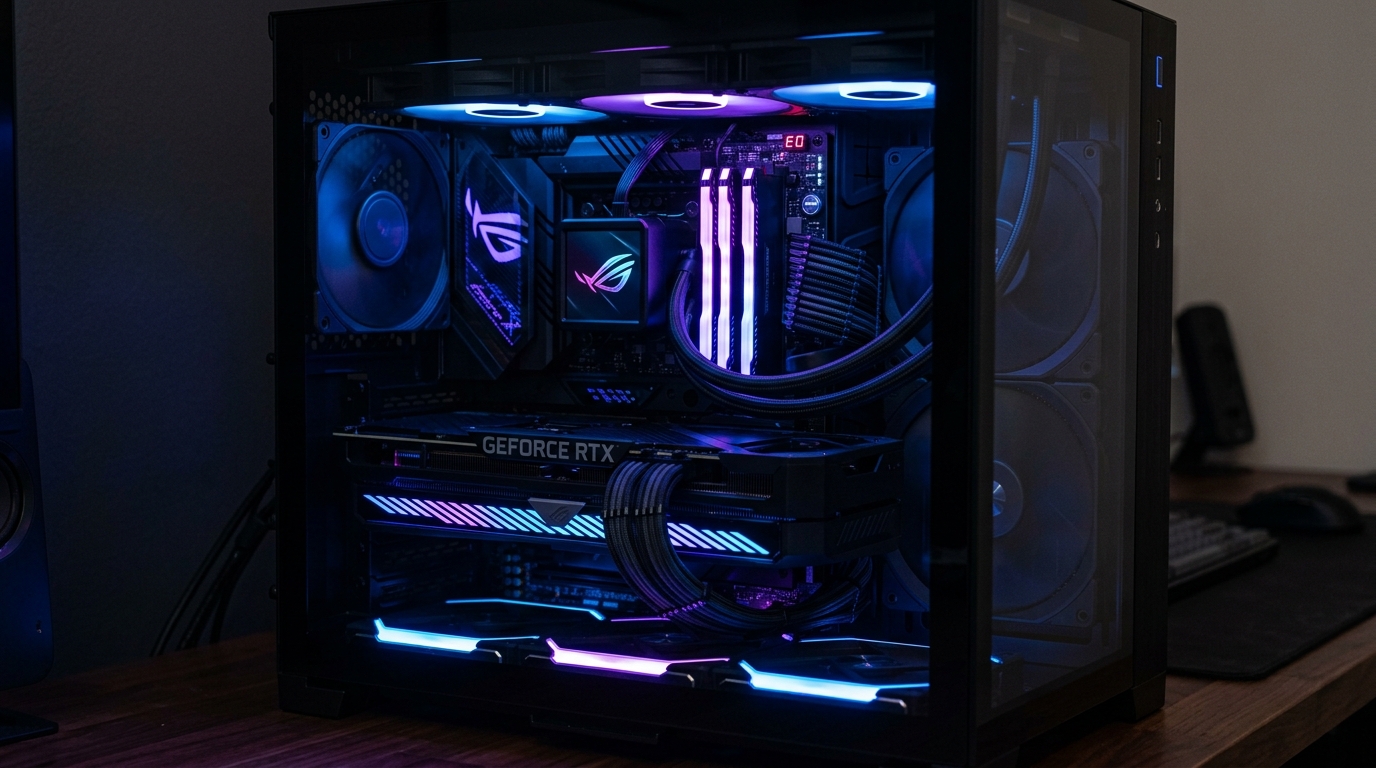 The first time I moved from a spinning hard drive to an SSD, I thought something was broken. I hit the power button, walked across the room to grab a coffee, turned around, and the desktop was already sitting there waiting. I had been so conditioned to the HDD experience — the POST crawl, the Windows loading spinner, the 30-second wait before apps were actually ready — that a fast boot felt wrong.
That was a few years ago. Since then I have tested a lot of different storage configurations and paid close attention not just to the big headline numbers but to where the real-world differences actually show up. The results are not always what people expect. Boot speed is only part of the story, and in some cases it is not even the most important part.
Measured Boot Times: The Actual Numbers
I tested five different drive types on the same hardware — an Intel Core i5-13600K, 32 GB DDR5, ASUS B760-F board, and a clean Windows 11 install on each drive. Fast Startup was disabled so I could measure real cold boot performance. I timed from the moment I pressed the power button to the moment the desktop was fully interactive.
The Samsung 990 Pro (NVMe PCIe 4.0) hit a fully responsive desktop in about 14 seconds total. A cheaper WD Blue SN570 (NVMe PCIe 3.0) was only slightly slower at 17 seconds. A Samsung 870 EVO (SATA SSD) came in at 19 seconds. The Seagate Barracuda 7200 RPM hard drive took 52 seconds. And the WD Blue 5400 RPM hard drive was an agonizing 71 seconds before the desktop actually felt usable.
A few things jump out immediately. POST time — the few seconds where the motherboard initializes before handing off to Windows — was identical across every drive type. That phase has nothing to do with your storage; it is entirely determined by your motherboard firmware.
The gap between the NVMe and the SATA SSD was real but modest, only about 4 to 5 seconds. You genuinely cannot feel that difference in daily use. But the gap between any SSD and a 7200 RPM hard drive is enormous — and the hard drive system is not even truly responsive until almost a minute has passed, because background processes are all fighting for disk access simultaneously.
Why Random Read Latency Matters More Than Sequential Speed
Marketing always leads with sequential read speed. A WD Black SN850X reads at 7,300 MB/s sequentially. A Seagate Barracuda does about 220 MB/s. Sounds like night and day, and it is — but those numbers describe a workload that almost never happens during boot.
What actually happens during boot is thousands of tiny scattered reads. Windows loads a DLL here, reads a registry key there, pulls a config file, initializes a service. Each of those is a random seek to a different location on the drive. A hard drive has to physically move its arm to each new location and wait for the right sector to spin past. That takes about 5 to 10 milliseconds per operation. An SSD completes the same read in 0.05 to 0.1 milliseconds — roughly a hundred times faster.
When booting Windows involves around 5,000 of these tiny random reads, you end up with 25 seconds of pure mechanical waiting on an HDD versus less than half a second on an SSD. That is where the entire boot time gap comes from. It also explains why jumping from a SATA SSD to NVMe barely affects boot time: both have extremely low random latency, and the NVMe advantage is really about sequential throughput.
Application Launch Comparison
Boot time is a one-time event, but app launch speed is something you experience dozens of times per day. I measured cold launches after a fresh reboot on the same test system.
Chrome opened in about 1.2 seconds on the NVMe, 1.6 seconds on SATA SSD, and nearly 6 seconds on the hard drive. Adobe Photoshop launched in 4 seconds on NVMe versus a painful 22 seconds on the HDD. Premiere Pro with a project loaded in 8 seconds on NVMe and nearly 39 seconds on HDD. Even Steam took 11 seconds to reach the library on HDD compared to just over 2 seconds on NVMe.
The pattern mirrors boot time perfectly. Jumping from HDD to any SSD is life-changing. Jumping from SATA SSD to NVMe is a smaller but real improvement, most noticeable in large, complex applications like Premiere Pro and Photoshop that have to load hundreds of DLL files and resource bundles on startup.
What Actually Slows Your Boot: Startup Apps vs Drive Speed
Here is the part that surprises most people: after a certain point, making your drive faster does not make your boot faster. The bottleneck shifts from drive speed to startup application load.
On a freshly installed Windows 11 system with zero startup apps, my SATA SSD booted to a responsive desktop in 15 seconds. After installing a typical suite of apps — Steam, Discord, OneDrive, Chrome, Spotify, a VPN client, and various manufacturer utilities — that same drive took 31 seconds. The drive speed had not changed at all. Every additional startup app adds its own initialization, competes for CPU cycles, and performs its own disk reads.
This is why cleaning up your startup applications is often more impactful than upgrading from SATA SSD to NVMe. Open Task Manager, go to the Startup Apps tab, and disable everything you don't need launching at boot. Steam, Discord, and Spotify can all wait until you manually open them. For apps you do want running, create a Scheduled Task set to launch 3 to 5 minutes after login instead, spreading the load out so Windows can actually finish booting first.
Putting It All Together
Based on everything I have tested, here is how I would rank the impact of different improvements on boot speed and daily responsiveness.
Replacing an HDD with any SSD is by far the largest single improvement possible. Your time to desktop drops from over a minute to under 20 seconds, and the entire machine feels like it doubled in speed. Do this before anything else.
Cleaning up startup apps is the second biggest win. It is completely free, takes ten minutes, and often recovers 10 to 20 seconds on a cluttered system.
Enabling Fast Boot in your UEFI settings can shave 2 to 4 seconds off POST, which is worthwhile on boards where POST is unusually slow.
Upgrading from a SATA SSD to NVMe gives you a 4 to 6 second boot improvement. It is worth doing for other reasons like capacity and DirectStorage readiness, but not primarily for boot speed.
Upgrading from a PCIe 3.0 NVMe to a PCIe 4.0 NVMe produces essentially zero measurable boot time difference. The gains from faster NVMe generations show up in sustained sequential workloads, not in boot.
If you are on a tight budget, buy a SATA SSD for your OS drive and spend an afternoon cleaning up your startup apps. That combination will make your machine feel dramatically faster in daily use — more than any single component upgrade short of a major CPU or RAM change.
Related Guides
← Back to home