 Zyrox
ZyroxWhy SSD Health Monitoring Matters More Than You Think (And How to Do It)
Learn how to monitor SSD health using CrystalDiskInfo and S.M.A.R.T. data. Decodes critical NVMe error attributes, temperature thresholds, firmware bugs, and read-only failure modes.
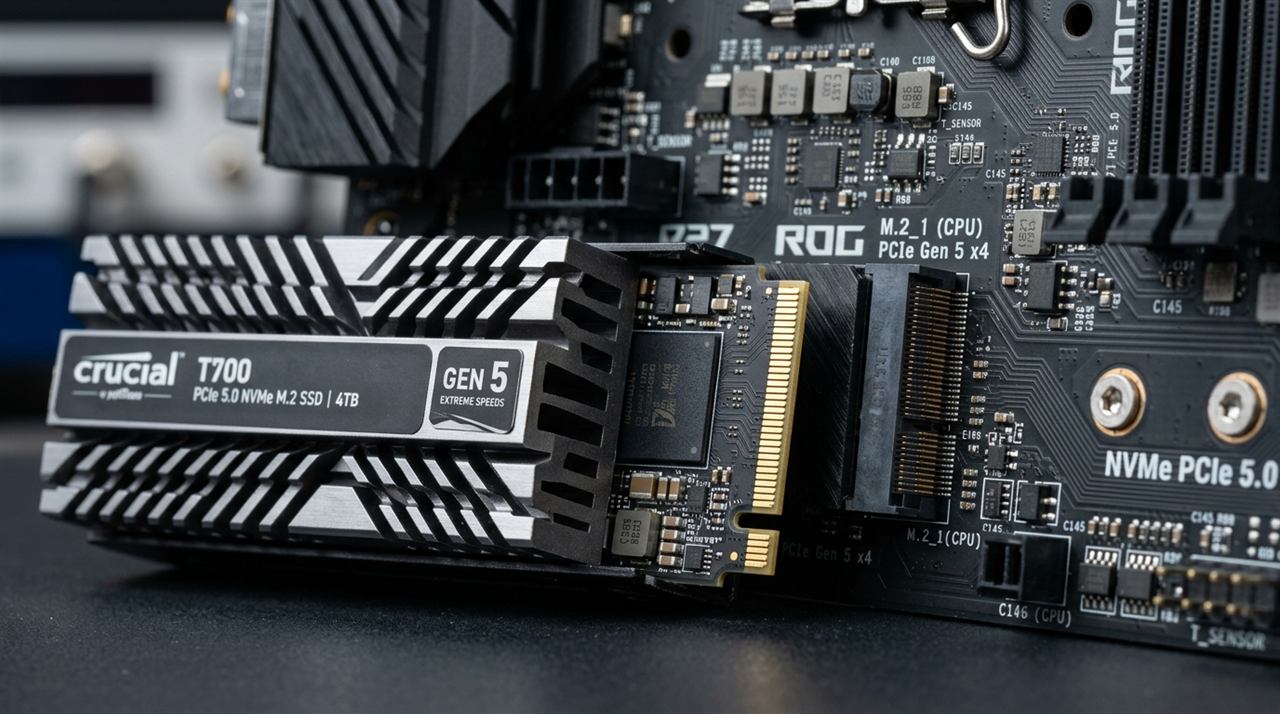 I lost a secondary drive without warning a few years ago. It wasn't an ancient drive salvaged from an old office machine; it was a high-end 2TB NVMe SSD just over two years old. One evening I was working in Premiere Pro; the next morning, the drive failed to enumerate in the UEFI BIOS.
The data was partially recoverable through a specialized recovery lab, but it cost hundreds of dollars, days of anxiety, and missed deadlines. The most painful realization wasn't the component failure — it was discovering that the warning signs had likely been accumulating in the background for weeks, and I simply had never checked.
Mechanical hard drives (HDDs) fail with theatrical drama: they click, grind, squeal, and take 15 seconds to spin up. Solid State Drives (SSDs) fail silently. There are no motor sounds or grinding bearings. When an SSD controller gives up or its flash cells degrade past recovery limits, the drive simply goes dark.
Checking your SSD health is not paranoia; it is basic digital hygiene that takes under five minutes to automate. Here is how SSD health tracking actually works, which S.M.A.R.T. metrics you must watch, and what to do when numbers start slipping.
Decoding S.M.A.R.T. Data: The Metrics That Actually Matter
Every SSD incorporates S.M.A.R.T. (Self-Monitoring, Analysis and Reporting Technology). While traditional SATA SSDs report legacy hard drive attributes, modern NVMe M.2 drives use a standardized NVMe Health Log.
Here are the critical attributes you need to understand:
1. Available Spare & Available Spare Threshold (NVMe)
Modern SSDs ship with "over-provisioning" — spare NAND blocks held in reserve that the user cannot format. When a flash memory block wears out or develops bad cells, the controller remaps data to a fresh block from the spare pool.
- Healthy: 100% Available Spare.
- Warning: If Available Spare drops below the manufacturer threshold (typically 10%), your drive is running out of replacement blocks and is nearing end-of-life.
2. Media and Data Integrity Errors (NVMe)
This is the single most urgent attribute on an NVMe SSD. It records the number of times data could not be recovered by internal ECC (Error Correction Code) or parity engines.
- Healthy: Must strictly be 0.
- Critical Action: If this count ever reaches 1 or higher, your drive has suffered physical data corruption. Back up your essential files immediately and initiate a warranty RMA.
3. Percentage Used (Wear Leveling Indicator)
This is a normalized estimate of the percentage of the drive's rated endurance consumed, based on Total Host Writes relative to the drive's TBW specification.
- 0% to 50% Used: Exceptional health.
- 90%+ Used: You have written near the rated limit of the NAND cells. The drive may continue operating reliably for years, but data retention during prolonged unpowered storage begins to degrade.
4. Critical Composite Temperature & Throttling Events
NVMe controllers run hot under heavy workloads.
- Under 65°C: Optimal operating range.
- 70°C to 75°C: Elevated thermal load; controller may engage thermal throttling to protect itself.
- Above 80°C: Dangerous operating conditions. Sustained exposure to excessive heat accelerates NAND gate oxide breakdown and can corrupt controller firmware.
The CrystalDiskInfo Setup Guide (Step-by-Step)
The undisputed gold standard utility for checking drive telemetry on Windows is CrystalDiskInfo (free, open-source, and clean of bundled adware).
Follow this checklist to configure it properly:
- Change Raw Values to Decimal: By default, CrystalDiskInfo displays raw S.M.A.R.T. values in Hexadecimal format (e.g.,
00000000002A), which makes it impossible for normal humans to read error counts. Go to Function > Advanced Feature > Raw Values > 10 [DEC]. Now you will see clean decimal numbers like42. - Enable Automatic Resident Monitoring: Click Function > Resident and check Startup. CrystalDiskInfo will now run minimized in your Windows system tray, monitoring background temperature and drive error status.
- Configure Sound and Notification Alerts: Go to Function > Alert Features and enable Alert Mail or desktop notifications. If any drive trips a caution flag or exceeds 70°C, Windows will notify you immediately.
The Manufacturer Firmware Epidemic: Why Updates Matter
Many PC builders install an SSD and never update its firmware. That is a dangerous mistake.
In late 2022 and 2023, high-profile firmware bugs severely damaged SSDs in the wild:
- The Samsung 980 Pro / 990 Pro Firmware Bug: In late 2022 and early 2023, high-profile firmware bugs severely impacted Samsung SSDs. On the 980 Pro (2TB), firmware version
3B2QGXA7contained a critical bug that caused drives to permanently lock themselves into read-only mode with 0% remaining health, requiring Samsung to issue emergency patch5B2QGXA7. On the 990 Pro, initial release firmware0B2QJXD7triggered an erroneous rapid S.M.A.R.T. health percentage degradation loop, prompting the release of firmware1B2QJXD7to halt the artificial decay. - Crucial & Western Digital Firmware Fixes: Several PCIe 4.0 drives experienced BSOD crashes in Windows 11 under DirectStorage and modern standby until BIOS/firmware patches were deployed.
Always install your drive manufacturer's management suite:
- Samsung Magician for Samsung EVO/PRO drives.
- Western Digital Dashboard for WD_BLACK and WD Blue.
- Crucial Storage Executive for Crucial P-series and T-series.
Open the utility once every three months, verify your health percentage, and install any pending firmware revisions immediately.
How SSDs Actually Fail: Sudden Death vs. Read-Only Lock
Understanding how an SSD dies dictates how you respond:
[ Normal Operation: 100% Spare Blocks ]
                  │
                  ▼ (NAND cells degrade over years)
[ Caution State: Spare Blocks Remapped, Errors Logged ]
                  │
        ┌─────────┴─────────┐
        ▼                   ▼
[ Safe Failure Mode ]    [ Catastrophic Sudden Death ]
Controller locks drive    Controller electrical surge /
into READ-ONLY mode.     firmware brick. Drive vanishes
Files can be copied out!  from BIOS. Zero warning.
1. Read-Only Fail-Safe Mode (The Good Scenario)
When an enterprise-grade or quality consumer SSD controller detects that available spare blocks are fully depleted or NAND writes can no longer be verified, it enters a hardware Write-Protect / Read-Only lock.
You cannot save new files, update Windows, or format the drive. However, all your existing files remain 100% readable. You can simply drag and drop your pictures, documents, and game saves to another external drive.
2. Sudden Controller Brick (The Bad Scenario)
Unlike the NAND flash itself, the SSD controller is a complex multi-core ARM processor. If a power surge occurs or the controller silicon burns out from heat, the drive disappears completely from your system. The motherboard BIOS will display No Bootable Device Found.
Because S.M.A.R.T. monitoring cannot foresee electrical controller death, monitoring is only half the battle.
The 3-2-1 Backup Strategy: Your Only True Guarantee
No amount of diagnostic software can replace a structured backup workflow. Follow the industry-standard 3-2-1 Backup Rule:
- 3 Copies of Critical Data: Your primary PC drive, a local backup, and an offsite copy.
- 2 Different Media Types: For example, an internal NVMe SSD and an external USB hard drive or local NAS.
- 1 Copy Offsite (Cloud): Backblaze, OneDrive, Google Drive, or an encrypted drive stored at a family member's house.
If you automate a daily cloud backup of your desktop documents and photos, an SSD failure is merely an annoying $100 hardware swap rather than a catastrophic life event.
Related Guides
← Back to home