 Zyrox
ZyroxHow to Choose a Good SSD for Video Editing
Discover the best SSDs for video editing. Understand sustained write speeds, SLC cache exhaustion, DRAM vs DRAMless for 4K/8K timeline scrubbing, and drive separation.
 I've built editing workstations for other people and for myself, and the storage question always takes way longer to answer than people expect. Everyone wants to know which SSD is the "fastest." But the more useful question — the one that actually matters when you're six hours into a color grade and your timeline is stuttering — is which SSD stays fast under sustained pressure.
Video editing is genuinely brutal on storage in ways that gaming and general computing just aren't. You're not simply reading large files. You're simultaneously reading source footage, writing cache files, generating proxy media, and exporting a final render. All of that happens at the same time, for hours on end. A drive that looks blazing fast in CrystalDiskMark can completely fall apart during a real editing session.
Why Editing Destroys Cheap Drives
Three things make video editing different from other workloads.
Sustained sequential writes. Every time you create proxies, render previews, or export your timeline, the drive absorbs tens of gigabytes in huge sequential writes. Gaming is mostly sequential reads. Office work is tiny random writes. Editing is the opposite — massive, relentless writes that don't stop.
SLC cache exhaustion. This is the dirty secret of consumer NVMe drives. Most of them use a chunk of their NAND flash as a fast pseudo-SLC cache, which gives you those impressive initial burst speeds of 5,000–7,000 MB/s. But that cache is limited (typically 100GB to 250GB on a 2TB drive). Once it fills up during a massive render or file transfer, the drive drops to its native TLC or QLC write speed. On cheap QLC drives (like the Kingston NV2 or Crucial P3), speeds can crater to 100–250 MB/s — literally slower than an old SATA SSD or mechanical hard drive.
Post-cache sustained speed. This is the number that actually matters for editing. High-end TLC drives like the Samsung 990 Pro or WD Black SN850X sustain roughly 1,400–1,700 MB/s directly to the native TLC NAND even after their dynamic SLC buffer is completely exhausted. That allows a 100GB ProRes export to finish in continuous fluid bursts, rather than stalling the NLE pipeline.
Onboard DRAM Cache vs. DRAMless (HMB). For video editing, never buy a DRAMless drive for your primary media or scratch disk. Budget drives rely on Host Memory Buffer (HMB), borrowing a tiny 64MB slice of system RAM for mapping tables. When your timeline holds thousands of cut clips, audio tracks, and optical flow files, an SSD with a dedicated 1GB-per-1TB LPDDR4 DRAM cache keeps the flash translation layer (FTL) instantly accessible, preventing playback micro-stutters during timeline scrubbing.
The Drives Worth Buying
For most editing workstations, the Samsung 990 Pro (2TB or 4TB) remains a benchmark recommendation. Its sustained write performance after cache exhaustion sits around 1,400–1,700 MB/s, its thermal throttling behavior is well-controlled under the motherboard's M.2 heatsink, and Samsung's in-house Pascal controller handles deep I/O queues without latency spikes.
The WD Black SN850X trades blows with the Samsung, delivering comparable ~1,500–1,600 MB/s sustained post-cache write speeds. If you find the SN850X on sale, it is an equally capable workhorse for Premiere Pro and DaVinci Resolve.
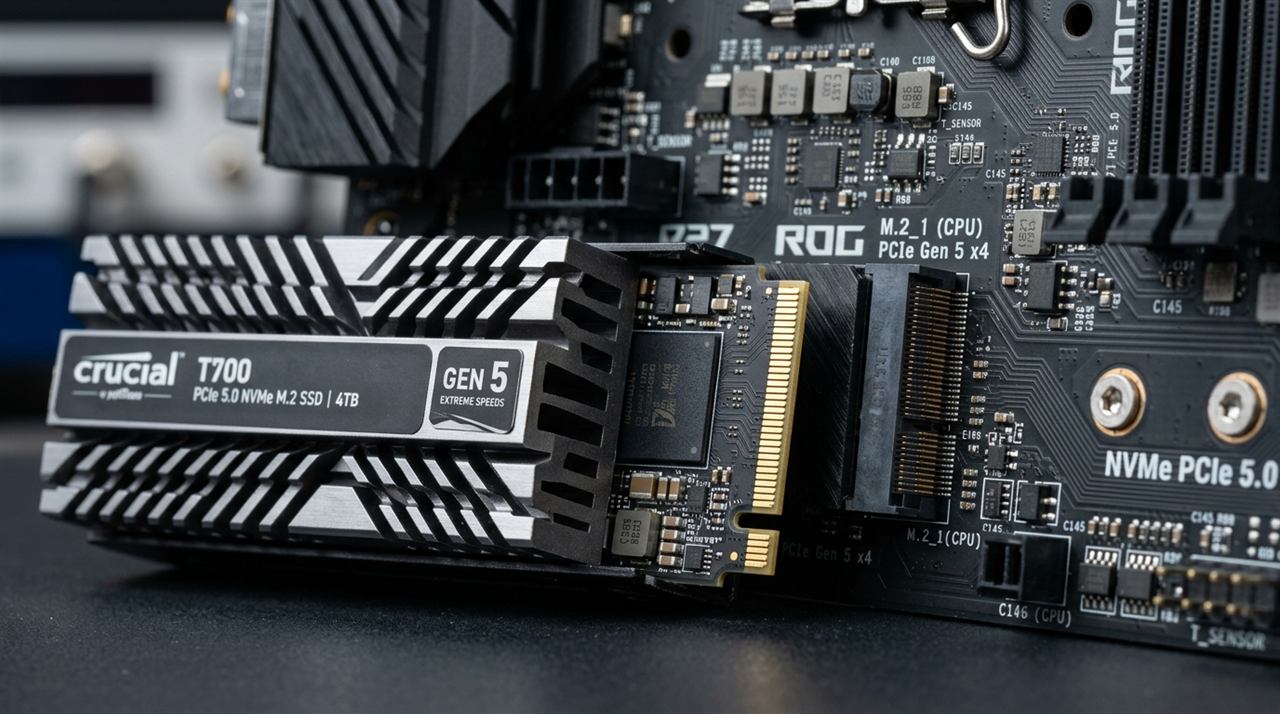
What about PCIe 5.0? Drives like the Crucial T705 put up eye-popping sequential numbers (up to 14,500 MB/s reads in synthetic bursts), but their sustained behavior reveals a major catch. Once its ~220GB pseudo-SLC buffer fills up during a massive render, write speeds briefly settle to ~4,000 MB/s, and then crash down to 1,000–1,200 MB/s during SLC folding (when the controller must simultaneously clear the cache and write new data) — which is actually slower than the steady-state direct writes of a 990 Pro. Furthermore, Gen 5 drives draw up to 11–14W and run hot enough to throttle aggressively without active cooling or a massive heatsink. Unless you regularly ingest uncompressed 6K or 8K RAW cinema footage, PCIe 5.0 drives are generally not worth the price and thermal penalty for daily editing.
Separate Your Drives: The 3-Drive Architecture
This is the single biggest workflow improvement you can make, and most people skip it.
When your OS, NLE software, raw source media, and DaVinci Resolve cache are all fighting for bandwidth on the same physical SSD, the controller's queues get jammed. Resolve's render cache is especially aggressive — it writes gigabytes of uncompressed scratch data while you're simultaneously scrubbing multi-angle camera feeds.
The ideal professional editing storage setup:
- Drive 1 (OS + Applications): A reliable 1TB NVMe drive (a solid DRAMless TLC drive like the WD Blue SN580 or TeamGroup MP44L is completely fine here, as OS duties are light).
- Drive 2 (Project Media & Assets): A 2TB or 4TB high-speed TLC drive with DRAM (Samsung 990 Pro or WD Black SN850X). This drive exclusively reads your raw video footage and audio tracks.
- Drive 3 (Scratch Disk / Render Cache): A dedicated 1TB or 2TB high-end NVMe drive assigned strictly to your NLE's cache folder, scratch disk, and proxy files. Separating the cache write-stream from the media read-stream prevents timeline dropped frames.
- Archive (Cold Storage): A large external HDD array, NAS, or SATA SSD for archiving completed client projects.
NVMe vs SATA: When Does It Actually Matter?
For 1080p H.264 or H.265 editing, SATA is genuinely fine. A 550 MB/s SATA SSD easily handles compressed 8-bit or 10-bit video streams.
However, the moment you step up to 10-bit 4:2:2 ProRes, DNxHR, or uncompressed RAW footage, NVMe's sustained throughput becomes non-negotiable. More importantly, NVMe drives support up to 65,535 I/O queues with 65,536 commands each (via PCIe lanes), whereas legacy SATA AHCI is limited to a single queue of 32 commands. When an editing suite reads multiple video tracks while rendering background audio waveforms, NVMe prevents the I/O pipeline from stalling.
Don't Worry About TBW
People often worry about TBW (Terabytes Written) ratings for editing drives, but in practice, modern high-end TLC drives outlast normal workstation lifecycles.
A heavy professional workflow might write 150GB per working day in scratch files, proxies, and exports. Across 250 working days a year, that totals approximately 37.5TB written annually. A 2TB Samsung 990 Pro is rated for 1,200 TBW. At that relentless pace, you would need over 30 years to hit the warranty endurance limit. Focus on sustained write speed, onboard DRAM, and effective M.2 cooling rather than obsessing over TBW.
Related Guides
← Back to home