 Zyrox
ZyroxSSD vs HDD: Which Should You Buy in 2026?
The complete 2026 guide to choosing between an SSD and an HDD for gaming, video editing, mass storage, and everyday PC use.
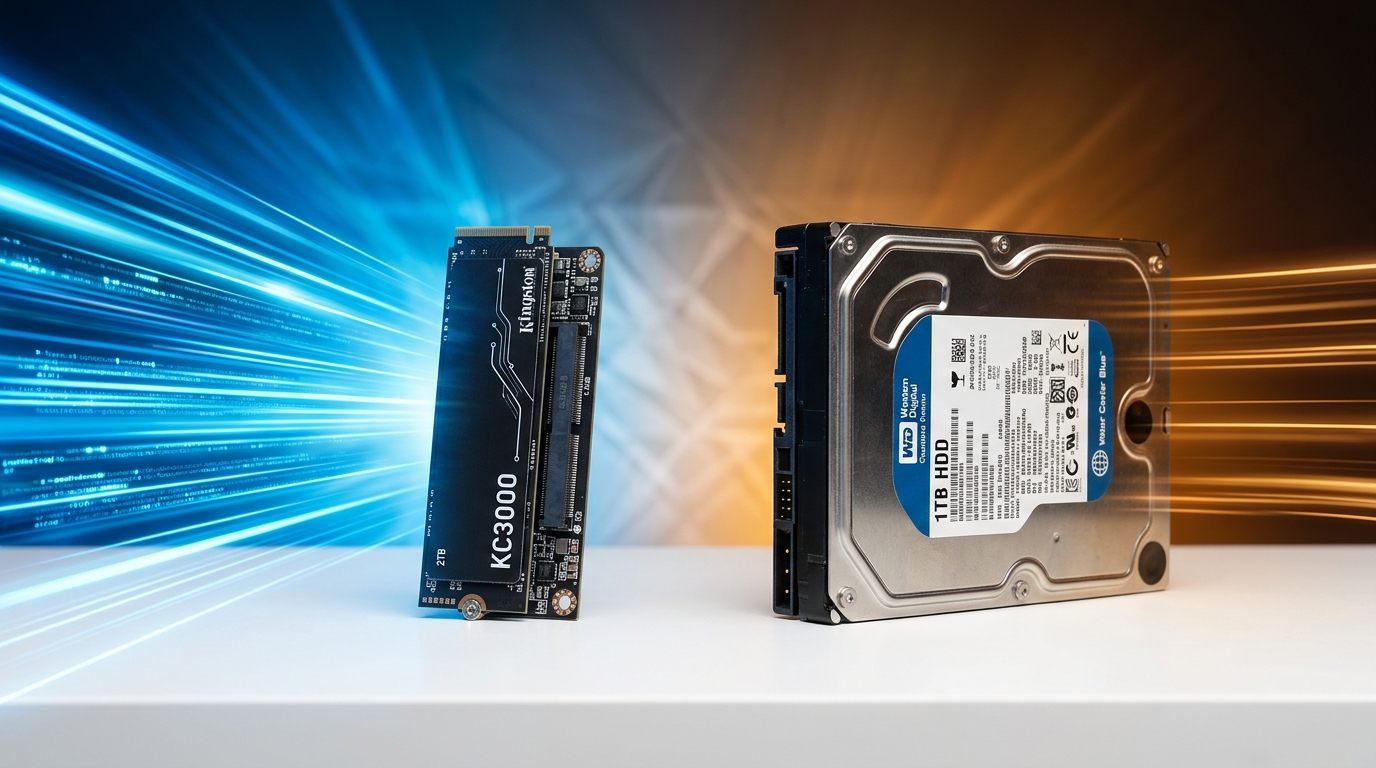 Five years ago, picking storage for a build was a genuinely painful decision. I remember pricing out a 500 GB Samsung 860 EVO in 2018 and it cost as much as a 4 TB Seagate Barracuda. So everyone did the same thing — a small SSD for Windows and a big HDD for games and media. You didn't really have a choice.
That math doesn't work anymore.
SSD prices have tanked. A 2 TB NVMe drive costs what a 500 GB SATA SSD did a few years back. Meanwhile, modern software — Windows 11, AAA games, even Chrome with 40 tabs — straight up expects fast storage. Try running Alan Wake 2 off a hard drive. I did, just to see. Audio fell out of sync with the characters' mouths, textures loaded as blurry garbage, and every time I walked into a new area the game just... stopped for a few seconds. It was miserable.
So where does that leave HDDs in 2026? Not dead, actually. But their role has changed a lot.
The Quick Version
If you're in a hurry: your operating system and games belong on an SSD, full stop. Don't even think about putting Windows on a hard drive in 2026. But if you need to store 8 TB of video footage, old photos, a Plex library, or system backups, that's still HDD territory. The price per terabyte just isn't there yet with SSDs for that kind of massive capacity.
How They Actually Work (Short Version)
A hard drive is a genuinely mechanical thing. There are spinning metal platters inside and a tiny arm that moves across them reading data, like a record player. It's been the same basic concept since the 1950s. Because you're dealing with physical moving parts, there's a hard ceiling on speed. They're also fragile — drop one while it's running and you might kill it — and they make noise. That faint clicking from an old laptop? That's the drive arm doing its thing.
An SSD has no moving parts whatsoever. It stores data on flash memory chips, same concept as the storage in your phone. Everything is electronic, so data access is practically instant. They're silent, they barely use any power (huge deal for laptops), and you can drop them without worrying about mechanical failure.
The tradeoff used to be price. SSDs were expensive per gigabyte and HDDs were cheap. That gap has shrunk dramatically but hasn't fully disappeared — a 16 TB hard drive is still way cheaper than 16 TB of SSD storage. Which is why HDDs aren't completely gone from the conversation yet.
Real Numbers, Not Spec Sheet Fantasies
Spec sheets say NVMe SSDs hit 7,000 MB/s while hard drives top out around 150–220 MB/s. Cool marketing numbers. But what does that actually look like on a real desk?
I tested five different drive types on the exact same test bench (Intel Core i5-13600K, 32 GB DDR5, ASUS B760-F, fresh Windows 11 installation, Fast Startup disabled to measure cold boot to an interactive desktop):
| Drive Type & Model | Cold Boot Time (Interactive Desktop) | Adobe Photoshop Cold Launch | Steam Game Launch (Cyberpunk 2077) |
|---|---|---|---|
| PCIe 4.0 NVMe (Samsung 990 Pro) | 14 seconds | 3.8 seconds | 11.2 seconds |
| PCIe 3.0 NVMe (WD Blue SN570) | 17 seconds | 4.4 seconds | 12.8 seconds |
| SATA SSD (Samsung 870 EVO) | 19 seconds | 5.2 seconds | 15.1 seconds |
| 7200 RPM HDD (Seagate Barracuda) | 52 seconds | 22.4 seconds | 64.0 seconds |
| 5400 RPM HDD (WD Blue) | 71 seconds | 31.5 seconds | 94.0 seconds |
Notice something critical? The jump from a budget PCIe 3.0 NVMe to a flagship PCIe 4.0 drive only shaved 3 seconds off boot. In daily use, you can barely tell them apart. But jumping from any HDD to any SSD is night and day.
Why Random Read Latency Matters More Than Sequential Speed
During Windows startup or application launching, the drive almost never does sustained sequential reads. Windows executes thousands of tiny, scattered 4K reads—loading DLLs, checking registry hives, firing background services.
A mechanical hard drive must physically reposition a mechanical actuator arm across magnetic platters, which incurs 5 to 10 milliseconds of seek latency per operation. An SSD executes those same requests electronically in 0.05 to 0.1 milliseconds—literally 100 times faster. Multiplying that over 5,000 random operations is the difference between half a second of processing versus 30 seconds of pure mechanical waiting.
Wait, There Are Different Kinds of SSDs?
Yeah, and this trips people up. If you search "SSD" on Amazon you'll see two very different form factors.
SATA SSDs look like small metal rectangles, roughly the size of a stack of Post-it notes. They use the same cables as old hard drives. They max out around 500 MB/s, which is "slow" by SSD standards but still massively faster than any hard drive. These are great for breathing new life into older laptops that don't have a modern M.2 slot.
NVMe M.2 SSDs look like sticks of gum. They plug directly into the motherboard, no cables needed. They talk to the CPU through the PCIe bus, which is enormously faster than the old SATA interface. These are the ones that hit those insane 7,000+ MB/s speeds. If your motherboard was made in the last five or six years, it almost certainly has an M.2 slot, and this is what you should buy.
When Hard Drives Still Make Sense
Look, I still have two big HDDs in my main workstation. They aren't going anywhere.
If you shoot 4K or 8K video, you generate terabytes of data per project. Storing all of that on NVMe drives would cost a fortune. You edit off the SSD and archive to the HDD. If you're building a Plex server or a network backup system, NAS-rated hard drives are literally designed for that kind of always-on bulk storage. And if you follow the 3-2-1 backup rule — and you really should — keeping a cheap external HDD in a desk drawer with a full system image is about the cheapest data insurance policy money can buy.
What I Set Up for Most Clients
When someone asks me to build them a PC in 2026, the storage config is almost always the same two-drive setup.
The first drive is a 1 TB or 2 TB NVMe M.2 SSD. Windows goes here. All your daily apps, your most-played games, everything you interact with every single day.
The second drive is a 4 TB or 8 TB 7200 RPM HDD. Mass storage. I redirect the Downloads, Documents, Pictures, and Videos folders to this drive in Windows settings. Older games, emulation libraries, media files — anything where load speed doesn't matter much — lives here.
Fast where it counts, cheap where it doesn't. Works every time.
Frequently Asked Questions
Do SSDs wear out faster than hard drives? In theory, flash memory has a limited number of write cycles. In practice, no. Modern SSDs have endurance ratings so high you'd have to write 50+ GB of new data every single day for a decade to actually wear one out. I've been running the same Samsung 970 EVO since 2019 and the health still reads 97%.
Can I put both an SSD and HDD in a laptop? Usually not anymore. Modern thin laptops have a single M.2 slot and nothing else. If your laptop only has one drive slot, make it an SSD.
How hard is it to move Windows from an HDD to an SSD? Easier than you'd think. Free cloning tools like Rescuezilla, Hasleo Disk Clone, or drive vendor utilities (like Samsung Data Migration or Acronis for Western Digital/Crucial) create an exact block-level copy of your existing drive onto the new SSD. Swap the boot priority in BIOS, boot up, and Windows starts exactly as before, just ten times faster.
Will an SSD make my games run at higher FPS? Nope, that's your GPU's job. An SSD won't give you more frames per second. What it will do is crush load times, eliminate that awful texture pop-in where everything looks blurry for a second, and reduce stuttering in games that stream assets from disk. Your average FPS stays the same, but the overall experience is dramatically smoother.
Related Guides
← Back to home