 Zyrox
ZyroxHow to Choose the Right SSD for Your PC Without Paying for the Wrong Specs
A complete guide to choosing the right SSD for desktops and laptops. Covers NVMe vs SATA, form factors, DRAM caching, NAND types, and laptop-specific pitfalls.
 Storage buying advice is full of misdirection because manufacturers love to market sequential read speeds instead of actual user experience. The difference between a 3,500 MB/s NVMe drive and a 7,000 MB/s NVMe drive feels massive on paper, but in real desktop workloads the gap often amounts to a second or two during large file transfers. It's not the transformative experience the marketing implies. What matters most is whether the drive matches the job you are giving it.
I've tested a lot of SSDs across different workloads: gaming systems, video editing rigs, general office machines, and laptop upgrades. The patterns are always consistent. Capacity, interface compatibility, and NAND quality drive the decision far more than peak sequential numbers.
NVMe vs SATA vs HDD: Speed, Price, and Use Case
The interface your drive connects through determines its speed ceiling.
Standard SATA SSDs max out around 530-560 MB/s for reads. They're cheap (usually $65-$85 for 1TB) and perfect for secondary storage, budget builds, or upgrading old laptops that lack M.2 slots.
NVMe PCIe 3.0 drives are the sweet spot for most people, hitting around 3,300-3,600 MB/s. At $55-$75 for 1TB, they make excellent primary drives for gaming and general use.
If you step up to NVMe PCIe 4.0, you'll see speeds of 6,500-7,300 MB/s. These are pricier ($80-$110 for 1TB) and really shine in high-end gaming or content creation where you're shuffling massive files.
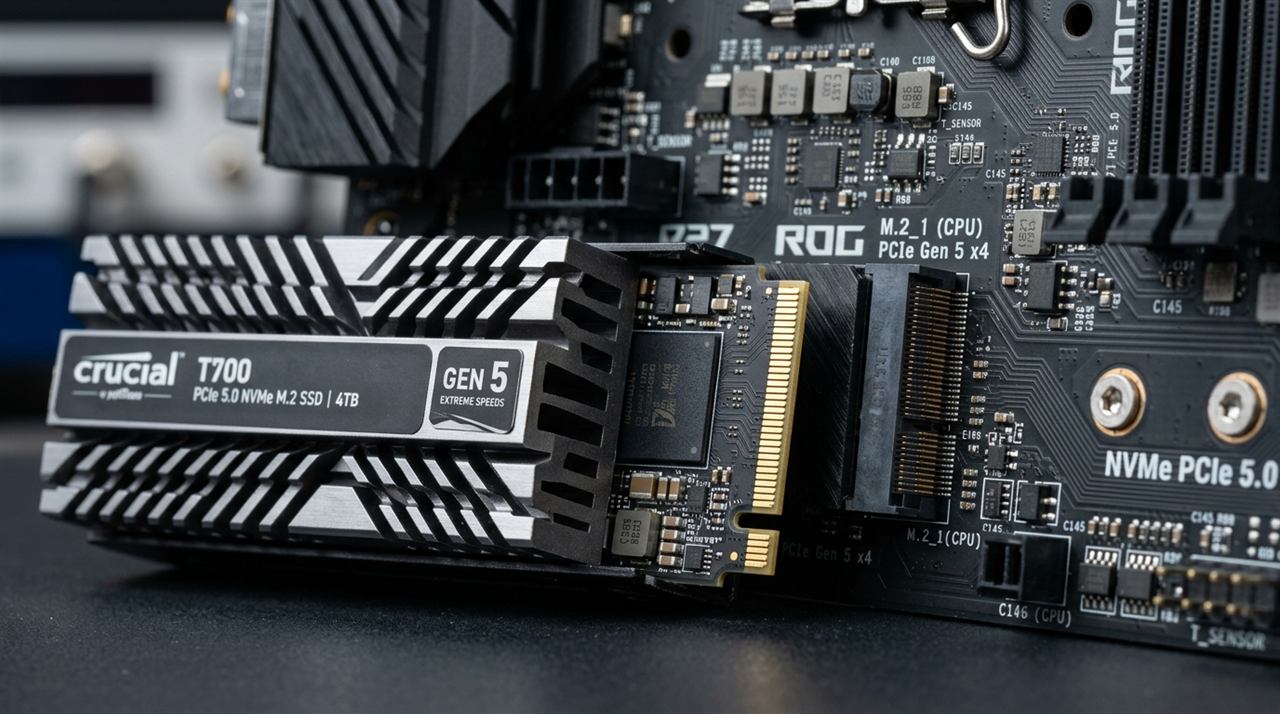
PCIe 5.0 drives exist and push 12,000+ MB/s, but at $150-$250 for 1TB, they're strictly for prosumer video production right now. And don't forget traditional HDDs — at $20-$30 per terabyte, they're still the undisputed kings of cheap bulk storage for backups and media archives.
The jump from SATA to NVMe PCIe 3.0 is the most impactful upgrade most users can make. The jump from PCIe 3.0 to PCIe 4.0 is real in creative workloads, but pretty modest in everyday gaming and office use.
PCIe Generation Compatibility: What Your System Actually Supports
This is the most common mistake in SSD purchases. A PCIe 4.0 NVMe drive installed in a PCIe 3.0 M.2 slot will work — but it will run at PCIe 3.0 speeds. You pay for the faster drive and get the slower slot's performance.
Check your motherboard manual. If you have an Intel 12th/13th/14th Gen or AMD Ryzen 5000/7000 series board, your primary slot is likely PCIe 4.0 or 5.0. But older platforms are capped at PCIe 3.0. Buying a PCIe 4.0 drive for a 3.0 board isn't wrong, but there is no point paying the premium if a quality PCIe 3.0 drive will give you the exact same real-world performance for less money.
The M.2 Form Factor Problem: 2280, 2242, and 2230
"M.2" is a connector standard, not a specific drive size. When someone says "M.2 SSD," they could mean three completely different physical dimensions, and only one of them will fit in your slot.
M.2 2280 is 22mm wide and 80mm long. This is the most common size. If you have a desktop motherboard or a laptop made after 2018 with an M.2 slot, it almost certainly takes a 2280. Samsung 990 Pro, WD Blue SN580, SK Hynix P41 — they're all 2280.
M.2 2242 is half as long. You'll find this in some older ThinkPads and a handful of business laptops that prioritized compactness. Fewer drives come in this size, and they tend to be limited to SATA or lower-tier NVMe.
M.2 2230 is tiny. Originally for tablets, it's now showing up in the Surface lineup, the Steam Deck, and some newer Dell XPS and HP models. The WD SN740 is one of the few good NVMe drives available in this size.
Here is the point I really want to hammer home: if you buy a 2280 drive for a slot that only accepts 2230, it physically will not fit. There is no adapter, no workaround. You just wasted your money. Always check your device's service manual or open the bottom panel and look at the existing drive before ordering.
SATA M.2 vs NVMe M.2: They Look the Same But They're Not
This trips up more people than anything else. SATA M.2 and NVMe M.2 drives physically use similar-looking connectors. They can look nearly identical sitting next to each other on a shelf. But they speak completely different electrical languages.
SATA M.2 uses the old SATA protocol, maxing out at about 550 MB/s. Many older laptops and budget systems only support SATA on the M.2 slot. If you jam an NVMe drive in there, the system simply won't see it.
NVMe M.2 uses the PCIe bus and starts at around 2,400 MB/s on Gen 3 and goes up to 7,000+ MB/s on Gen 4.
The connector difference is subtle but real. SATA drives usually have notches on both sides of the connector edge (called B+M key). NVMe drives have a single notch on one side (M key). Some slots accept both types, others accept only one.
Before buying anything, you need to figure out which type your system supports. The easiest way: download CrystalDiskInfo (free, portable, no install needed), open it, and look at the "Interface" field. It will clearly say either "NVMe" or "SATA." Cross-reference with your manual for the physical size, and you're set.
DRAM vs DRAM-less: The Real-World Performance Difference
This is where budget drives cut corners in ways spec sheets rarely highlight. SSDs must constantly track where your files physically reside on flash memory using a mapping table called the Flash Translation Layer (FTL). The speed and location of this table dictates how quickly the drive handles random access:
DRAM-based (Dedicated Cache): The drive features dedicated onboard DDR4 or LPDDR4 memory (typically 1GB of DRAM per 1TB of storage). The entire FTL mapping table resides in instant-access memory. Drives like the Samsung 990 Pro or WD Black SN850X use this layout, delivering consistent low-latency response times, high sustained random 4K write speeds, and zero stutter during multitasking or heavy background file indexing.
DRAM-less with HMB (Host Memory Buffer): To cut costs, the SSD controller eliminates the onboard DRAM chip and instead utilizes the NVMe specification's Host Memory Buffer feature to borrow a tiny slice (typically 64MB) of your computer's system RAM over the PCIe bus. Drives like the WD Blue SN580, TeamGroup MP44L, or Lexar NM790 use HMB. For gaming, web browsing, and general PC use, HMB performs remarkably close to dedicated DRAM. However, during extreme sustained mixed workloads (like compiling massive codebases or scrubbing complex video timelines), latency can fluctuate when the HMB buffer exhausts.
DRAM-less without HMB: The lowest tier, common in cheap SATA drives (or NVMe drives placed in external USB enclosures where HMB is stripped away). Because there is no DRAM and no host RAM access, the drive must constantly read and write its mapping table directly to flash memory. This causes massive write amplification, severe latency spikes, and system freezes during background file transfers. Avoid these for primary boot drives.
For a pure gaming PC or secondary storage, DRAM-less with HMB is completely sufficient and cost-effective. For a primary OS drive running heavy creative applications or workstation tasks, invest in a drive with dedicated onboard DRAM.
QLC vs TLC vs MLC NAND: What the Cell Type Means for You
The actual memory chips on the drive come in different types, affecting endurance and sustained speeds.
TLC (Triple-Level Cell) is what you want. It's the industry standard for consumer SSDs. It offers a great balance of speed and endurance (usually around 600-1,000 Terabytes Written for a 1TB drive). You'd have to try really hard to wear one of these out in a decade of normal use.
QLC (Quad-Level Cell) crams more data into the same space, making it cheaper but less durable (around 300 TBW). It also slows down significantly when you write a ton of data at once. QLC is fine for a cheap secondary game drive, but I don't recommend it for your primary OS drive.
(You might also hear about SLC and MLC, but those are either incredibly expensive enterprise tech or older tech you rarely see in modern consumer drives.)
Laptop SSD Buying: The Hidden Pitfalls
Buying an SSD for a laptop is genuinely harder than buying one for a desktop. Not because the technology is more complex, but because the constraints are invisible until you get it wrong.
PCIe Gen Limits in Laptops
On a desktop with a modern motherboard, you can buy a PCIe Gen 5 NVMe drive and hit 12,000+ MB/s sequential reads. On almost every current laptop, that same drive will run at Gen 4 or even Gen 3 speeds regardless. Most laptop CPUs — even current AMD Ryzen mobile and Intel 13th Gen chips — route the M.2 slot through PCIe Gen 4 at best. Many budget laptops are still capped at Gen 3. Buying a PCIe Gen 5 drive for a laptop is literally pointless — save that money and buy a well-regarded Gen 4 drive instead.
The Single-Sided vs. Double-Sided PCB Clearance Trap
This is one of the costliest mistakes laptop owners make when upgrading to 2TB or 4TB drives:
Many laptops (especially thin-and-light ultrabooks, Lenovo ThinkPads, and Asus Zephyrus models) have tiny capacitors and soldered motherboard chips situated directly beneath the M.2 standoff. They only physically accommodate single-sided M.2 SSDs (where all NAND flash chips and the controller are soldered on the top face of the PCB).
If you purchase a high-capacity drive with components on both sides (double-sided PCB), screwing the drive down will cause it to bend violently or crush against surface components, shorting out your board. Always check whether your replacement drive is single-sided before buying for a laptop.
The Heat and Throttling Problem in Laptops
High-performance NVMe drives generate intense localized heat on their controller die. On a desktop with a heavy metal motherboard heatsink and direct fan airflow, that heat dissipates easily. In a sealed 15mm laptop chassis with two tiny blower fans already saturated by CPU and GPU heat, an uncooled controller easily exceeds 80°C.
When an SSD overheats, it enters aggressive thermal throttling to prevent chip damage. A PCIe Gen 4 drive that advertises 7,000 MB/s on a test bench can drop down to 1,500–2,000 MB/s within 45 seconds of sustained heavy write loads.
- Best for cool laptop operation: The SK Hynix Platinum P41 (or Gold P31 for Gen 3) remains the gold standard in thermal and electrical power efficiency.
- Top budget laptop pick: The WD Blue SN580 (single-sided, exceptional idle power draw, runs cool without needing a chunky heatsink).
Five Drives Worth Considering (And the NAND Lottery Warning)
Samsung 990 Pro (NVMe PCIe 4.0 — Workstation King) — The benchmark for demanding tasks. Equipped with in-house Pascal controller, dedicated LPDDR4 DRAM, and proven TLC NAND. Sustains high transfer rates without dropping off a cliff during massive video renders. (~$100–$120 for 1TB).
WD Black SN850X (NVMe PCIe 4.0 — Gaming Champion) — The top gaming-focused drive. Features dedicated Game Mode 2.0 predictive loading and handles DirectStorage asset streaming with ease. Validated for PS5 expansion (needs heatsink version). (~$95–$120 for 1TB).
WD Blue SN580 or TeamGroup MP44L (NVMe PCIe 4.0 — Smart Budget Picks) — The smartest value options. Both use efficient 4-channel controllers and Host Memory Buffer (HMB) with guaranteed TLC flash. They consistently maintain 4,100 to 5,000 MB/s without thermal headaches. ($60–$75 for 1TB).
The Warning on Ultra-Budget Drives (Kingston NV2 / NV3): Beware of ultra-cheap drives like the Kingston NV2 and NV3. Manufacturers often use a "hardware lottery" on these lines, swapping controllers (Phison, Silicon Motion, or Maxio) and alternating between TLC and QLC NAND without changing the model name. While fine for light secondary storage, once their temporary pseudo-SLC cache fills up during a large 80GB game install, write speeds can crater to 60–100 MB/s — slower than an old mechanical hard drive.
Crucial MX500 or Samsung 870 EVO (2.5-Inch SATA) — If you are reviving an older PC or laptop lacking an M.2 slot, these are the only two SATA drives worth your money. Both feature dedicated onboard DRAM and reliable endurance. (~$65–$80 for 1TB).
How Much Storage Do You Actually Need?
For a laptop in 2026, 512GB is technically workable but increasingly tight. The OS eats a chunk, app updates keep growing, and if you play even a couple of games, you'll be constantly managing space. 1TB is the comfortable baseline now, and the price difference between 512GB and 1TB has shrunk to the point where 512GB rarely makes sense anymore.
For desktops, start with a 1TB NVMe for the OS and apps, and add a 2TB drive for games and media if you need it. Storage is cheaper than it's ever been — don't be stingy with capacity and then spend six months deleting stuff to make room.
Primary vs. Secondary Drive Requirements
Your boot drive needs to be fast and responsive. Always prioritize a drive with a DRAM cache, TLC NAND, and PCIe 3.0 or 4.0 speeds. 1TB is the comfortable minimum today.
For a secondary drive holding your Steam library or media, capacity per dollar is the only thing that matters. A cheap SATA or budget NVMe drive (even one with QLC NAND) is perfectly fine for just reading data.
Don't overpay for specs you won't feel. Match the drive to the job, and save your budget for a better GPU.
Related Guides
← Back to home