 Zyrox
ZyroxWhy Your PC Feels Slow Even When the CPU Is Fast
A practical breakdown of why modern PCs feel laggy, including storage bottlenecks, thermal throttling, background services, and memory pressure.
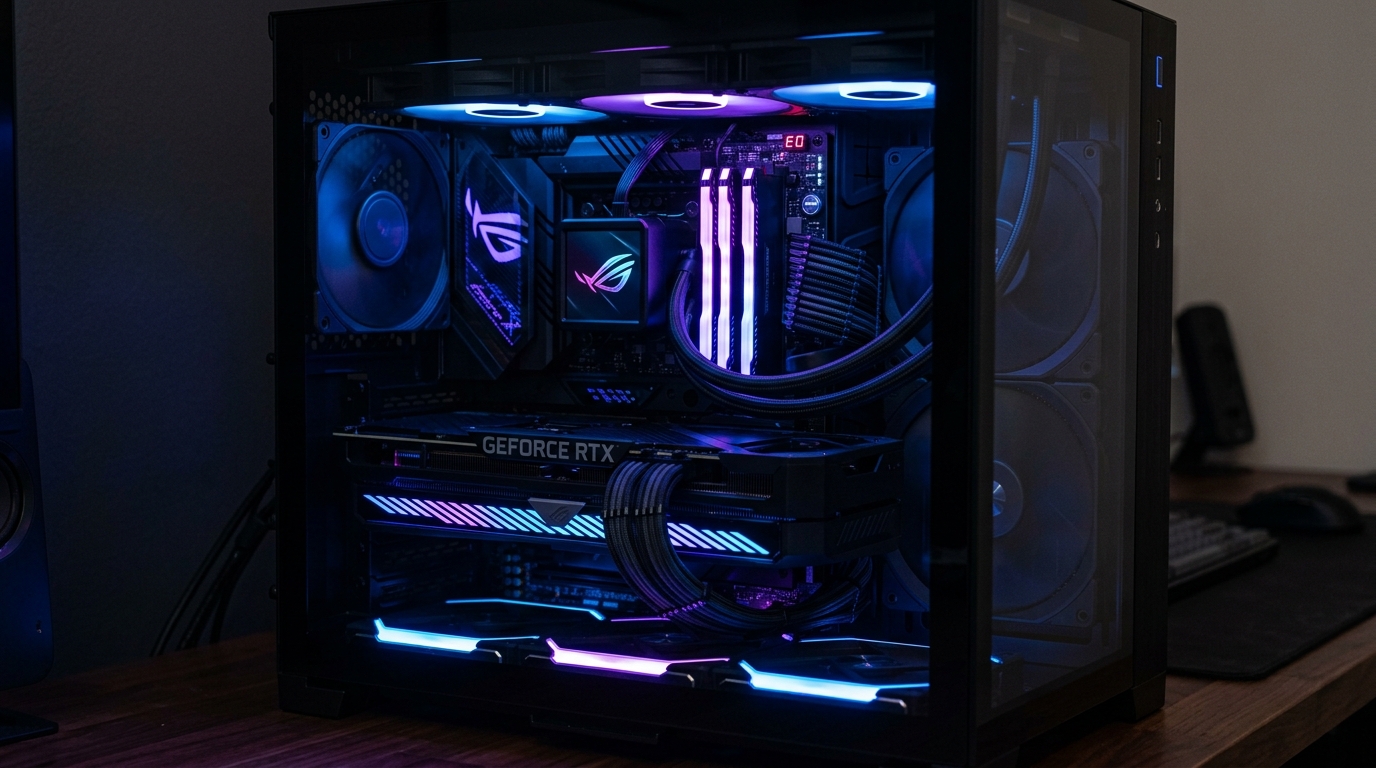 I upgraded a friend's CPU a few years ago, moving from an aging Core i5 to a powerful Core i7. It was a straightforward swap on the same motherboard. In synthetic benchmarks, the performance gains were massive. But when he actually sat down to use the machine? It still felt incredibly slow. Browsers hesitated. Applications took too long to open. The entire desktop felt sluggish.
The CPU wasn't the problem. The spinning mechanical hard drive was.
This is the most common misconception in PC building: assuming the CPU is the brain of the computer and therefore the only thing that dictates how fast the system feels. In reality, a blistering fast CPU sitting behind a mechanical hard drive, starved of RAM, or choked by heat will feel terrible regardless of its clock speed. Here is a look at the actual bottlenecks holding your fast processor back.
The Storage Chokehold
A standard 7200 RPM hard drive is abysmally slow at reading small, random files—the exact kind of files Windows accesses constantly to update the UI and load applications. An NVMe SSD is hundreds of times faster at this specific task.
If your operating system is installed on a hard drive, your CPU is essentially spending all of its time waiting. The processor is incredibly fast, but it sits idle for seconds at a time while the mechanical drive arm slowly searches for the next piece of data. If your Task Manager shows your Disk usage pinned at 100 percent while the computer feels frozen, the CPU isn't your issue. Buy an SSD. It is the single most transformative upgrade you can make.
The RAM Pressure Cooker
Windows 11 easily consumes 3 to 4GB of RAM just idling on the desktop. If your system only has 8GB of RAM, and you open a heavy browser, a chat app, and Spotify, you are going to run out of memory.
When physical RAM is full, Windows starts using a "page file" on your storage drive as overflow memory. Even on an SSD, accessing this page file is dramatically slower than accessing actual RAM. On a mechanical hard drive, page file access will cause your system to literally lock up for seconds at a time. Your CPU is fast, but it is waiting on a memory subsystem that is completely overwhelmed. Upgrading from 8GB to 16GB of RAM eliminates this pressure entirely for everyday tasks.
The Invisible Enemy: Thermal Throttling
Modern processors from Intel and AMD are designed to push themselves to the absolute limit. When they approach their maximum safe temperature (usually around 95°C to 105°C), they aggressively reduce their clock speed to prevent catastrophic damage.
A Core i7 that normally boosts to 5.4GHz might plummet to 3.0GHz if your CPU cooler is clogged with dust or just fundamentally inadequate. This is thermal throttling. Your processor is perfectly capable of being fast, but it is intentionally slowing itself down to survive. You can confirm this by running a heavy workload and watching the clock speeds and temperatures in HWiNFO64. If the temps hit 95°C and the speeds drop, you need a better cooler or fresh thermal paste, not a new CPU.
Death by a Thousand Background Apps
Over time, Windows accumulates background processes. A fresh install is lean, but after a year of installing game launchers, cloud sync tools (like OneDrive and Google Drive), RGB lighting software, and utility apps, your background CPU and memory consumption creeps up.
The problem isn't usually one massive rogue application; it is the aggregate. If fifteen background apps each use 1 percent of your CPU at idle, you've lost a significant chunk of your processing power before you even open a browser. Open the Startup tab in Task Manager and disable everything that you do not strictly need launching the second you turn on the computer.
Broken Display Pipelines
Sometimes a fast PC feels stuttery and laggy simply because the GPU drivers are corrupted. A bad graphics driver doesn't just ruin gaming performance; it ruins the entire Windows desktop experience. If dragging a window feels choppy, or scrolling stutters, and your CPU and RAM usage look completely normal, the display pipeline is broken.
The fix is straightforward. Download a tool called Display Driver Uninstaller (DDU), boot into Windows Safe Mode, completely wipe the existing graphics drivers, and install a fresh set directly from Nvidia or AMD. This clears out all the corrupted caches and usually restores the buttery smooth desktop experience a fast CPU is supposed to deliver.
Related Guides
← Back to home