 Zyrox
ZyroxWhy Your PC Feels Slow Even When It Has Good Specs (or Fast CPU)
Discover why a high-spec PC feels slow or stutters. Diagnose DPC latency, storage bottlenecks, RAM pagefile thrashing, thermal throttling, and background resource hogs.
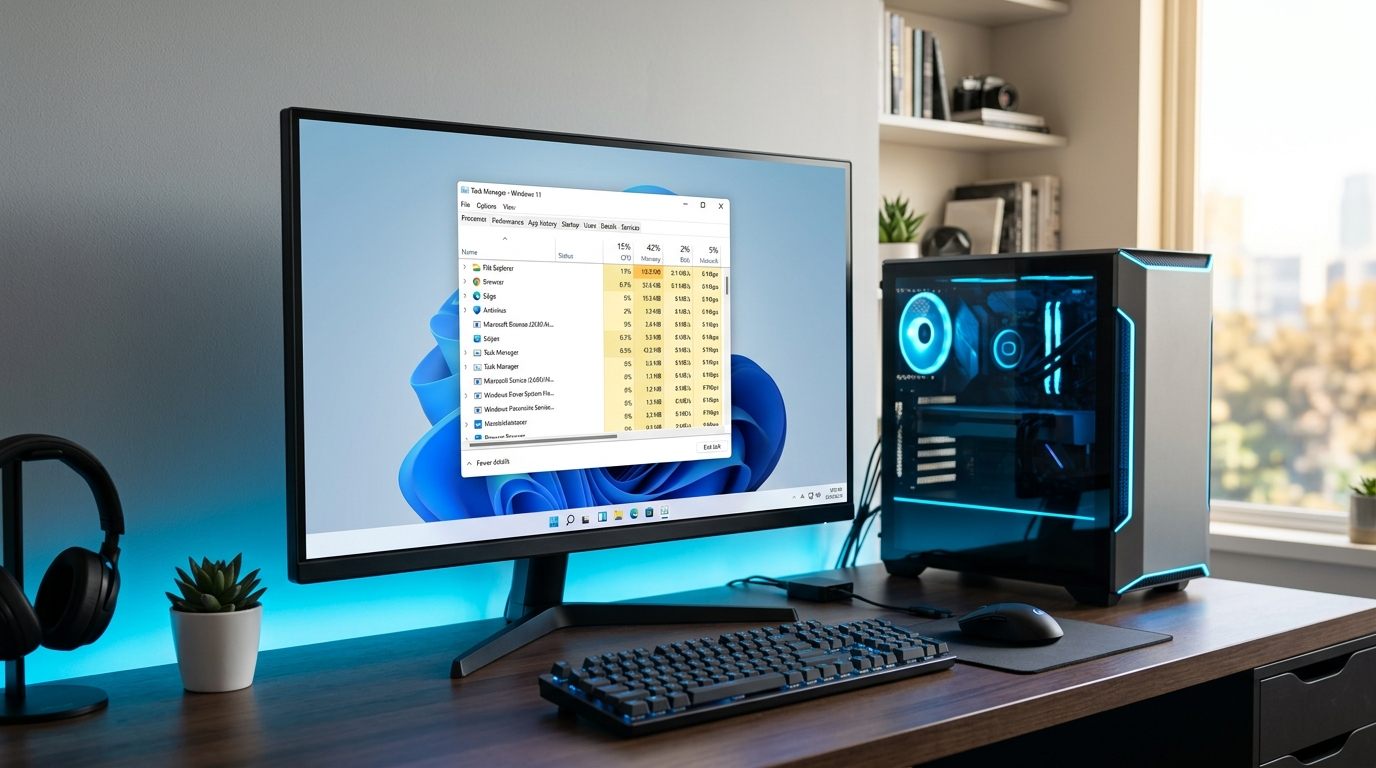 I once helped troubleshoot a computer equipped with a Ryzen 7 5800X, 32GB of RAM, and an RTX 3070. On paper, it was an incredibly capable system, well above the average for gaming and creative work. In reality, it felt like wading through molasses. The desktop was choppy, applications hesitated before opening, and gaming sessions stuttered in ways that made absolutely no sense given the hardware.
The cause wasn't the specs. The system drive was a dying SATA SSD that was silently failing. The CPU's thermal paste was dried to dust, causing it to overheat instantly. The Nvidia drivers hadn't been cleanly installed in two years, and the Task Manager startup tab was a graveyard of forgotten applications fighting for resources every time the PC booted.
Every component on the spec sheet was powerful, but the real-world experience was terrible. "Good specs" do not automatically translate to a fast system if the software and environment are working against the hardware. Here is how to track down the hidden culprits making your high-end PC feel slow.
The Hidden Resource Vampires
A clean Windows 11 installation idles around 3.5 to 4GB of RAM with default security services and DWM running. On a system that has been used for a year, background autostarts easily inflate that to 6GB to 8GB at idle. This isn't because of one massive rogue application; it is death by a thousand cuts.
Background processes like Microsoft Teams, Discord, three different cloud sync tools (OneDrive, Google Drive, Dropbox), the Adobe Creative Cloud daemon, and various RGB lighting utilities all add up. None of them individually kill performance, but together they raise your baseline resource usage, leaving less CPU time and memory for the things you actually want to do.
You also have to consider malware. Modern cryptomining malware is designed to be invisible. It won't freeze your system entirely; it just quietly siphons off 10 to 15 percent of your CPU cycles while you aren't looking. If your CPU usage is constantly elevated at idle and you can't figure out why, malware is a legitimate suspect.
Driver Corruption and Thermal Throttling
Outdated or corrupted graphics drivers don't just ruin games; they break the entire Windows desktop rendering pipeline. A bad driver can cause your mouse to stutter, windows to lag when you drag them, and intermittent freezes that feel like hardware failure. Often, people assume their graphics card is dying when a simple, clean driver reinstall is all they need.
Then there is thermal throttling. High-end CPUs draw massive amounts of power. If your case has poor airflow or your cooler is inadequate, the CPU will hit its thermal limit (usually around 95°C) and forcefully reduce its clock speed to avoid melting. A processor advertised at 5.5GHz that throttles down to 3.2GHz under load will feel significantly slower than its spec sheet promises.
Diagnosing the Problem
To figure out what is actually dragging your system down, you need to use the right diagnostic tools.
Task Manager is your first stop, but Process Explorer (a free tool from Microsoft Sysinternals) is much better. It shows a full process tree, allowing you to see exactly what is running in the background. Look for processes you don't recognize consuming CPU time at idle, or anything lacking a verified company name.
If you suspect driver issues causing stuttering or audio crackling, use a free tool called LatencyMon. You let it run in the background for ten minutes, and it will pinpoint exactly which driver in the Windows kernel is causing latency spikes. Network adapters and audio drivers are incredibly common culprits for system-wide stuttering.
To check your storage health, use CrystalDiskInfo. If your SSD shows a "Caution" status or has any uncorrectable errors, the drive is failing and the controller is struggling to read data, which causes massive system hangups.
Finally, run HWiNFO64 to check for thermal throttling. Put your PC under a heavy load and watch the "CPU Core Clocks" and "CPU Package Temperature." If the temperature hits 95°C and the clock speeds plummet, you have a cooling problem, not a hardware capability problem.
The RAM Pagefile Pressure Cooker
Windows 11 easily consumes 3.5 to 4.5 GB of RAM just sitting on an idle desktop. If your system has 8 GB (or even 16 GB with multiple Chrome tabs, Discord, and a game running), available physical memory will rapidly deplete.
When RAM fills up, Windows swaps memory pages to your disk via pagefile.sys. Even on a fast NVMe SSD, accessing storage is several orders of magnitude slower than native RAM bus access. If your swap file resides on a SATA SSD or older drive, your entire system will stutter, freeze, and drop frames while the CPU sits idle waiting for memory paging. Upgrading to 32 GB of dual-channel RAM completely removes this chokehold.
Fixing the Mismatched Build
Sometimes a PC feels slow because the build is fundamentally unbalanced. Pairing a high-end RTX 4080 with an old Core i5-8400 creates a massive bottleneck. The graphics card is starved for data because the old CPU cannot prepare game logic fast enough, resulting in low frame rates despite the expensive GPU.
Memory configuration is another huge pitfall. If you have 16GB of RAM installed as a single stick, it runs in single-channel mode, effectively cutting your memory bandwidth in half. On systems with integrated graphics, this can destroy your performance. Always ensure your RAM is installed in pairs (dual-channel) according to your motherboard manual.
When to Just Start Over
Sometimes, the accumulation of broken registry entries, driver remnants, and overlapping software updates creates a mess that is impossible to untangle manually. If you have upgraded the same Windows installation for three years, and your startup time on an SSD is still over a minute despite cleaning up your apps, it is time for a fresh start.
A clean reinstall of Windows 11 from a USB drive takes about twenty minutes on a modern SSD. It wipes out all the accumulated software cruft and gives your hardware a completely clean slate to operate at the speeds it was actually designed for. If your hardware is good but the PC is slow, the software is the problem. Reset it.
Related Guides
← Back to home