 Zyrox
ZyroxHow to Check Your PC's Full Specs Without Installing Anything
Learn how to find your computer specs using built-in Windows tools. Check CPU, RAM, GPU, and storage details without downloading anything.
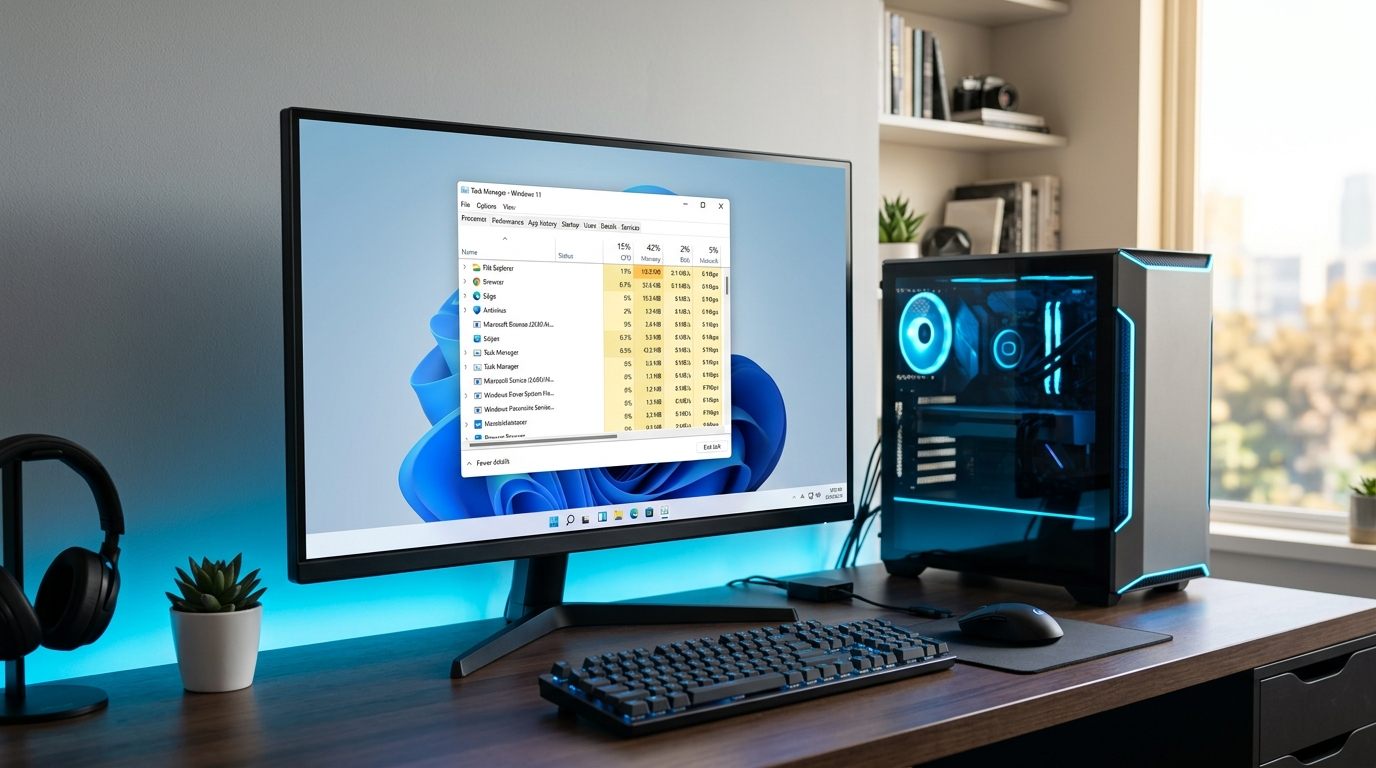 Whether you are trying to figure out if your laptop can run a new game, preparing to sell an old tower, or just asking a friend for troubleshooting advice, you have to know what is actually inside your computer.
Honestly, it always surprises me how many people have no idea what processor they own. Whenever I help friends with PC issues, the conversation usually starts with me asking, "What CPU do you have?" and them staring blankly at the wall.
To be fair, Windows doesn't make it super obvious. If you Google this, you'll find a hundred articles telling you to download third-party apps like CPU-Z or Speccy. Please don't do that. You do not need them.
Windows already has incredibly detailed hardware reporting tools baked right into the system. Here is how to find every component in your PC in a couple of minutes, without downloading random software.
1. The Basics: The Settings App
If you just need a quick overview—like your processor name, how much RAM you have, and what version of Windows you are running—the Settings app is your best friend.
Just right-click on the Start button and click System. This drops you right onto the About page.
Under "Device specifications," you will clearly see your Processor (like AMD Ryzen 7 5800X) and your Installed RAM. Scroll down a bit further, and you'll see your Windows specifications, confirming if you are on Windows 11 Home or Pro.
It's a great quick glance, but it's completely missing your graphics card and storage info. For that, we dig deeper.
2. The Gamer's Tool: Task Manager
If you are a gamer and need to check on your GPU, or if you want to see how hard your system is working in real-time, the Task Manager is fantastic.
Right-click the Start button again and select Task Manager (or just hit Ctrl + Shift + Esc). If it opens as a tiny window, click "More details" at the bottom.
Click over to the Performance tab (it looks like a little line graph). Now you can click through the categories on the left:
- CPU: Shows your exact processor model and core count.
- Memory: Shows your total RAM and its speed. More importantly, it shows "Slots used." If you see "2 of 4," it means you have two empty slots on your motherboard for an easy future upgrade.
- Disk: Shows your storage drives and tells you if they are SSDs or older HDDs.
- GPU: Finally, this shows the exact name of your graphics card in the top right, plus your dedicated VRAM at the bottom.
3. The Deep Dive: System Information (msinfo32)
Sometimes Task Manager isn't enough. If you are upgrading parts or trying to update your BIOS, you need to know your exact motherboard model.
Press the Windows Key + R to open the Run box, type msinfo32, and hit Enter.
This opens a very old-school looking window, but it is the master ledger of your PC. On the main System Summary page, look for two things:
- BaseBoard Manufacturer: The brand of your motherboard (like MSI or ASUS).
- BaseBoard Product: Your exact motherboard model (like MAG B650 TOMAHAWK WIFI).
You can also see your exact BIOS Version and Date here. I used this trick just last month to help a friend realize his motherboard firmware was three years out of date and desperately needed patching.
4. The Export Master: DirectX Diagnostic (dxdiag)
This is a legacy tool, but it remains one of the best ways to get a clean, exportable summary of your entire system to share with tech support.
Press the Windows Key + R again, type dxdiag, and hit Enter. (If it asks to check digital signatures, just click Yes, it doesn't matter).
You get a window divided into tabs. The "System" tab gives you the CPU and RAM, while the "Display" tab gives you hyper-detailed info on your graphics card and driver versions.
But the absolute best feature is the Save All Information button at the bottom. This generates a text file on your desktop with every single spec of your machine. If you are asking for help on Reddit or a tech forum, just copy and paste the contents of that text file. It gives the experts exactly what they need.
The Power User Shortcut: PowerShell
If you don't want to click through menus and just want the answers immediately, right-click the Start button, open Terminal (or PowerShell), and paste these commands.
Want your CPU?
Get-CimInstance Win32_Processor | Select-Object Name, NumberOfCores
Want your RAM details?
Get-CimInstance Win32_PhysicalMemory | Select-Object Capacity, Speed, Manufacturer
Want your GPU name?
Get-CimInstance Win32_VideoController | Select-Object Name, AdapterRAM
Want your motherboard model?
Get-CimInstance Win32_BaseBoard | Select-Object Manufacturer, Product
It spits out exactly what you need in plain text, instantly.
Final Warnings
Don't let the stickers on your laptop fool you. That shiny "Intel Core i7" sticker just tells you the brand, not the generation. A Core i7 from 2018 is going to get absolutely crushed by a modern Core i5. Always check the actual model number in Windows.
Also, be careful not to confuse integrated graphics with a real GPU. If Task Manager says "Intel Iris Xe" or "AMD Radeon Graphics" without a specific model number attached, you don't have a dedicated gaming card—you just have basic graphics built into your processor.
And seriously, stop downloading sketchy "system scanner" apps. Windows already knows exactly what hardware it's running on; you just needed to know where to look!
Related Guides
← Back to home