 Zyrox
ZyroxHow to Free Up Disk Space on Windows Without Deleting Your Files
Running out of storage? Learn how to safely free up gigabytes of disk space on Windows 11 by clearing hidden caches, temp files, and system bloat.
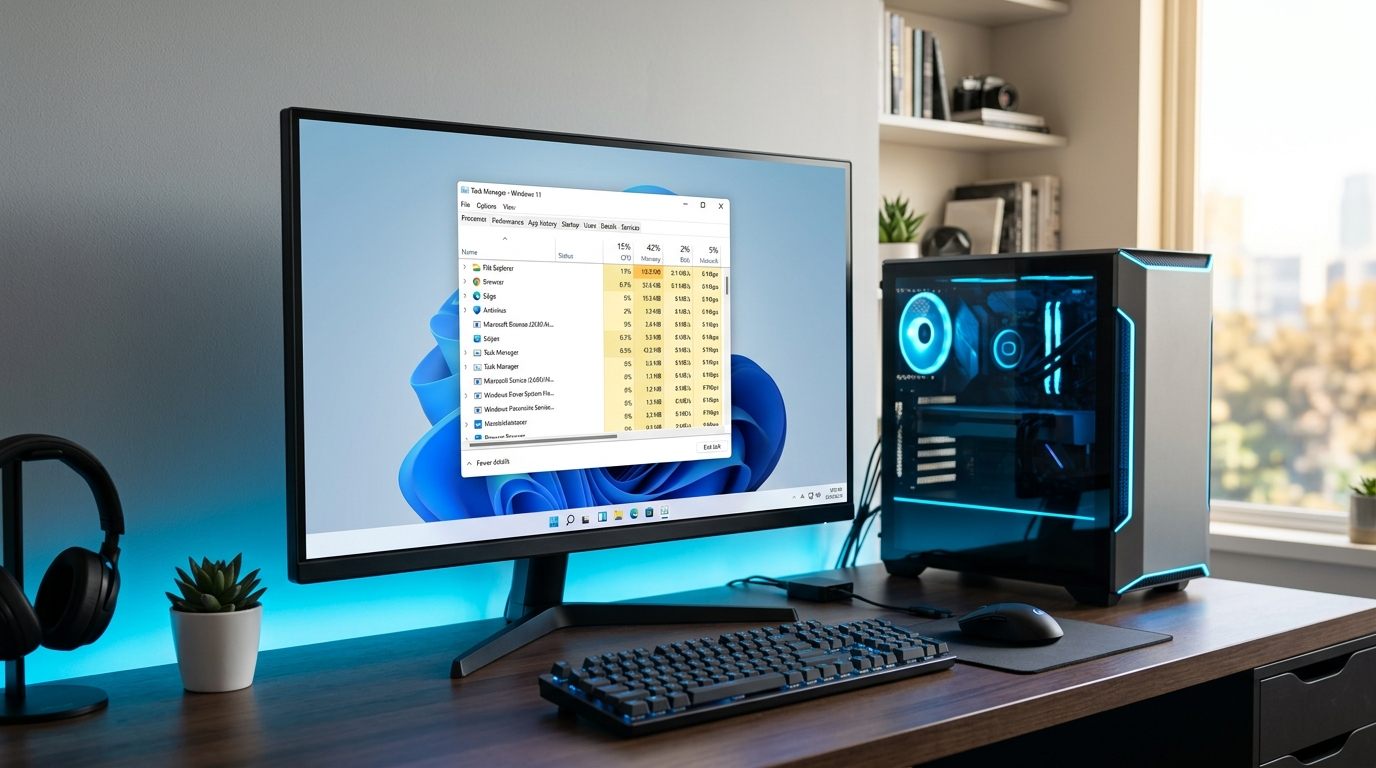 Seeing that little C: drive bar turn red is a uniquely modern form of stress. I had a friend call me practically hyperventilating last week because she couldn't save a 2MB Word document — her 500GB SSD was just completely, utterly full. When a drive hits that 90% capacity mark, Windows loses its mind. Background updates fail, games refuse to patch, and the whole system starts stuttering because it's out of virtual memory space.
The usual reaction is panic-deleting. You start hunting down old vacation photos to shove onto a thumb drive, or uninstalling games you actually wanted to play.
Stop. Don't touch your personal files yet.
Windows is basically a digital hoarder. It accumulates gigabytes of temporary garbage, cached update files, and hidden bloat that you don't even know is there. I routinely clear 30GB off laptops that haven't been cleaned in a while, and it takes like ten minutes.
Here is exactly how to nuke the junk without touching your actual files.
1. The Built-in Disk Cleanup (Still the Best)
Windows has had this tool forever, and it's still the safest way to deep-clean the OS without accidentally deleting something important. I run this once a month.
Hit the Windows key, type Disk Cleanup, and hit Enter. Select your C: drive. The initial scan will pop up and show you a few megabytes of junk. Ignore it. You need the deep scan. Click the button at the bottom that says Clean up system files (you'll need admin rights). Select the C: drive again and let it run.
This second scan looks for the real space-hogs: Windows Update files. When your PC updates, it often just leaves the massive installation files sitting on your drive forever.
Check the boxes for:
- Windows Update Cleanup (this is usually the biggest one, sometimes 5-10GB)
- Temporary Internet Files
- Delivery Optimization Files
- Recycle Bin
- Temporary Files
Click OK, then Delete Files. Warning: if you have years of updates backed up, this can literally take 20 minutes to run. Just let it do its thing.
2. Put Storage on Autopilot
If you know you're never going to remember to do step 1 manually, use Storage Sense. It's Windows 11's automated cleaning tool.
Open Settings (Windows Key + I) and go to System > Storage. Toggle Storage Sense to On. Then actually click the words "Storage Sense" to set up the rules. I usually tell it to run "Every week" and have it automatically empty the Recycle Bin after 30 days. It's a lifesaver if you're the kind of person who "deletes" files but forgets to actually take out the digital trash.
3. The Hidden AppData Caches
This one is sneaky. Every app you use — Discord, Spotify, Chrome, Adobe stuff — stores temporary cache files in a hidden folder called AppData to make things load faster. Over time, it gets out of control. Discord is the absolute worst offender, hoarding gigabytes of cached memes and videos from servers you haven't looked at in a year.
Here's how to clear it safely:
- Press
Win + Rto open the Run box, type%temp%, and hit Enter. This opens your user temp folder (AppData\Local\Temp). PressCtrl + A, thenShift + Delete. If a prompt says a file is in use by an active program, check "Do this for all current items" and click Skip. - Press
Win + Ragain, typetemp, and hit Enter. This opens the system-level temp cache (C:\Windows\Temp). Clear these files using the same method.
4. Reclaim 15–30 GB from the Hibernation File (Desktop PCs)
If you are using a desktop PC (or a laptop where you never use the Hibernate feature), Windows reserves a massive hidden file on your root drive called hiberfil.sys to store RAM state. On modern PCs with 32 GB or 64 GB of RAM, this file silently occupies 15 to 30 GB of your C: drive.
If you don't use Hibernate:
- Right-click the Start menu and select Terminal (Admin) or Command Prompt (Admin).
- Type:
powercfg /hibernate offand hit Enter.
The 20+ GB hiberfil.sys file is deleted instantly, handing that storage back to your usable pool. (Note: On laptops where you travel without a charger, keep hibernate enabled as explained in our battery guide).
5. Find the Real Culprits with WizTree
If you did all that and your drive is still mysteriously full, you need a visual map. Clicking through folders manually to find large files is miserable.
Don't guess. Download a tiny, free app called WizTree. (Some people use WinDirStat, which is fine, but WizTree is way faster).
Run it, select your C: drive, and hit Scan. In about three seconds, it generates a colorful block map of your entire hard drive. Big blocks equal big files.
You'll instantly see if there's a forgotten 80GB game install sitting in your Downloads folder, or a massive iPhone backup eating half your drive. I once found a 120GB screen recording a client had accidentally left running overnight. You can just right-click and delete the offenders right from the app.
Quick Storage Myths, Busted
Emptying the Recycle Bin breaks things. No it doesn't. If a file is in the bin, it's already "deleted" as far as the folders are concerned. If you haven't needed it in a month, empty it.
Deleting desktop shortcuts saves space. A shortcut is like 2 kilobytes. Deleting the icon doesn't uninstall the 50GB game attached to it. You have to actually go to Settings > Apps to uninstall things.
I should compress my C: drive. Windows has a setting to "Compress this drive to save disk space." Yes, it saves space, but it forces your CPU to decompress files on the fly every time you open them. It will make your PC feel noticeably sluggish. Don't do it to your main drive.
What if I just have too much stuff?
Look, if you do all this and realize your drive is full of games you actively play and work files you actually need... you can't optimize your way out of physics. 500GB just isn't that much space anymore.
If that's the case, it's time to just buy a second SSD. Prices are ridiculously cheap right now, and adding a 1TB or 2TB drive is the only real fix for data hoarding. But until that Amazon package arrives, a good deep clean will at least keep Windows from crashing.
Related Guides
← Back to home