 Zyrox
ZyroxHow to Speed Up a Slow Windows 11 PC in Under 30 Minutes
A practical, no-nonsense guide to speeding up a laggy Windows 11 computer. Covers startup app pruning, telemetry, visual effects, power plans, storage sense, and indexing fixes.
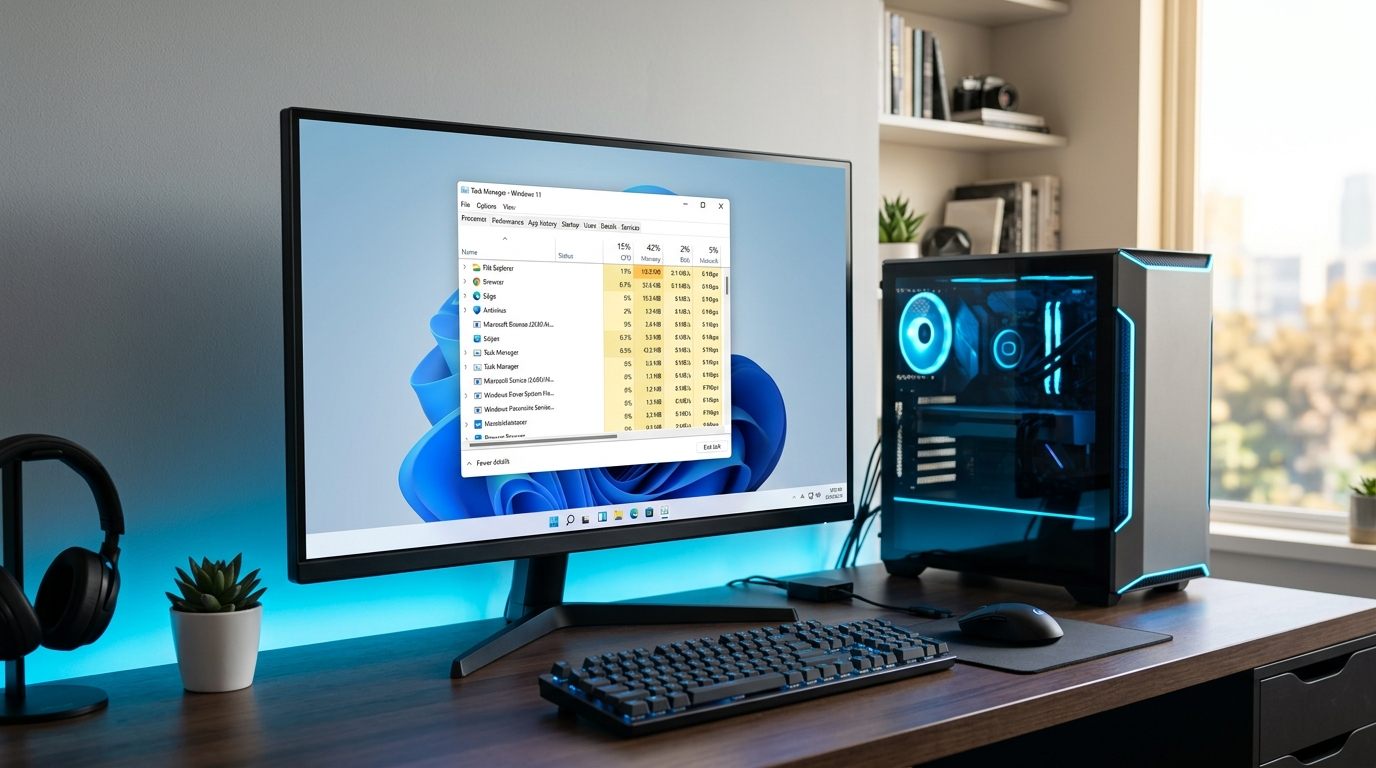 Look, I'm going to be straight with you. I have worked on hundreds of slow Windows 11 machines at this point, and nine times out of ten the fix takes less than half an hour. Not exaggerating.
The frustrating part? Most of these PCs aren't actually broken. They are just drowning in background junk — apps that auto-launch on boot, telemetry services phoning home every few seconds, unnecessary window animations eating GPU cycles, and manufacturer bloatware. A brand new laptop from Best Buy can start feeling sluggish within six months of normal use. I've watched it happen to my own family's machines.
And before you ask — no, do not go download some "PC Optimizer Pro", "CleanMyPC", or registry cleaner you found on Google. Those things break operating systems. I have had to reinstall Windows on machines that people "optimized" with those tools.
Everything below uses built-in Windows tools. Nothing to download, nothing to pay for. Follow these steps in order, and your PC will feel noticeably snappier in under 30 minutes.
1. Your Startup Apps Are Out of Control (5 Min Fix)
This is the single highest-impact tweak you can make.
Open Task Manager right now — right-click the Start button, hit Task Manager (or press Ctrl + Shift + Esc), and click the Startup apps tab on the left (the speedometer icon). Now look at how many apps say "Enabled."
I looked at my aunt's laptop last Thanksgiving. She had nineteen startup apps enabled. Spotify, Steam, Discord, three different printer utilities she didn't know existed, Microsoft Teams, OneDrive, proprietary OEM helper tools, and a weather widget. All of it launched the second she pressed the power button. Her laptop took almost two full minutes to become usable after logging in.
We disabled everything except her antivirus and OneDrive. Boot time dropped to about 22 seconds.
Important Note: Disabling an app here does not uninstall it. It just stops it from auto-launching in the background. You can still open Spotify or Discord whenever you want from the Start menu; it just won't sit there consuming your RAM and CPU cycles from the instant your machine powers on.
Right-click every app you do not need launching on boot and select Disable.
2. Kill the Background Telemetry & App Permissions (5 Min)
Windows 11 is chatty. It constantly reports telemetry back to Microsoft, keeps installed store apps updated in the background, and runs push-notification services. On a desktop with plenty of headroom, it is annoying; on a laptop, it constantly drains battery life.
Two critical settings to configure:
- Background App Permissions (Microsoft Store / UWP Apps): Open Settings (
Win + I) > Apps > Installed apps. For built-in Store apps you rarely use (like Weather, Maps, or Xbox services), click the three dots (...), select Advanced options, and change "Let this app run in background" to Never. (Note: Traditional Win32 desktop programs like Steam or Discord don't have this toggle; their background activity is controlled via the Startup apps tab in Step 1). - Telemetry & Diagnostics: Open Settings > Privacy & security > Diagnostics & feedback. Turn off "Send optional diagnostic data" and disable "Tailored experiences". You don't need Microsoft collecting your usage telemetry to serve targeted suggestions.
3. Visual Effects & Transparency Tweaks (3 Min)
Windows 11 is packed with animations: menus fade, windows glide when minimized, and frosted-glass transparency layers are rendered in real time. On systems with integrated graphics or older CPUs, this adds noticeable UI lag.
- Press
Win + R, typesysdm.cpl, and hit Enter. - Under the Advanced tab, click Settings in the Performance box.
- Instead of "Adjust for best performance" (which turns off font smoothing and makes your screen look terrible), choose Custom:
- Keep checked: "Show thumbnails instead of icons" and "Smooth edges of screen fonts" (critical for readable text).
- Uncheck: "Animate controls and elements inside windows", "Animate windows when minimizing and maximizing", and "Fade or slide menus into view".
- Next, go to Settings > Accessibility > Visual effects and toggle Transparency effects to Off. Dragging windows around will immediately feel crisp and instantaneous.
4. Search Indexing: The Silent Disk Hog (3 Min)
Windows constantly indexes all files on your storage drives so that search bar results appear instantly.
- If you have an NVMe or SATA SSD: Leave Windows Search enabled. Modern SSDs handle indexing with virtually zero noticeable penalty.
- If you are running on a mechanical hard drive (HDD) or slow eMMC: Search indexing is catastrophic. It frequently locks disk utilization to 100% in Task Manager.
- To fix: Press
Win + R, typeservices.msc, scroll down to Windows Search, right-click, choose Properties, change Startup type to Disabled, and hit Stop. Your system will suddenly stop choking.
- To fix: Press
5. Free Up C: Drive with Storage Sense (5 Min)
Your primary Windows partition (C:) needs breathing room. Windows uses free disk space for virtual memory (pagefile), temp caching, driver staging, and Windows Update downloads. If your drive has less than 10–15% free space, overall system responsiveness plummets.
- Open Settings > System > Storage.
- Toggle Storage Sense to On. Click into it and set it to run automatically every month to clean up temp files and empty your Recycle Bin.
- Click Cleanup recommendations. Windows will scan your system for previous Windows update installations and large unused files. Cleaning previous Windows installations can instantly free up 15 to 30 GB of space.
6. Configure Your Power Mode (2 Min)
Windows 11 defaults to the "Balanced" power plan, which dynamically balances clock speeds and sleep states.
- Laptops on Battery: Keep on Balanced (or "Best power efficiency" in Windows 11 Settings) to preserve battery runtimes.
- Modern AMD Ryzen Desktops (AM4 / AM5): Stick strictly to the default Balanced plan. AMD's official chipset drivers hook directly into Windows 11's Balanced power profile to manage CPPC (Collaborative Processor Performance Control) and Core Parking. On dual-CCD X3D processors (like the 7900X3D and 7950X3D), forcing "High Performance" in Control Panel disables core parking, scattering game threads onto frequency cores instead of the 3D V-Cache CCD and causing severe micro-stuttering.
- Modern Intel Desktop PCs (12th–14th Gen & Core Ultra): Keep Windows power plan on Balanced, and instead set Settings > System > Power & battery > Power mode to "Best performance". This allows the Intel Thread Director to correctly distribute foreground tasks to P-cores and background tasks to E-cores without pinning all cores at max voltage during idle.
7. Prune Browser Memory & Extensions (4 Min)
Your web browser is likely the single heaviest application you run daily. If you have 8 GB or 16 GB of RAM, twenty open tabs with multiple browser extensions will eat through your memory pool:
- Enable Memory Saver: In Google Chrome or Microsoft Edge, go to Settings > Performance and enable Memory Saver (or Sleeping Tabs in Edge). This frees up RAM from inactive background tabs.
- Audit Extensions: Open your browser extension manager (
chrome://extensions/oredge://extensions/). Uninstall any extension you haven't used in the past month. Ad-blockers, grammar checkers, and coupon scrapers constantly parse the DOM of every page you load, slowing down web rendering.
8. The Manufacturer Bloatware Purge (5 Min)
If you purchased a pre-built PC or laptop from HP, Dell, Lenovo, or Acer, it came loaded with proprietary OEM software:
- "HP Support Assistant"
- "Dell Optimizer / SupportAssist"
- "McAfee / Norton Trial Anti-Virus"
These suites run multiple background background services, push notification ads, and conflict with Windows native maintenance.
Go to Settings > Apps > Installed apps, sort through the list, and uninstall trial antivirus suites and OEM support helpers. Windows Defender (built into Windows 11) is lightweight, free, and more than sufficient for everyday security when paired with basic digital common sense.
When Software Tweaks Aren't Enough: Hardware Checklist
If you completed all eight steps above and your system still takes two minutes to launch Chrome, your bottleneck is almost certainly physical hardware:
- Mechanical Boot Drive: If Windows 11 is installed on a spinning HDD, no software tweak in the world will save you. A $35–$50 1TB NVMe or SATA SSD will transform a painfully slow laptop into a machine that boots in 12 seconds.
- RAM Bottlenecks: In 2026, 4 GB of RAM is inadequate for Windows 11. 8 GB is the bare minimum for light web browsing. For multitasking and light gaming, 16 GB is the sweet spot. Upgrading RAM on most laptops and desktops is inexpensive and takes ten minutes.
- Thermal Throttling: If your PC runs fast for the first 10 minutes and then suddenly crawls, check your temperatures using HWMonitor or HWiNFO64. Clogged heatsinks and dry thermal paste force CPUs to slash clock speeds to protect themselves.
Frequently Asked Questions
Will registry cleaners speed up my PC?
No. Never use registry cleaners. Registry entries take up negligible disk space (a few kilobytes), and automated cleaning scripts frequently delete keys required by Windows or third-party software, causing crashes and OS corruption.
Should I defrag my SSD?
No. Do not defragment SSDs. SSDs do not suffer from physical platter fragmentation, and running defrag cycles unnecessarily consumes NAND write endurance. Windows runs TRIM on SSDs automatically.
Does a cluttered desktop slow down Windows 11?
A cluttered desktop with shortcuts does not slow down Windows. However, storing hundreds of gigabytes of raw 4K video files or uncompressed archives directly on your desktop can slow down Explorer shell rendering upon boot. Store large files in dedicated subfolders.
Related Guides
← Back to home