 Zyrox
ZyroxHow to Check If Your PC Can Run a Game Before You Buy It
Quickly check if your PC can run a specific game without guessing. Compare your specs to requirements using free built-in tools.
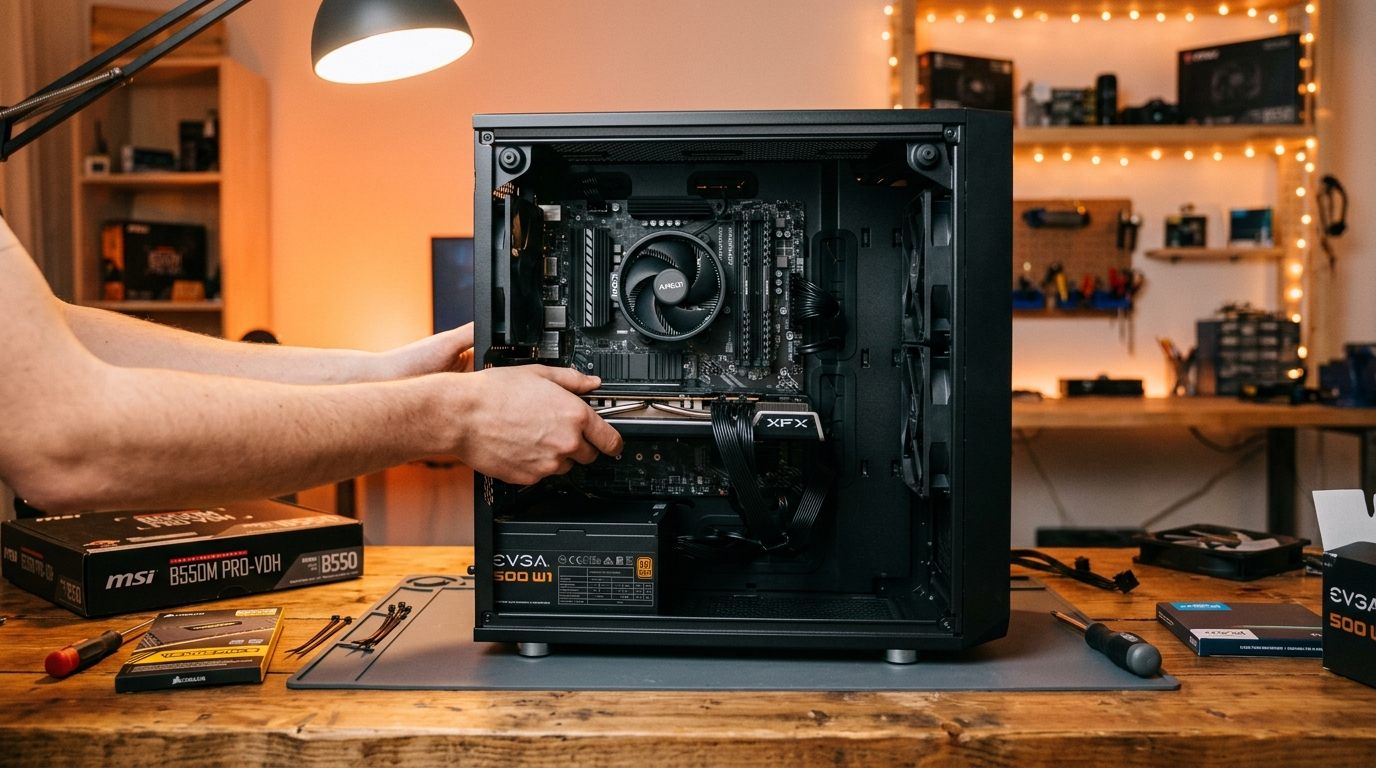 We've all done it. Steam sale hits, there's a game you've been eyeing for months, it's 60% off, and your finger is hovering over the Buy button. But somewhere in the back of your brain there's this nagging voice: "Can my laptop even run this?"
I bought Elden Ring during a sale last year knowing full well my work laptop probably couldn't handle it. Told myself "it'll be fine, how demanding can it be?" Spoiler: it was a slideshow. Like, genuinely 12 frames per second at the lowest settings. I refunded it within an hour, but that whole process was annoying and completely avoidable.
Here's how to figure it out before you spend the money.
Figure Out What's Inside Your PC
You need three pieces of information: your CPU, your GPU, and how much RAM you have. That's it. Those three specs determine whether a game will run.
And you don't need to download anything to find them.
CPU and RAM: Right-click the Start button, click System. Under "Device specifications" you'll see your processor name (something like "Intel Core i5-12400F" or "AMD Ryzen 5 5600X") and your installed RAM. Write those down or just keep the window open.
GPU: Right-click Start, open Task Manager, click the Performance tab. Scroll down the left column until you see "GPU 0" and click it. Your graphics card name will be in the top-right corner.
Quick warning though — if what you see there says something like "Intel Iris Xe Graphics" or "AMD Radeon Graphics" without a specific model number, that means you're running on integrated graphics. That's the graphics chip built into your CPU, and it's much weaker than a dedicated GPU. You'll be limited to older or indie games, or you'll need to crank everything to the absolute minimum on anything modern.
Check What the Game Actually Needs
Every game on Steam, Epic, GOG — every storefront — lists system requirements at the bottom of the store page. You'll find two categories:
Minimum means the absolute bare minimum to get the game running. This usually translates to low settings, maybe 720p, and a stuttery 30 fps if you are lucky. If your PC doesn't even meet Minimum, don't bother buying it.
Recommended is what the developers think you need for a genuinely good experience — typically 1080p or 1440p, High settings, a smooth 60 fps. This is what you should actually aim for.
Honestly? I've tried playing games at "Minimum" specs and it's almost always miserable. Frame drops during action, ugly textures, absurd loading screens. If you can only meet Minimum, you're going to have a compromised time.
Comparing Hardware Without Losing Your Mind
This is where people get tripped up, and I completely understand why.
Say a game requires an "Intel Core i5-8400" and you've got an "Intel Core i3-12100." The i5 sounds better, right? Higher number. But nope — the i3-12100 is actually a newer, faster chip. Intel's naming scheme has been a mess for over a decade. AMD isn't much better honestly.
The easiest way to cut through the confusion: just Google it. Search "[your CPU] vs [required CPU]" and you'll get comparison pages from PassMark or similar sites. Don't obsess over the exact percentages — they're not always perfectly accurate — but they'll tell you the broad picture. Is your chip faster, slower, or roughly the same?
Do the same thing for your GPU.
RAM is much simpler — just compare the numbers. Game wants 16 GB, you have 16 GB, you're good. Storage too — make sure you have enough free space, ideally on an SSD because modern games load painfully slowly from old hard drives.
The YouTube Trick (This is the Real Answer)
Forget all the spec comparisons for a second. There is a way to see exactly how a game will run on your hardware, and it takes about 30 seconds.
Go to YouTube. Search for the game name plus your GPU and CPU.
Something like: "Cyberpunk 2077 RTX 3060 Ryzen 5 3600"
Or: "Hogwarts Legacy Intel Iris Xe 16GB RAM"
There are thousands of channels dedicated to benchmarking games on every hardware combination imaginable. You'll almost always find someone running the exact game you want on hardware identical (or very close) to yours. They show the settings, the resolution, the frame rate counter. You can literally watch your future gaming experience before you spend a single dollar.
This is how I check every game now. I don't even bother with spec sheet comparisons most of the time. If someone's already played it on my GPU and posted a video, I already have my answer.
Skip the "Can You Run It" Websites
You've probably seen these — System Requirements Lab, the "Can You Run It" tool that's been floating around forever.
I'd skip them. Two reasons:
First, they want you to download a detection app. It's probably fine, but getting into the habit of downloading random executables from the internet isn't great.
Second — and this is the bigger problem — the tool is too literal. It just matches hardware names against a database. So if a game lists an older high-end card in its requirements and you have a newer mid-range card that's actually faster, the tool might still flag you as "FAIL" because the names don't match. I've seen this happen with perfectly capable PCs getting marked as inadequate. Super misleading.
The manual approach takes maybe three extra minutes and gives you a far more reliable answer. Or just use the YouTube trick. Seriously, it's the best method.
Related Guides
← Back to home