 Zyrox
ZyroxHow to Build a Silent PC or Quiet Gaming Rig Without Sacrificing Performance
A complete guide to building a whisper-quiet gaming PC and reducing system noise. Covers noise source rankings, custom BIOS fan curves (ASUS, MSI, Gigabyte), GPU undervolting, case dampening, and decibel targets.
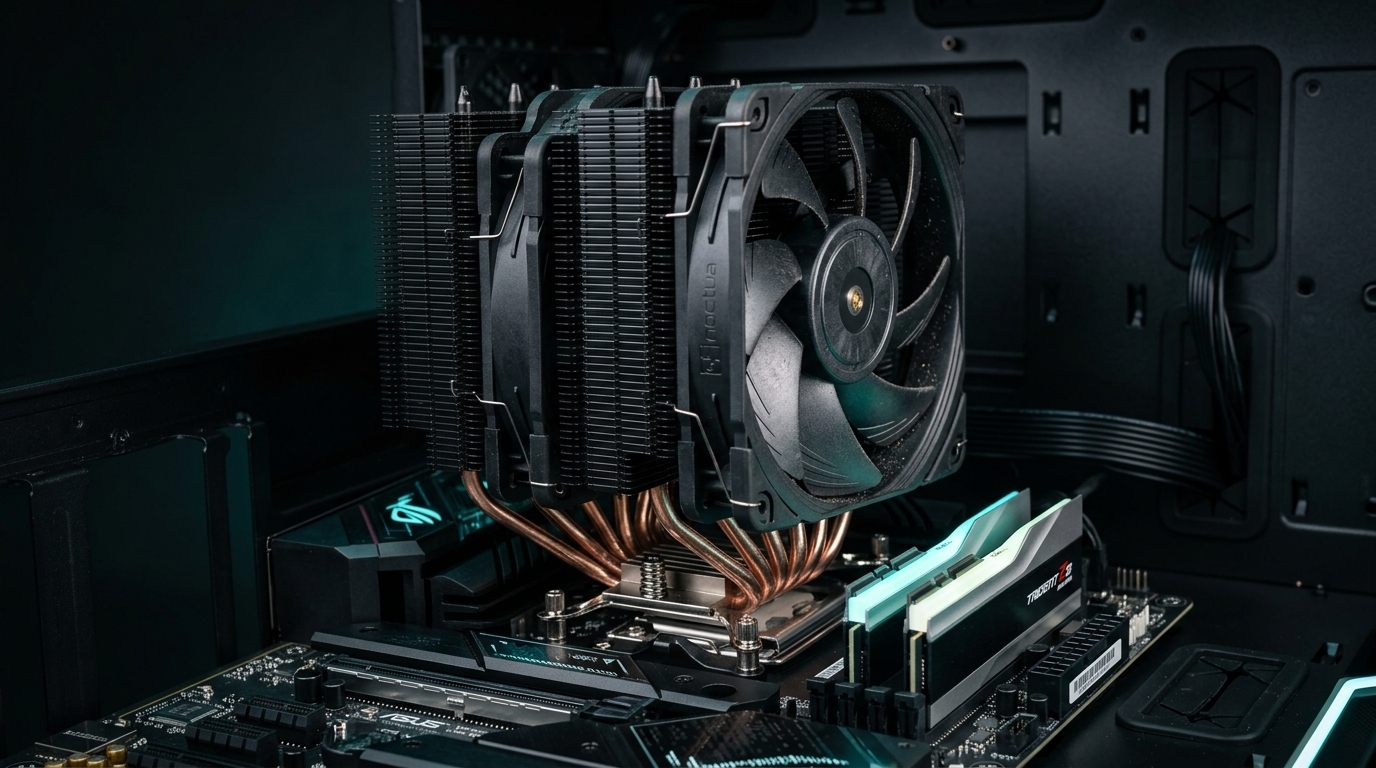 I have built dozens of PCs over the years, but everything changed for me the day I set up a workstation in my home office and realized I could clearly hear it humming from all the way across the room. It wasn't broken, and it wasn't overheating, but there was this relentless, low-frequency hum that bled into microphone recordings during calls and ruined late-night gaming sessions.
That experience pushed me into the weeds of silent PC engineering. The single biggest takeaway from that journey is simple: silence and performance are not mutually exclusive. You do not need to sacrifice frame rates or thermal headroom to get a whisper-quiet setup. You just need to build with intention and tune the hardware you already own.
Whether you are starting a new quiet build from scratch or looking to quiet down a roaring desktop sitting two feet from your ears, this guide covers the hardware, acoustics, and software tuning you need.
Defining "Silent": What Decibel Numbers Actually Mean
"Quiet" is subjective, but sound pressure levels (SPL) measured in A-weighted decibels (dBA) give us objective targets:
- Under 25 dBA (True Enthusiast Silent): At this level, the PC is virtually inaudible at normal desk distances (1 to 2 feet). You have to lean in within inches of the chassis to hear faint air movement.
- 26 – 32 dBA (Home Office Quiet): A soft, steady hum that easily fades into background ambient noise. Ideal for office work and content creation.
- 35 – 45 dBA (Noticeable): Standard factory configurations under gaming loads. Clearly audible without headphones.
- Above 50 dBA (Wind Tunnel): Aggressive stock fan curves, small high-RPM fans, or GPUs pinned at 100% fan speed. Uncomfortable for long sessions.
My primary gaming rig idles at 24.8 dBA and peaks at just 37.1 dBA under sustained 4K Cyberpunk 2077 loads. Here is how that acoustic envelope is achieved.
The Culprits: Sources of PC Noise Ranked by Impact
Before spending money on replacement hardware, you must diagnose which component is dominating your noise floor:
- GPU Fans (42 – 55+ dBA under load): By far the loudest culprit in modern gaming rigs. Factory GPU curves are notoriously aggressive, ramping small 80–90mm fans to 2,000+ RPM well before temperatures warrant it.
- Case Fans (35 – 48 dBA): Cheap 120mm sleeve-bearing fans running at fixed 100% DC speeds produce significant motor whine and turbulent rushing air.
- CPU AIO Pumps & Fans (32 – 44 dBA): While liquid cooling handles thermal spikes well, cheap water pumps emit a constant 2,500–3,000 RPM high-pitched hum that cannot be tuned out.
- Mechanical Hard Drives (32 – 42 dBA): HDDs vibrate the case frame and emit audible read/write clicks.
- Power Supply Fans (30 – 40 dBA): Budget PSUs with cheap fans that spin constantly even when idle.
- Coil Whine (25 – 38 dBA): High-frequency electrical resonance in GPU and PSU inductors. Unrelated to fan speeds and mitigated by frame rate caps or undervolting.
Foundation 1: Case Selection & Acoustic Physics
A quiet PC starts with the chassis. You have two philosophical paths: sealed sound-dampened cases or high-airflow mesh cases.
Sound-Dampened Cases
- Fractal Design Define 7: Thick steel panels lined with high-density bitumen acoustic foam. Solid front panel that deflects sound waves away from the user.
- be quiet! Silent Base 802: Offers interchangeable front and top panels, allowing you to prioritize silence during winter and airflow during summer.
The Trade-off: Sealed cases trap sound, but they also insulate heat. If heat builds up, internal fans have to spin faster, potentially cancelling out the dampening effect.
Acoustic Foam: When It Helps and When It Doesn't
Lining a thin case with acoustic foam deadens panel resonance and metal buzzing. However, foam does not absorb aerodynamic air rush or coil whine escaping through open exhaust vents. If you slap foam over intake paths, you restrict airflow, force the fans to ramp up, and actually make the PC louder.
Foundation 2: Fan Selection (140mm Over 120mm)
The golden rule of PC acoustics: Larger fans moving more air at lower RPM are always quieter than smaller fans spinning fast.
Whenever your chassis permits, opt for 140mm fans instead of 120mm fans:
- Noctua NF-A14 PWM / NF-A12x25: The acoustic benchmark. SSO2 bearings eliminate motor clicking and rotational hum.
- be quiet! Silent Wings 4 (140mm): Exceptional 6-pole motor design with virtually zero vibration; runs near 12.8 dBA at 1,000 RPM.
- Arctic P14 PWM PST (Budget Champion): Costs under $10 per fan, uses fluid dynamic bearings, and performs remarkably close to premium options below 1,100 RPM.
Step 1: Tuning BIOS Fan Curves (Free 10 dBA Drop)
Factory motherboard fan profiles are terrible. They treat 50°C CPU temperatures as emergencies and spin case fans to maximum RPM. Configuring custom fan curves in your BIOS is completely free and drops idle noise instantly.
Recommended Target Profile
- 0°C to 50°C: Flat 25% – 35% fan speed (virtually inaudible at ~600–750 RPM).
- 50°C to 75°C: Linear ramp from 35% to 65% RPM.
- 75°C to 85°C: Ramp up to 80% RPM.
- Above 85°C: 100% emergency failsafe speed.
Platform-Specific BIOS Walkthrough
- ASUS Motherboards: Enter BIOS (
Del/F2), pressF6for Q-Fan Control, set Chassis Fans to Manual, and link the temperature source to the Motherboard or PCIe sensor instead of the erratic CPU package sensor. - MSI Motherboards: Enter BIOS, open Hardware Monitor, toggle Smart Fan Mode, choose PWM Mode, and drag the four curve control points to your target values.
- Gigabyte Motherboards: Open Smart Fan 6 under the Tweaker tab, select Manual, and consider enabling Fan Stop for case fans during low thermal loads.
Step 2: Semi-Passive Power Supplies
PSUs operate most efficiently between 40% and 60% load. Modern quality power supplies include a semi-passive (or 0dB / Hybrid) switch:
- Units like the Seasonic Focus GX or Corsair RM850x / RM1000x completely shut down their internal fan when power demand is below 300–400W.
- During web browsing, document editing, and movie playback, the PSU produces exactly 0.0 dBA.
Step 3: Taming the GPU with MSI Afterburner
Graphics cards consume the bulk of your system power (200W to 450W). Controlling their thermal behavior is mandatory for a quiet system:
- Custom Fan Profile: In MSI Afterburner Settings → Fan tab, enable User Defined Software Automatic Fan Control. Set fans to 0% below 55°C, 35% at 65°C, and cap them at 65% up to 80°C.
- Undervolting or Power Limiting: Dropping your GPU power target to 85% or undervolting via the voltage/frequency curve editor reduces power consumption by 40–80W. You lose 2–4% in maximum frame rates, but GPU core temperatures drop by 6–10°C, cutting fan speeds by hundreds of RPM.
Foundation 3: Air Coolers vs. Liquid Coolers for Silence
Enthusiasts often believe liquid cooling (AIO) is quieter than air cooling. In practice, that is frequently untrue:
- AIO Liquid Coolers: Have a mechanical pump that constantly hums at high RPM. Air bubbles in the loop can cause crackling or gurgling sounds.
- Large Dual-Tower Air Coolers (Noctua NH-D15 G2, Thermalright Peerless Assassin 120 SE, be quiet! Dark Rock Pro 5): Have zero pump noise, no water gurgle, and massive aluminum fin stacks that dissipate heat passively at low loads.
Pair your cooler with high-grade thermal paste (such as Arctic MX-6 or Thermal Grizzly Kryonaut) and ensure mounting pressure is even across the heat spreader.
Real Measurements: Noise Reduction in Numbers
Here are real-world decibel measurements recorded with an SPL meter at 50 cm from the chassis front panel:
| State | Idle Noise | Heavy Gaming Noise | Subjective Perception |
|---|---|---|---|
| Out-of-the-Box (Stock curves, budget fans) | 42.1 dBA | 54.3 dBA | Audible across the room; distracting on mics |
| BIOS Fan Curves Tuned | 31.8 dBA | 47.0 dBA | Noticeably calmer; fan speeds steady |
| Upgraded 140mm Fans + Air Tower | 27.2 dBA | 40.5 dBA | Gentle breeze hum; comfortable |
| Full Optimization (GPU Curve + Semi-Passive PSU) | 24.5 dBA | 36.8 dBA | Virtually silent idle; soft whisper under load |
By systematically isolating noise sources, creating gradual PWM curves, and giving components adequate breathing room, you can turn any high-performance gaming rig into an unobtrusive, whisper-quiet powerhouse.
Related Guides
← Back to home