 Zyrox
ZyroxHow to Upgrade Your Laptop Without Buying a New One
Learn which laptop upgrades are actually worth it — RAM, SSD, Wi-Fi card — and where the limits are before buying a new machine.
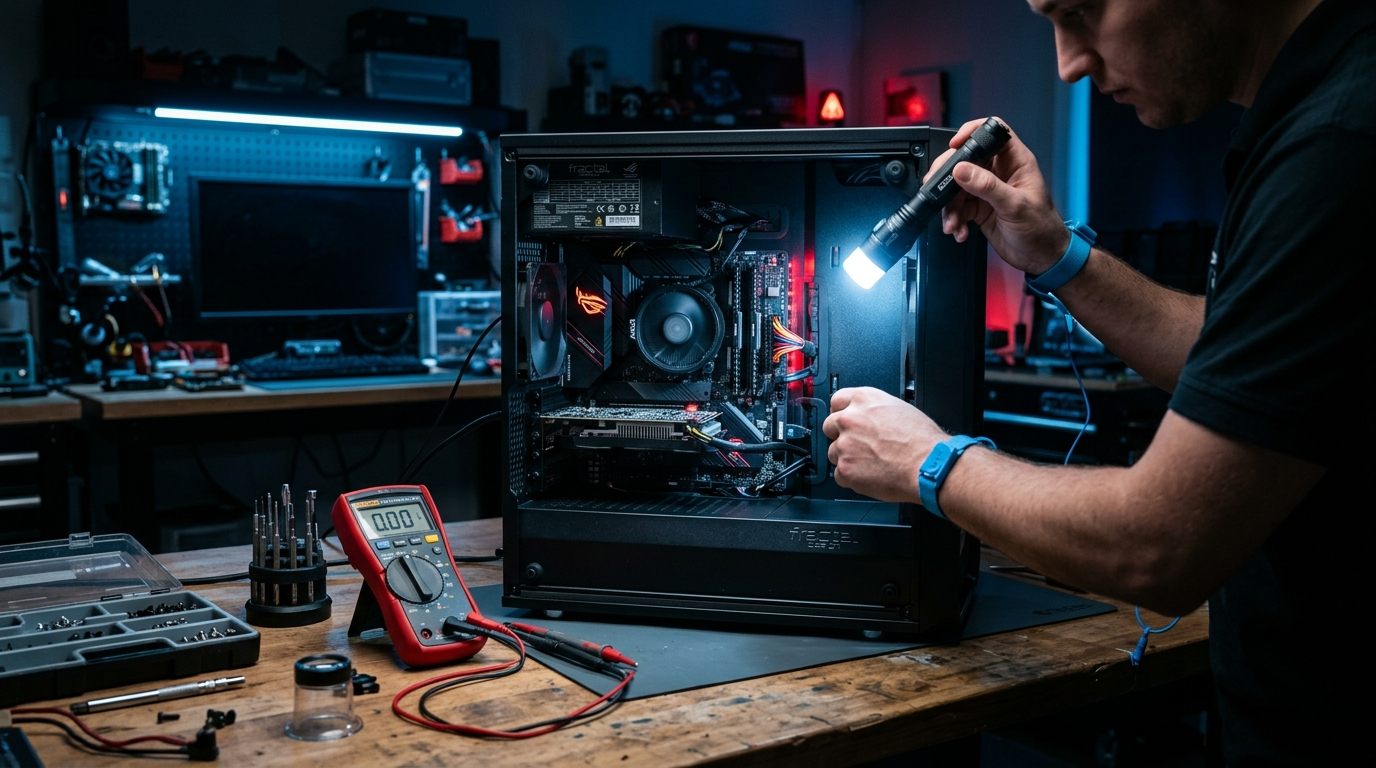 There's a point with every laptop where it starts to feel sluggish — apps take forever to load, multitasking becomes painful, and the fans sound like a small turbine at idle. The instinct is to buy a new machine. But in most cases, the laptop isn't worn out. It's just outpaced by software, choked by heat, or running on hardware that was barely adequate to begin with. Three targeted upgrades can change that entirely: a faster SSD, more RAM, and a fresh application of thermal paste. I've done these on everything from a five-year-old ThinkPad T490 to a two-year-old ASUS Zephyrus G14, and the difference is consistently dramatic. Here's how to do all three correctly.
The Three Upgrades That Actually Move the Needle
Before spending money on anything, it helps to understand what actually causes the slowness you're experiencing.
If your laptop still has a spinning hard drive or a slow NVMe SSD from 2019, replacing it is the single highest-impact upgrade you can make. Boot times drop from over a minute to under ten seconds. File transfers that used to take minutes finish in seconds.
If you're constantly hitting high memory usage — Task Manager shows 80% to 90% with normal work apps open — more RAM prevents constant disk-based swapping, which kills responsiveness. Going from 8 GB to 16 GB or 32 GB is often transformative for modern workflows.
If your laptop throttles under load and the CPU drops to a crawl, dried thermal paste is frequently the culprit. Repasting can reduce CPU temperatures significantly and restore sustained performance you haven't seen in years.
RAM Upgrade: Checking Compatibility First
This is the most important question: is your RAM soldered or upgradeable? Many modern thin-and-light laptops — like the Dell XPS 13, LG Gram, and most MacBooks — have RAM soldered directly to the motherboard. No slot, no upgrade, end of story.
The fastest way to check is using the Crucial System Scanner at crucial.com. It reads your system's configuration and tells you exactly what memory is installed and whether slots are available. Alternatively, you can download CPU-Z and check the SPD tab. If you only see data in one slot and the others are empty, you have a free slot. If there's no slot information at all, it's likely soldered. Always cross-reference with your laptop's service manual.
If you can upgrade, most 15-inch business and gaming laptops use SO-DIMM DDR4 or DDR5 and max out around 32 GB to 64 GB. Buy matched pairs to enable dual-channel mode, which provides a meaningful bandwidth boost. Stick to reliable brands like Crucial, Kingston, G.Skill, or Corsair.
SSD Upgrade: Identifying the Right Form Factor
Buying the wrong SSD form factor is a surprisingly common mistake. The SSD needs to physically fit the slot. Check your service manual first.
Most 15-inch laptops and desktops use the 2280 form factor (22 mm wide, 80 mm long). Small ultrabooks sometimes use the shorter 2242 format, and ultra-compact devices like the Microsoft Surface or Steam Deck use the tiny 2230 format. If you buy a 2280 drive for a 2230 slot, it physically won't fit.
Also, verify the interface and thermal profile. Most laptops built after 2018 use M.2 NVMe PCIe. Never install a PCIe 5.0 drive (like the Crucial T705) in a laptop. Gen 5 drives pull 11–14W, run blistering hot, and require massive desktop heatsinks; inside a sealed laptop bay, they will immediately thermal throttle and destroy battery life. Stick to cool-running, power-efficient, single-sided PCIe 4.0 drives like the WD Black SN850X, Samsung 990 Pro (without heatsink), or WD Blue SN580. For compact 2230 handheld/ultrabook slots (like Steam Deck or Surface Pro), the WD SN770M or Corsair MP600 Mini are ideal choices.
Thermal Repaste: The Underrated Performance Restorer
Most laptops ship with a mid-grade thermal interface material. After a few years of expanding and contracting with heat, that paste dries, cracks, and loses conductivity. Temperatures spike, the CPU throttles to stay safe, and your laptop crawls.
To fix this, grab a quality high-viscosity compound or phase-change pad (such as Honeywell PTM7950, Arctic MX-6, or Thermal Grizzly Kryonaut Extreme—avoid thin pastes that pump out rapidly on direct dies), some 99% isopropyl alcohol, lint-free wipes, a plastic spudger, and a set of precision JIS/Phillips screwdrivers.
Shut the laptop down completely, open the bottom panel, and disconnect the battery immediately before touching any screws to prevent catastrophic short circuits. Remove the heatsink assembly by loosening the numbered bracket screws in reverse order (e.g., 4, 3, 2, 1) to relieve spring tension evenly. Clean the old crusty paste off the bare silicon dies and copper vapor chamber with IPA until the mirror finish shines.
Crucial Laptop Bare-Die Rule: Laptops do not have an Integrated Heat Spreader (IHS); you are mounting directly onto raw, fragile silicon crystal dies. Never use the desktop "pea-sized dot" method here. A center dot leaves the edges and corners of the bare die unprotected, resulting in immediate thermal throttling or hotspots. Instead, manually spread a thin, uniform paper-like layer across 100% of the CPU and GPU silicon dies using a spatula (or cut a Honeywell PTM7950 phase change sheet to fit the exact die dimensions).
Lower the heatsink straight down, tighten the numbered screws in sequential order (1, 2, 3, 4) in partial turns to apply flat, balanced clamping pressure, reconnect the battery, snap the chassis closed, and enjoy dramatically cooler temperatures.
Real Performance Benchmarks: Before vs After
These are numbers from actual machines I've worked on, not theoretical maximums.
On a 2019 ThinkPad T490, I swapped a spinning hard drive for a SATA SSD and repasted the CPU. The Windows cold boot time dropped from 52 seconds to 8 seconds. Launching 30 Chrome tabs went from 14 seconds to 4. Under load, the CPU used to hit 97°C and throttle heavily; after repasting, it peaked at 76°C with full boost clocks, drastically improving synthetic benchmark scores.
On a 2021 ASUS Zephyrus G14, upgrading from 8 GB to 32 GB of RAM dropped idle memory usage from 87% down to 42%. Code compilation times improved noticeably, and the stutter when switching between VS Code, a browser, and Slack completely disappeared.
Your gains depend heavily on your starting configuration, but if you have a clear bottleneck, the difference is night and day.
What You Cannot Upgrade on Most Laptops
Being realistic here matters. You almost never can upgrade a laptop CPU or discrete GPU; they have been soldered to the board on virtually all models since 2015. Upgrading a display is rarely practical because you have to match exact connector and panel specs. RAM on thin-and-light ultrabooks is usually soldered and final. However, you can often upgrade the Wi-Fi card (swapping in an Intel Wi-Fi 6E card is a great $20 upgrade) and the battery.
Battery Replacement: OEM vs Aftermarket
Laptop batteries degrade to around 70% capacity after a few hundred charge cycles. If your runtime is suffering, a replacement is worth it.
OEM batteries or verified replacements from iFixit are the safest route. iFixit stocks high-quality batteries for hundreds of models, complete with step-by-step guides. Aftermarket batteries from random Amazon sellers are hit-or-miss; some use lower-capacity cells while lying on the label.
Battery replacement difficulty ranges from removing a few basic screws on a ThinkPad to battling intense adhesive with a heat gun on a MacBook. Check the repairability score for your model before starting.
External GPU via Thunderbolt 4: The Long Shot Upgrade
If your laptop has a Thunderbolt 4 port, you can connect an external GPU enclosure like the Razer Core X and run a desktop-class graphics card.
The performance hit is real — Thunderbolt 4 bandwidth limits mean you'll see roughly 15% to 25% lower GPU performance compared to a desktop. But if you have a laptop with weak integrated graphics, dropping an RTX 4060 in an eGPU enclosure can be transformative for gaming at your desk. It's expensive (the enclosure alone is often $300), so it only makes sense if you already own a spare GPU and your laptop has a rock-solid Thunderbolt implementation.
Related Guides
← Back to home