 Zyrox
ZyroxThe Best Way to Plan a PC Upgrade Cycle
A simple PC upgrade plan helps you improve your system steadily instead of overspending on components that do not matter yet.
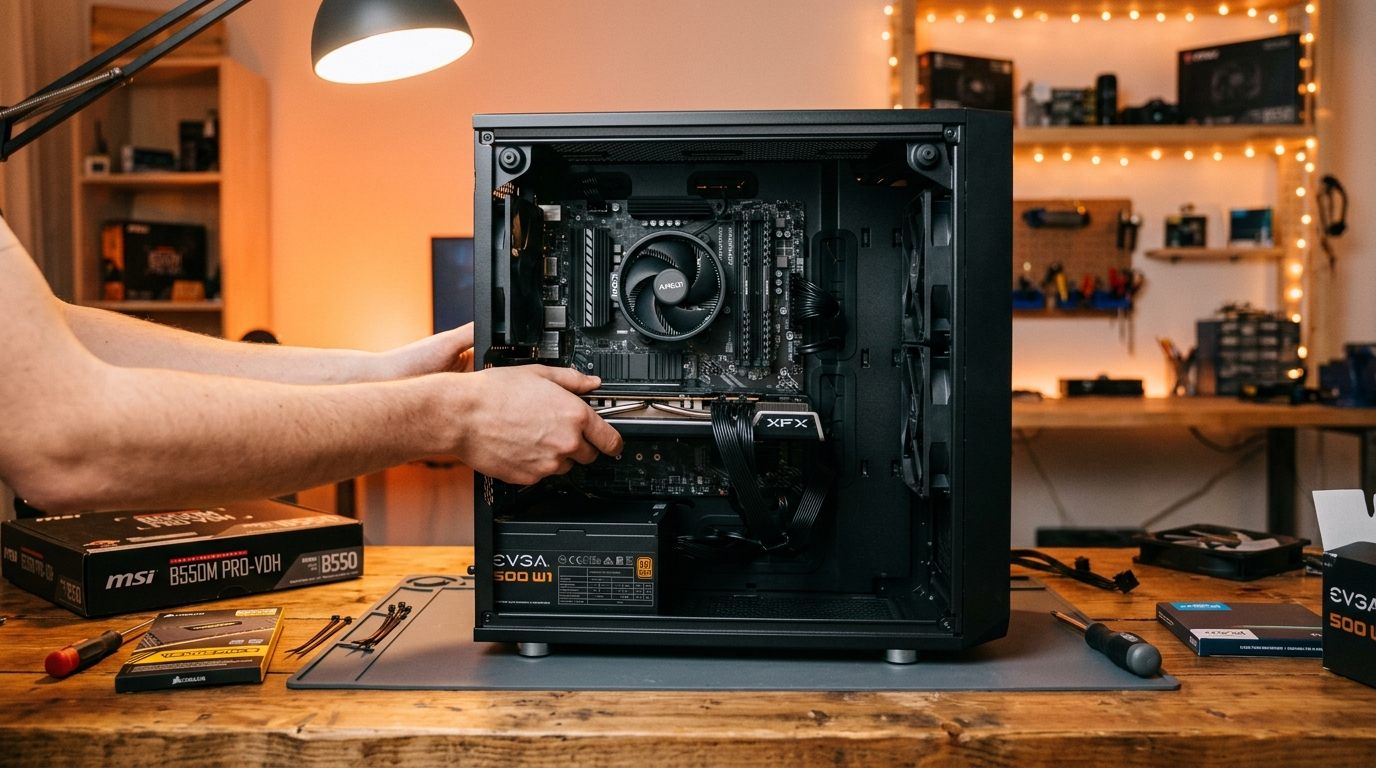 I've built and upgraded more PCs than I can count at this point, and the single most common mistake I see is reactive upgrading. Someone gets frustrated with performance, panic-buys a new GPU, and then wonders why the system still feels slow. Or they spend $400 on a new CPU when the real bottleneck was 16GB of slow RAM. A planned upgrade cycle doesn't require predicting the future — it just requires a little discipline upfront.
This guide walks through how to identify what actually needs upgrading, how long different components realistically last, and how to time purchases so you get the most out of every dollar.
Step 1: Identify the Actual Bottleneck
Before you spend anything, you need to know what's actually holding the system back. Most people skip this step and guess wrong.
Download GPU-Z from TechPowerUp and open the Sensors tab during gameplay. If GPU Load is consistently sitting at 98 to 100 percent, the GPU is your bottleneck. Also watch GPU Memory Used — if it's maxing out your card's VRAM, that's a separate constraint.
Simultaneously, open Task Manager's Performance tab and watch CPU utilization. If your CPU is sitting at 80 to 100 percent while GPU load is low, the CPU is bottlenecking your graphics card.
Check RAM usage under the Memory section. If you are consistently above 85 to 90 percent, your system is under memory pressure and swapping to disk, which destroys responsiveness. Also verify your RAM is in dual-channel mode — two sticks in the wrong slots can halve your effective bandwidth.
Finally, check the Disk graph. If disk activity is pegged at 100 percent constantly, especially on a hard drive, storage is your weakest link.
Component Longevity: How Long Should Each Part Last?
Setting realistic expectations for each component's useful life lets you plan instead of react.
A GPU ages the fastest in a gaming context, typically lasting 3 to 4 years before new titles push it past comfortable performance. The performance floor rises roughly 20 percent per year, so a mid-range card that handles 1440p smoothly today will struggle in four years.
A CPU ages much more gracefully. Modern chips improve slowly enough that a 4- to 5-year-old processor is still usable for most workloads. RAM lasts even longer, staying relevant for 5 to 7 years as long as you have enough capacity. SSDs have generous endurance ratings and typically outlast their usefulness over 5 to 7 years.
A quality power supply can last 7 to 10 years with no issues. Motherboards are usually limited by their platform support cycle, lasting 5 to 8 years. And a good case? That thing lasts a decade or more unless you are changing form factors or need radically different cooling support.
Budget Allocation Principles
For a gaming-focused build, the GPU should receive 30 to 40 percent of the total budget. That allocation is non-negotiable. Skimping on the GPU to buy a premium motherboard is a common mistake. A mid-range board with a high-tier GPU will almost always outperform a premium board with a mid-tier card.
The CPU should get 15 to 20 percent for gaming builds, but 25 to 30 percent if you do content creation or productivity work where core count directly scales with render times. RAM deserves about 10 to 12 percent, storage 8 to 10 percent, and the motherboard, cooling, PSU, and case split the remainder.
When to Replace a Single Component vs. the Whole Platform
This is the question that trips people up most. Replace a single component when your socket still supports meaningful CPU upgrades, when the performance gap to the next chip is 20 percent or more, and when the bottleneck is clearly isolated to one part.
Consider a full platform upgrade when the platform is end-of-life with no upgrade path, when you genuinely need DDR5 or PCIe 5.0, or when multiple components are aging simultaneously. An LGA1200 Intel system, for example, has zero meaningful CPU upgrade path — the only way forward is a new motherboard, CPU, and RAM together. By contrast, someone on AMD AM5 with a Ryzen 7 7700X can drop in a Ryzen 9 9950X later without touching the board.
AMD AM5 currently offers the better long-term upgrade path, with confirmed support through at least 2027. Intel has historically refreshed socket designs every 2 to 3 generations, giving less upgrade path longevity.
Used Market Timing: Sell Before the New Generation
The best time to sell a component is 30 to 60 days before a new generation launches. Demand is still high because buyers want a deal before prices drop, and the used market hasn't been flooded with people offloading previous-gen hardware.
I sold an RX 6800 XT for $320 three weeks before AMD announced the 7800 XT. Six weeks later, those same cards were going for $200. Track GPU launches — NVIDIA and AMD typically release new generations in Q4 and Q1 — and sell before the announcements hit.
How to Track Real Performance Over Time
Don't rely on memory — benchmark regularly and keep records. I run 3DMark Time Spy quarterly and log the results. I also track in-game average FPS in specific titles at consistent settings using FrameView or MSI Afterburner.
When your real-world FPS in the games you play drops below your acceptable threshold — say, consistently under 60fps at 1440p — that is the objective trigger for a GPU upgrade. Not a product announcement, not a YouTube video, not FOMO. Your actual measured performance dictates when you spend money.
Prioritized Upgrade Lists by Use Case
For a gaming build, the upgrade priority order is: GPU first (biggest single impact on frame rates), then RAM to 32 GB (eliminates stuttering in modern titles), then an NVMe SSD if you're still on a hard drive, then CPU only if it's clearly bottlenecking the GPU, then monitor (going from 1080p/60Hz to 1440p/144Hz is transformative), and finally a better CPU cooler to prevent thermal throttling.
For content creation, the priority flips. CPU first because core count scales directly with render times. Then RAM to 64 GB because video editing timelines eat memory. Then a fast NVMe SSD for scratch disk performance. Then GPU for hardware-accelerated encoding.
For productivity and office work, an SSD is the single biggest upgrade if you are still on a hard drive. Then RAM to 16 or 32 GB because browser tabs pile up. Then a better monitor for screen real estate. CPU and GPU rarely matter for office work.
Related Guides
← Back to home