 Zyrox
ZyroxThe Best Way to Upgrade a PC Without Replacing Everything
Upgrade your PC intelligently by targeting the components that actually improve speed, stability, and value without a full rebuild.
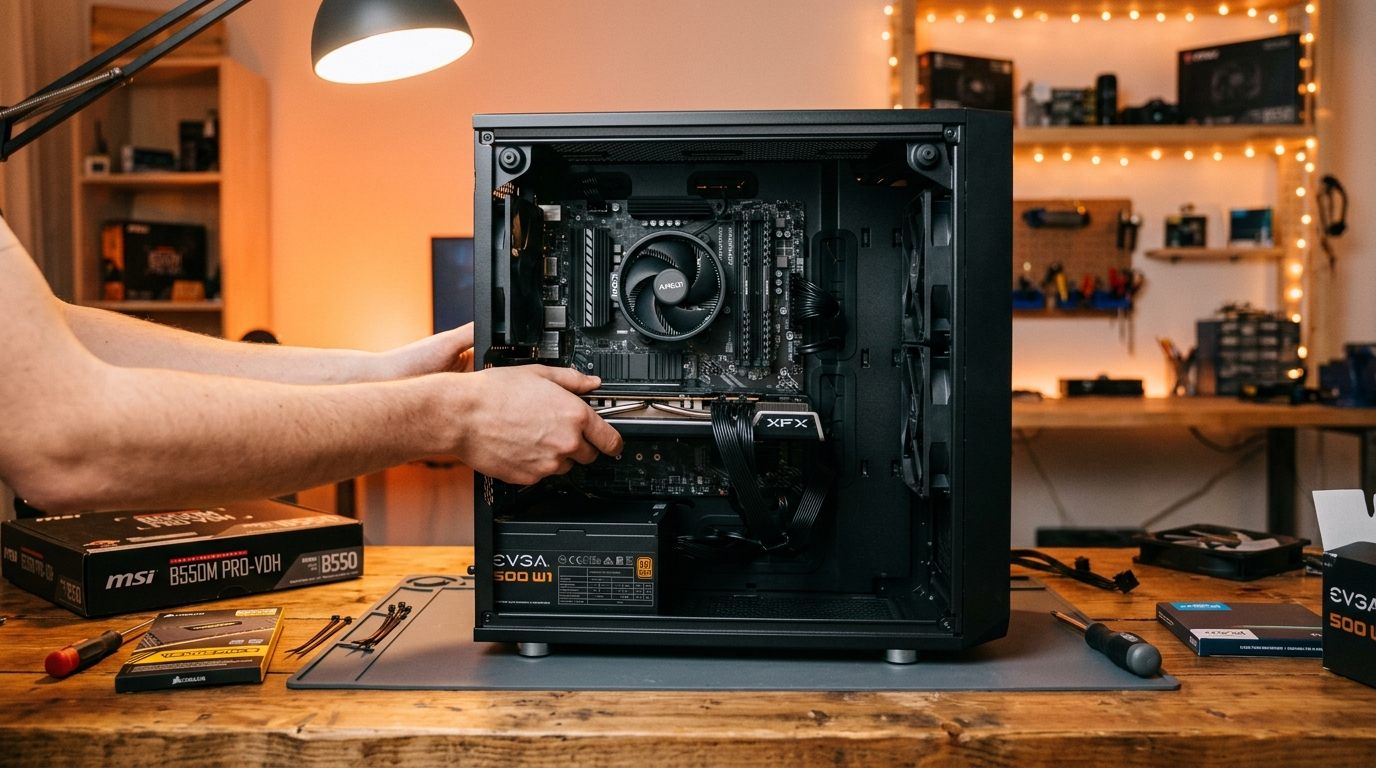 The best upgrade I ever made to a PC cost $65. It was a Samsung 870 EVO replacing a spinning hard drive in a five-year-old machine. The system went from feeling sluggish and painful to use to snappy and responsive overnight. I didn't touch the CPU, the RAM, or the GPU. I just eliminated the single biggest bottleneck in that machine's daily experience.
That's the core idea behind smart upgrading: find the weakest link, fix it specifically, and move on. You don't need a new system. You need a targeted intervention.
The Four High-Impact Cheap Upgrades
Before talking about GPUs and CPUs, let's cover the four upgrades that consistently deliver outsized results relative to their cost.
Replacing a hard drive with an SSD is the single highest return upgrade you can make on any older machine. Windows boot times go from 60 to 90 seconds to under 15. App launches that used to take 20 seconds take 2 or 3. Everything that touches storage improves dramatically. A 1 TB SATA SSD costs around $50 to $90, and a 1 TB NVMe costs $70 to $110.
Adding more RAM is the second biggest bang for the buck. At 8 GB, Windows 11 with a browser and a game open stutters constantly, with the system desperately paging to disk. Moving to 16 GB or 32 GB is clean, reversible, and transformative for modern workflows. A 16 GB DDR4 kit runs $25 to $50.
Upgrading from a stock CPU cooler is criminally underrated. Stock coolers can't sustain peak CPU performance under heavy load. When the CPU throttles to protect itself, you lose real FPS and rendering speed. A $35 dual-tower air cooler like the Thermalright Peerless Assassin 120 SE or Phantom Spirit 120 SE can keep temperatures 15 to 25 degrees lower, letting the CPU run at full boost clocks consistently without acoustic whining.
A GPU upgrade has the highest absolute performance impact for gaming but also the highest cost. The critical step is confirming the GPU is actually the bottleneck before spending $300+. A GPU upgrade on a system where the CPU is the real limit is largely wasted money.
Using GPU-Z and Task Manager to Find the Bottleneck
Download GPU-Z and open the Sensors tab during gameplay. If GPU Load is sitting at 95 to 100 percent, the GPU is maxed out and is your bottleneck. If GPU Load is under 70 percent but performance is still poor, the GPU is not the problem.
Simultaneously, watch CPU utilization in Task Manager's Performance tab. If the CPU is above 85 percent while GPU load is low, the CPU is holding the GPU back. Also check individual core utilization — some games are single-threaded and will max one core while the others sit idle.
If both GPU and CPU loads are under 70 percent and performance is still bad, look at temperatures. The system might be thermally throttling, which a better cooler would fix. Or check for driver issues.
Upgrading Within a Platform (Same Socket, New CPU)
If your socket still has headroom, a CPU upgrade is one of the cleanest performance jumps available. You keep the motherboard, RAM, and cooler.
The Ryzen 5 3600 to Ryzen 7 5800X3D upgrade on AM4 is widely regarded as one of the best value in-platform gaming upgrades ever. The 5800X3D's 3D V-Cache delivers an astonishing 25 to 40 percent improvement in CPU-limited titles. On Intel LGA1700, jumping from a Core i5-12400 to a Core i7-13700K gives 20 to 30 percent gains in productivity workloads.
Before buying, verify your specific motherboard model supports the target CPU on the manufacturer's compatibility list. Some boards need a BIOS update before accepting newer chips.
RAM Speed Upgrade Within the Same Platform
RAM speed has a disproportionate impact on AMD Ryzen systems because the Infinity Fabric clock is tied to memory speed. Running DDR4-2400 on a Ryzen 5000 system leaves massive performance on the table.
Upgrading from DDR4-2400 to DDR4-3600 on a Ryzen platform can cost as little as $30 on the used market and delivers 8 to 12 percent measurable improvement in gaming. Just enable XMP or EXPO in the BIOS after installing. For Intel platforms, RAM speed matters less for gaming — capacity is the bigger priority.
When a Single Upgrade Unlocks the Rest of the System
Some upgrades don't just improve their own area — they remove a cap holding everything else back.
An SSD doesn't just speed up load times. On a machine that was using an HDD, the pagefile (virtual memory) was agonizingly slow, which effectively made your RAM feel smaller. Adding an SSD makes the entire memory subsystem feel more capable because pagefile access is no longer catastrophically slow.
Adding RAM on an 8 GB system doesn't just reduce stuttering — it prevents the system from hammering the storage as virtual memory, indirectly making the drive feel more available.
A proper CPU cooler doesn't just lower temperatures — it lets the CPU actually run at its rated boost clocks all the time. On a Core i7-12700K, the sustained performance difference between a throttling configuration and a well-cooled one can be 10 to 15 percent. That's effectively a free CPU upgrade from a $40 cooler.
Platform End-of-Life Consideration
Knowing when to stop upgrading within a platform is important. If there is no meaningful CPU upgrade left within your socket, if BIOS support has officially ended, or if you are constrained by DDR4 bandwidth or PCIe 3.0 in ways that DDR5 and PCIe 5.0 would solve, it is time to transition.
Intel LGA1200 and LGA1151 are completely exhausted with no path forward. AMD AM4 is officially end-of-life, but the 5800X3D remains a fantastic final upgrade. AMD AM5 and Intel LGA1851 are the current platforms with remaining upgrade headroom.
When the platform is truly exhausted, the correct move is a full platform change: new CPU, new motherboard, new RAM. Sell the old components on the used market to offset part of the cost. Trying to squeeze more life out of a dead platform is almost always a worse use of money than saving for the jump.
Related Guides
← Back to home