 Zyrox
ZyroxHow to Spot a Good Used GPU Deal
Use these practical checks to spot a good used GPU deal and avoid mining-worn cards, thermal damage, and misleading marketplace listings.
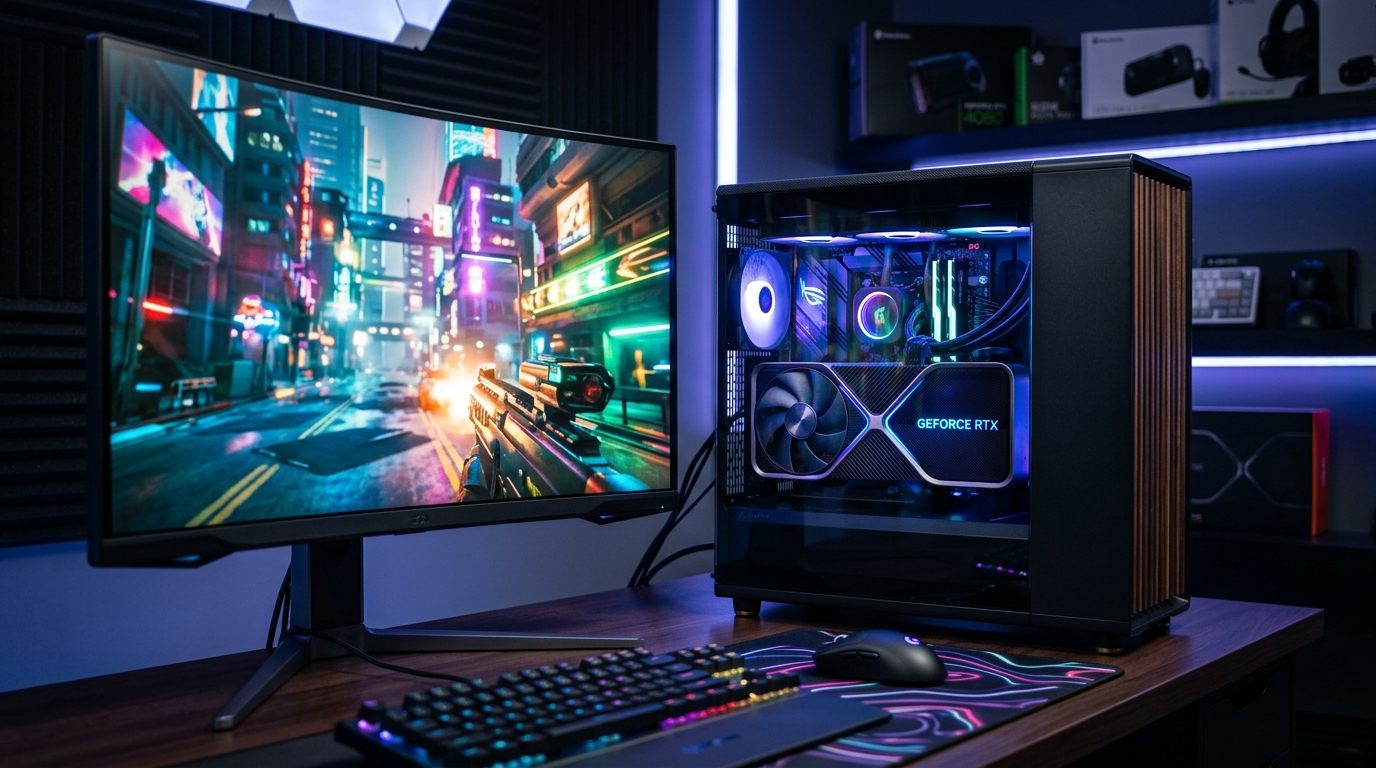 I've bought and tested dozens of used graphics cards over the past several years — some genuinely excellent value, a few complete disasters, and a handful that required careful inspection before I felt comfortable putting them in a build. The used GPU market in 2026 is better than it's been in years from a price standpoint, but it's also full of cards coming off cryptocurrency mining rigs, poorly described listings, and sellers who honestly don't know (or don't care) about the card's history.
This guide will give you the exact process I use to evaluate a used GPU before handing over money: how to inspect it physically, what tools to run, how to price it correctly, and what patterns should make you walk away.
Step 1: Visual Inspection Checklist
Before you plug anything in, a careful physical examination tells you a surprising amount about how a card was treated. Do this in good lighting — a phone flashlight works great.
First, check the fans. Spin each blade by hand. It should spin smoothly with minimal resistance. A fan with a damaged or worn bearing will feel rough, vibrate slightly, or make a faint grinding noise. Look for bent or chipped blades, which indicate impact damage. Check the fan shroud for warping or discoloration, which suggests the card ran extremely hot for extended periods.
Next, flip the card over and examine the back PCB. It should be a consistent dark color. If you see brown or yellowed patches near the VRM area, that's heat stress and a serious red flag. Any scorch marks are an immediate disqualifier.
Look straight into the DisplayPort and HDMI ports with a light. The pins inside must be perfectly straight and uniform. Even one bent pin can cause intermittent display issues. On an expensive card, a bent pin is a major negotiating point or a complete dealbreaker.
Examine the power connector housing for burn marks, melting, or discoloration. Connector damage indicates serious power delivery issues, particularly on cards that use the 16-pin PCIe Gen 5 connector. Finally, look at the heatsink fins from the side to ensure they are straight and evenly spaced.
Step 2: Detecting Mining Cards and BIOS Flashes with GPU-Z
GPU-Z is the most important software tool for used GPU evaluation. Download it, install it, and launch it with the card installed.
Check the BIOS version string against TechPowerUp's database. If it's modified or doesn't match known retail versions, the card may have been flashed with a mining-optimized BIOS. You'll need to reflash it to stock for proper gaming performance.
Also, verify the Subvendor and PCB information in GPU-Z against the physical stickers on the card. A mismatch indicates modified or swapped components. Finally, check that the GPU correctly downclocks and reduces voltage at idle. If it's stuck at full frequency, you're likely looking at a driver issue or a lingering mining BIOS modification.
Next, click the small question mark (?) icon next to "Bus Interface" in GPU-Z. This launches a lightweight rendering test that forces the GPU out of low-power PCIe power-saving mode. Verify that the card negotiates its full intended lane width (e.g., "PCIe x16 4.0 @ x16 4.0"). If it drops to x1, x4, or x8 under load, you likely have damaged PCB traces, oxidized golden PCIe fingers, or missing SMD capacitors.
Step 3: Stress Testing Before You Buy (Thermals & VRAM)
If the seller won't let you test the card before buying, that's a massive red flag. Walk away.
1. Thermal & Core Stress (FurMark / 3DMark)
Download FurMark and run the 1080p preset (or 1440p for high-end cards) for 15 minutes. Watch the GPU temperature in the overlay. A healthy card will reach a stable plateau temperature:
- Mid-range cards (like the RTX 3060 or RX 6700 XT) should sit between 68–78°C.
- High-end cards (RTX 3080, RX 6800 XT) will run at 72–82°C. Modern RTX 40 and RX 7000 series cards usually sit between 65–75°C.
- Pay attention to the GPU Hotspot / Junction temperature in HWiNFO64. The delta between core and hotspot should not exceed 15°C to 20°C. A delta of 25°C+ (e.g., 68°C core but 105°C hotspot) indicates dried-out thermal paste or thermal pump-out requiring a repaste.
- If any card climbs past 90°C core while fans scream at 100%, the cooler is failing or thermal pads are improperly mounted. Also watch closely for visual artifacts like bright twinkling dots, pink lines, or checkerboard textures.
2. VRAM Integrity Testing (OCCT)
Consumer GeForce and Radeon cards do not feature ECC error reporting in GPU-Z sensors. To verify that memory chips were not degraded by high-heat cryptocurrency mining:
- Open OCCT and navigate to the VRAM Test tab.
- Set memory usage to 80% or 90% of total VRAM capacity and run for 10–15 minutes.
- OCCT writes pseudorandom pattern buffers across all GDDR6/GDDR6X memory channels and verifies data integrity. If OCCT logs even a single error, one of the VRAM modules has failing solder balls or silicon degradation. Walk away immediately.
Step 4: Pricing It Correctly
Never use a seller's asking price to determine value. People on Facebook Marketplace routinely list cards at near-new prices or base their numbers on inflated costs from two years ago.
To find the real market price, go to eBay, search for the exact GPU model, and filter by "Sold Items" in the sidebar. Sort by most recent and average out the last 10 to 15 sales. That is the actual market value.
A used GPU is only a good deal when it is priced 25% to 35% below that eBay sold average. You have to account for the lack of warranty and the fact that the card has already burned through some of its operational lifespan.
Generation Value Analysis: When Older Is Actually Smarter
In 2026, older-generation GPUs often represent the smartest value if you know where the pricing floors sit. The RX 6700 XT and RTX 3060 12GB are the absolute stars of the sub-$250 market, typically trading between $180 and $230 on eBay, offering reliable 1080p/1440p rasterization and generous VRAM pools.
Stepping up a tier, the RTX 3070 and 3070 Ti sit around $260 to $300, while the RTX 3080 10GB and AMD RX 6800 XT 16GB hover around $350 to $420 — delivering roughly half the cost of current-gen equivalents while maintaining phenomenal 1440p high-refresh performance. For modern architecture with DLSS 3 Frame Generation or AV1 encoding, look for used RTX 4070 or RX 7800 XT units in the $420 to $480 bracket.
Just be careful with high-VRAM cards like the RTX 3090 and 3090 Ti. They were massively popular for mining, and their GDDR6X memory ran extremely hot. Always run thorough VRAM tests on these specific models.
Scam Patterns to Know
Facebook Marketplace and Craigslist are full of traps. You need to recognize the patterns.
If a listing says "works fine, selling to upgrade" but only shows photos of the box, the card likely hasn't been tested or is broken. If a price is 40% below market value with "urgent sale" framing, it's either a scam or a defective unit.
Sellers who refuse to let you test the card or claim they "only have five minutes" are trying to prevent you from discovering a problem. Listings that say "as-is, no returns" without explaining why usually mean the seller knows exactly what's wrong with it.
Always confirm the actual GPU model in GPU-Z, as some scammers will post photos of a different card than what they're actually handing you. And if a seller demands payment via Zelle or crypto only, walk away. You have zero buyer protection if the card turns out to be dead.
When meeting a seller, use a public place with accessible power, like a coffee shop or library. Bring a laptop with GPU-Z and FurMark ready to go. A legitimate seller with a working card will never object to a 15-minute verification test.
Warranty Transfer Check
This is the most overlooked step in buying used hardware. Some manufacturers, like ASUS and MSI, track manufacturer warranties primarily by the serial number on the PCB barcode, meaning the remaining factory warranty often follows the physical hardware even without the original purchase invoice. In contrast, brands like Sapphire, PowerColor, and Zotac strictly require the original receipt from an authorized retailer and do not transfer warranty rights to second-hand buyers.
Always ask the seller for the original invoice or receipt. Even if the card is technically out of warranty, the receipt confirms its true purchase date and age. If a seller claims a card was "bought brand new 6 months ago" but cannot produce an invoice or online order screenshot, treat that claim with extreme skepticism.
Related Guides
← Back to home