 Zyrox
ZyroxWhen It Is Time to Replace a Monitor
Learn the clear signs that it is time to replace your computer monitor, from backlight dimming and bleed to pixel death, burn-in, and refresh rate bottlenecks.
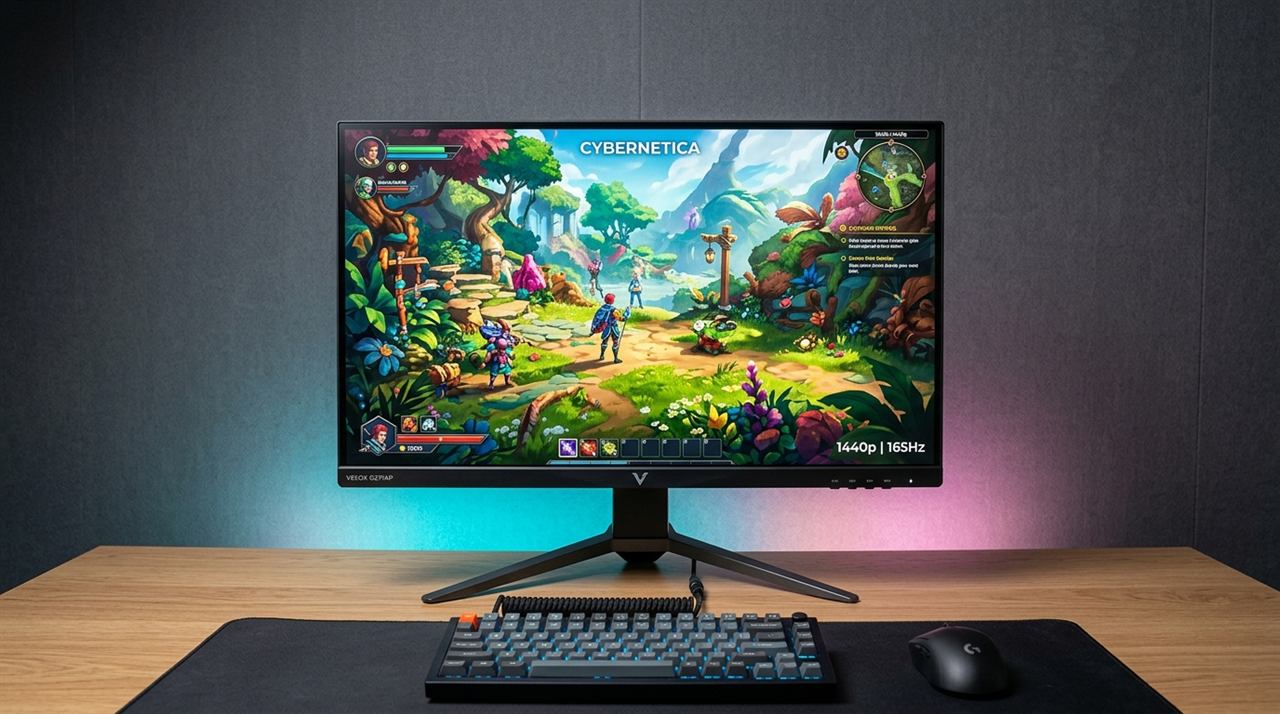 My previous monitor did not break. It did not go dark or start displaying strange patterns. It just slowly, quietly became the worst part of my setup while everything else improved around it. The CPU was fast. The GPU handled 1440p with ease. But I was still staring at a dim, washed-out 1080p 60Hz panel from 2016, and every game, every document, every video looked worse than it should have.
That is how monitor replacement usually works. It is not a catastrophic failure. It is a gradual realization that the display is holding everything else back. This guide helps you identify whether you are there — and what to do about it.
When Brightness Genuinely Dims Over Time
LCD backlights dim over time. This is not a defect, it is physics. The LED array behind the panel gradually loses intensity, resulting in a screen that looks noticeably darker than when you bought it. Manufacturers rate their backlights for tens of thousands of hours, but that figure describes when the backlight reaches 50 percent of its original brightness, not when it dies completely.
In practice, a monitor used eight hours a day will start showing perceptible brightness loss around the four to seven-year mark. You might not notice it immediately because the decline is gradual. But if you set it to 100% brightness and compare it against a newer display or a phone screen in the same room, the difference becomes obvious. A maximum brightness that falls below 200 nits is a very practical threshold for replacement consideration.
The Worsening of Backlight Bleed
Backlight bleed happens when light leaks around the edges of the panel, creating bright halos in dark areas of the image. Some bleed is acceptable on new monitors, but it can worsen with age.
As a monitor ages, the mechanical structure and bezels holding the panel against the frame can loosen slightly. The repeated heat cycling over years of use accelerates this. Bleed that was a minor annoyance in year one can become a genuinely distracting problem in year five. If you display a completely black image in a dark room and see large, bright patches that have spread since you originally bought the monitor, they are unlikely to improve.
Keep in mind the difference between bleed and IPS glow. IPS glow is a slight luminous sheen in the corners that shifts when you move your head. It is an inherent trait of IPS panels and does not worsen over time. Backlight bleed stays fixed and looks like a light source behind the panel. If it's severe bleed, replacement is justified.
Pixel Death and Burn-In
Individual pixels can fail completely (dead and black), get stuck on one color (red, green, blue, or white), or become persistently bright (hot pixels). A single stuck pixel in a corner is often ignorable. But when you have multiple failing pixels in areas you look at frequently, or a spreading pattern of failure, it's time to consider a new screen.
Burn-in is a different issue, specifically relevant to OLED panels. OLED pixels degrade at different rates depending on light output. Static bright elements — a taskbar, a game HUD — gradually make those pixels dimmer than the surrounding ones, leaving a permanent ghost image. If you run uniform gray test images and see faint outlines of your desktop, the panel has permanent burn-in. LCD panels occasionally get temporary image retention, but running a cycling screensaver usually clears it up.
The Upgrade Pressure Test
The most honest way to evaluate whether a replacement is justified is to ask what your current display prevents you from doing comfortably.
If you are gaming on a 60Hz panel, the monitor is limiting you. Going from 60Hz to 144Hz is transformative — once you experience the smoothness, 60Hz feels like permanent motion blur.
If your monitor is 27 inches at 1080p, the pixel density is low enough that fine text looks fuzzy. Upgrading to 1440p at that size produces an immediately visible improvement in sharpness.
If you do photo editing or design work and your old budget panel only covers 72% sRGB, your colors are inaccurate. Upgrading to a modern IPS with 99% sRGB coverage changes how you see your own work. And if your old monitor lacks a height-adjustable stand, causing you neck pain, that alone is a reason to upgrade your workstation ergonomics.
The jump from a 2017-era budget 1080p screen to a current midrange 1440p 144Hz IPS panel is not incremental. It looks entirely different at first glance. It is one of the more visibly impactful upgrades you can make.
When to Repair Instead of Replace
Not every problem requires immediate replacement. A single stuck pixel might be fixed by running pixel-unsticking software like JScreenFix. If you have minor backlight bleed that hasn't worsened in a year, you might just accept it.
Power supply board failures on high-end older monitors (like Dell UltraSharps) are sometimes worth repairing. Replacing a capacitor on a premium display's power board can cost $30 and give the panel another five years of life. But for most standard budget and midrange consumer monitors, the cost of labor and parts makes repair completely impractical compared to buying a far superior modern display.
Age alone is not a reason to replace a monitor. If it's seven years old but still performs perfectly for your workflow, keep it. But if it's holding back your hardware, hurting your eyes with PWM flicker or dimness, or ruining your posture, don't wait for it to break completely.
Related Guides
← Back to home