 Zyrox
ZyroxHow to Choose a Motherboard for a New PC Build Without Overpaying
Learn how to choose the right motherboard for your PC build without overpaying. Covers ATX vs mATX, AM5 vs LGA1700/1851 chipsets, VRM power stages, and BIOS Flashback.
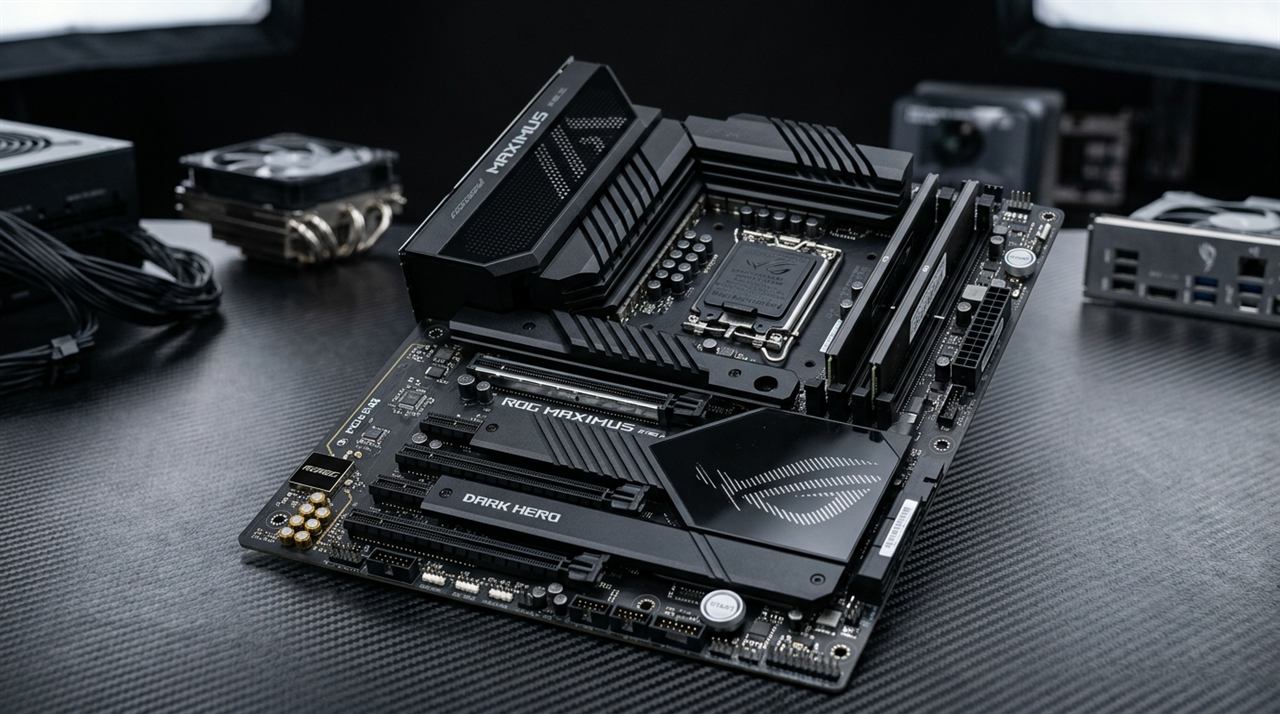 The motherboard is the part most people spend the least time thinking about, and the one they most often regret getting wrong. When you're building a PC, the GPU and CPU get all the attention. The motherboard just sits there quietly in the background — but it determines what CPU you can run, how fast your RAM can go, how many drives you can install, and whether you can even update your BIOS without borrowing someone else's processor.
I've built systems at every price tier, and I've made motherboard mistakes at most of them. Here is what I've learned the hard way.
Pick Your Size First
Before you look at chipsets or features, you need to figure out how big your board needs to be.
ATX is the standard full-size format. It gives you 4 RAM slots, multiple M.2 slots, and room for expansion cards. If you want maximum flexibility, this is the safe default.
Micro-ATX is slightly smaller, usually still has 4 RAM slots, but fewer expansion slots. Here's the thing though — mATX boards are often the best value in any given chipset generation. Manufacturers include the core features and strip the extras that inflate ATX pricing. The MSI MAG B650M Mortar is a perfect example of this.
Mini-ITX is tiny. Only 2 RAM slots, usually 1 PCIe slot, and very limited storage options. It's for small form factor builds and nothing else. Ironically, ITX boards often cost more than mATX despite having fewer features, because cramming everything into that tiny footprint requires more complex engineering.
Chipset Tiers: Don't Overpay
The chipset controls how many USB ports, M.2 slots, and PCIe lanes you get from the platform. Picking the wrong one either wastes money or leaves you short on features.
For AMD Ryzen (AM5 - Ryzen 7000 & 9000):
- B650 / B650E: The B650 is all most gamers and builders need. It supports DDR5 memory, multiple M.2 NVMe slots (primarily PCIe 4.0, with some boards offering PCIe 5.0 on the primary slot), and robust VRMs in the $140–$200 bracket. The B650E (Extreme) mandates PCIe 5.0 on both the primary GPU slot and the M.2 NVMe slot for maximum future-proofing.
- X670 / X670E / X870: Flagship chipsets using dual chipset bridges. They offer more PCIe lanes, up to 4 or 5 high-speed M.2 slots, and native USB4. They are worthwhile if you run dual GPUs, multiple capture cards, or an array of PCIe 5.0 NVMe drives, but complete overkill for a standard gaming build.
For Intel (LGA1700 13th/14th Gen & LGA1851):
- B760: Handles virtually everything a gaming or productivity build needs at a much lower cost than Z790. You retain memory overclocking via XMP. The only feature you give up is manual CPU multiplier overclocking — which offers minimal gains on modern boost algorithms anyway.
- Z790: Necessary only if you want unlocked CPU multiplier tuning, bifurcation for specialized PCIe cards, or maximum SATA/USB lane counts.
VRM: When to Care and When to Ignore It
VRM (Voltage Regulator Module) converts the 12V supply from your PSU into the precise ~1.2V voltage your CPU core requires.
You should care deeply about VRM quality if:
- You are running high-draw chips like an i9-14900K (253W+), i7-14700K (253W), or Ryzen 9 7950X (230W PPT).
- You are running an i5-13600K / 14600K (181W PL2). Cheap budget motherboards without VRM heatsinks will overheat past 105°C and throttle an i5-13600K down to 65W.
- Your PC handles sustained multi-threaded rendering (Blender, Premiere Pro, Cinebench).
You can safely use budget/entry VRMs if:
- You are running a true 65W processor like a Ryzen 5 7600, Ryzen 7 7800X3D (which draws only 50–80W in gaming), or Core i5-12400 / 13400.
- Your primary workload is gaming, where power demands are dynamic and bursty rather than 100% all-core saturation.
Engineering Rule of Thumb: Pay attention to power stage quality (DrMOS) rather than just marketing phase counts. A clean 8+2 phase design with 60A or 80A integrated DrMOS and thick aluminum heatsinks easily outperforms a cheap 12-phase split-MOSFET design with poor thermal dissipation.
Two Features I Refuse to Build Without
POST Debug LEDs. A 4-LED cluster (CPU, DRAM, VGA, BOOT) that instantly tells you why your screen is black during power-on self-test. Without debug LEDs, you are left blindly pulling RAM sticks and swapping cables for hours.
BIOS Flashback Button. Located on the rear I/O shield, this button updates the motherboard BIOS from a USB flash drive with only power connected — no CPU, RAM, or GPU required. If you buy a motherboard manufactured before a new CPU series released, Flashback eliminates the headache of needing an older borrowed CPU just to boot.
What I'd Actually Buy
Under $150 (Budget Builds):
- AMD: MSI PRO B650M-A WiFi or ASRock B650M-HDV/M.2 (~$120–$135). Surprising VRM performance that can comfortably power even a 7800X3D without throttling.
- Intel: MSI PRO B760M-A WiFi (~$140). Reliable power delivery for mid-range Intel builds.
$150–$220 (The Sweet Spot):
- AMD: MSI MAG B650 Tomahawk WiFi or Gigabyte B650 AORUS Elite AX (~$190–$210). Massive heatsinks, 3 M.2 slots, Wi-Fi 6E, and 80A power stages. This is the gold standard for 90% of AM5 gaming builds.
- Intel: MSI MAG B760 Tomahawk WiFi or ASUS TUF Gaming B760-Plus WiFi (~$170–$195).
$250+ (Enthusiast / Content Creation):
- AMD: ASUS ROG Strix B650E-F Gaming WiFi (~$260–$280). Guaranteed PCIe 5.0 GPU and M.2 support with flagship audio codecs.
- Intel: MSI MAG Z790 Tomahawk MAX WiFi (~$250).
Related Guides
← Back to home