 Zyrox
ZyroxHow to Upgrade Your Wi-Fi Setup Without Replacing Everything
Learn how to speed up your home Wi-Fi without buying an expensive mesh system. Optimize router placement, channel congestion, MoCA adapters, and PCIe cards.
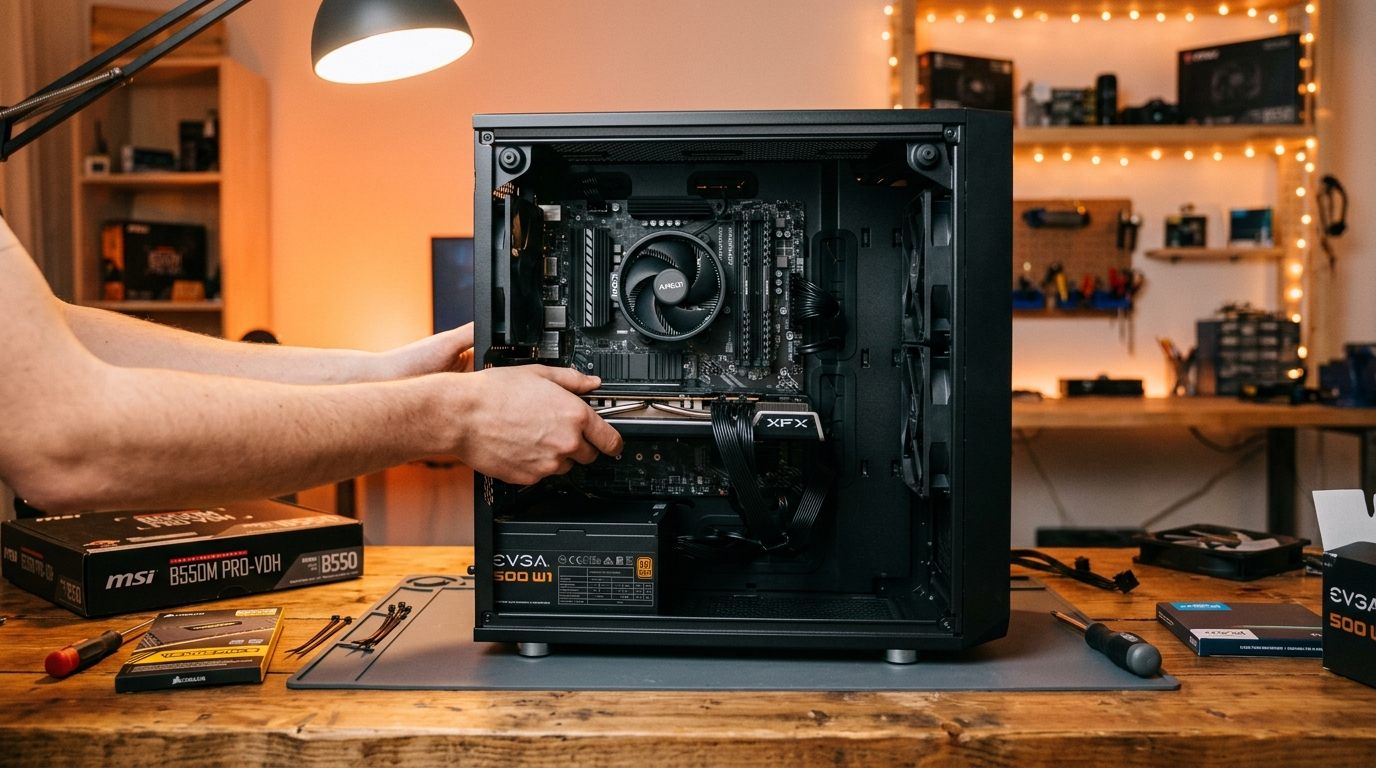 A few months ago I was ready to spend $300 on a new mesh Wi-Fi system. Speeds in my home office — two rooms and about 40 feet from the router — had dropped to something embarrassing: 18 Mbps down on a 600 Mbps fiber line. Before I pulled the trigger, I decided to spend a weekend actually diagnosing the problem instead of throwing hardware at it. Turns out I needed a $0 fix for half the problem and a $45 fix for the rest. This guide covers everything I tested and learned.
Start Here: Is the Problem Actually Your Router?
Before upgrading anything, confirm the router is the bottleneck. Run a speed test while plugged directly into your modem via Ethernet. If those speeds match your ISP's advertised rate, your router and ISP connection are fine — the problem is wireless coverage or interference. If wired speeds are also low, call your ISP before spending any money. In my case, wired speeds were 580 Mbps. Everything upstream was perfect. The problem was entirely between the router and my laptop.
Step 1 — Router Placement Optimization
This is the single highest-impact change you can make for free. Most routers are placed where the cable comes in — which is often a corner of the house, behind the TV, or inside a cabinet. All of those are terrible locations.
Wi-Fi radiates in all directions, so a corner placement wastes half your signal into the wall. Move the router as close to the geometric center of your home as possible. Elevate it, because signals travel more effectively horizontally than downward. Keep it at least three feet away from interference sources like microwaves, Bluetooth speakers, and cordless phones. Never put it inside a metal cabinet, which can kill your signal entirely.
Moving my router from a corner shelf near the TV to a central position on a bookshelf improved my office speeds from 18 Mbps to 110 Mbps instantly.
Step 2 — Channel Selection Using Wi-Fi Analyzer
Even in a great physical position, a router broadcasting on a congested channel performs poorly. In dense housing, you are constantly fighting your neighbors for radio space.
Download a Wi-Fi Analyzer app on your phone. On the 2.4 GHz band, only channels 1, 6, and 11 are non-overlapping. Scan your environment and pick the one with the fewest networks. On the 5 GHz band, there are many more non-overlapping channels available, so congestion is lower, but you should still pick an empty one.
Log into your router's admin panel and manually set the channels instead of leaving them on Auto. By moving off a crowded channel 6 and onto an empty channel 11, I picked up another 30 Mbps in my office.
Step 3 — 2.4 GHz vs 5 GHz Band Assignment
Modern routers broadcast both bands, and devices automatically choose which one to connect to. The problem is that automatic band steering doesn't always make smart choices. Your phone might stay stuck on the slower 2.4 GHz band even when you are right next to the router.
The 2.4 GHz band reaches further but maxes out around 300 Mbps practically. The 5 GHz band has a shorter range but can easily deliver 800+ Mbps. The new 6 GHz band is even faster but struggles to penetrate walls.
The practical fix is simple: give your 2.4 GHz and 5 GHz networks different names (like "HomeNetwork" and "HomeNetwork_5G"). Manually connect bandwidth-hungry devices — laptops and consoles — to the 5 GHz network. Leave smart home devices, bulbs, and thermostats on the 2.4 GHz network. This removes the guesswork entirely.
Step 4 — Adding a Second Access Point vs a Mesh Node
If you've optimized placement and channels and still have dead zones, you need more coverage. You have two main options.
If you can run an Ethernet cable to the dead zone, add a wired Access Point (AP) like a TP-Link EAP670 or Ubiquiti UniFi U6 Lite. It creates the same network name and extends coverage seamlessly, and because it is wired, it delivers maximum speed.
If you cannot run a cable, a mesh node (like an Eero or Google Nest) adds coverage wirelessly. It is easier to set up, but wireless mesh nodes use part of their own bandwidth to talk back to the main router. A wired AP will almost always outperform a wirelessly backhauled mesh node on pure throughput.
Step 5 — Wired Alternatives: Powerline and MoCA Adapters
If you can't run a new Ethernet cable, you don't have to rely entirely on wireless mesh.
Powerline adapters use your home's existing electrical wiring to carry network traffic. You plug one near the router, connect it via Ethernet, and plug the second unit wherever you need a connection. It's incredibly easy, but performance relies entirely on the quality of your home's copper wiring.
MoCA adapters are often much better. They work over coaxial cable — the same cables used for TV. If your home has coax runs to multiple rooms, MoCA adapters can easily push gigabit speeds with incredibly low latency. Direct Ethernet is always best, but MoCA is a very close second, blowing Powerline and wireless backhaul out of the water.
Step 6 — Desktop Upgrades: USB Adapter vs PCIe Card
If your desktop PC has poor Wi-Fi, you can upgrade the receiver.
USB Wi-Fi adapters are plug-and-play, but they are limited by USB bandwidth and usually have small, internal antennas that get blocked by your metal PC case.
A PCIe Wi-Fi card is far superior. It mounts inside the motherboard and uses external antennas on cables that you can position on your desk for perfect reception. The Intel AX210 in a PCIe adapter bracket is the cleanest solution right now. You get Wi-Fi 6E performance and Bluetooth 5.3, all for under $30.
When to Replace Just the Router
Sometimes the router really is the problem. If your router is more than five years old and lacks 5 GHz support, it's time to replace it. If your ISP just gave you a gigabit fiber connection and your old router's CPU can't handle routing that much traffic wirelessly, you need an upgrade. Finally, if you have 40+ smart home devices and the router is crashing or dropping connections, it simply lacks the processing power for that many clients.
In these cases, upgrading to a modern Wi-Fi 6 or 6E router will make a genuine difference. But if those scenarios don't apply to you, work through the placement and channel steps first — you might fix your entire network for free.
Related Guides
← Back to home