 Zyrox
ZyroxThe Best Way to Organize Your Game Library on an SSD
Learn how to organize and manage a large game library across fast NVMe SSDs and secondary storage using Steam Storage Manager, symlinks, and launcher caches.
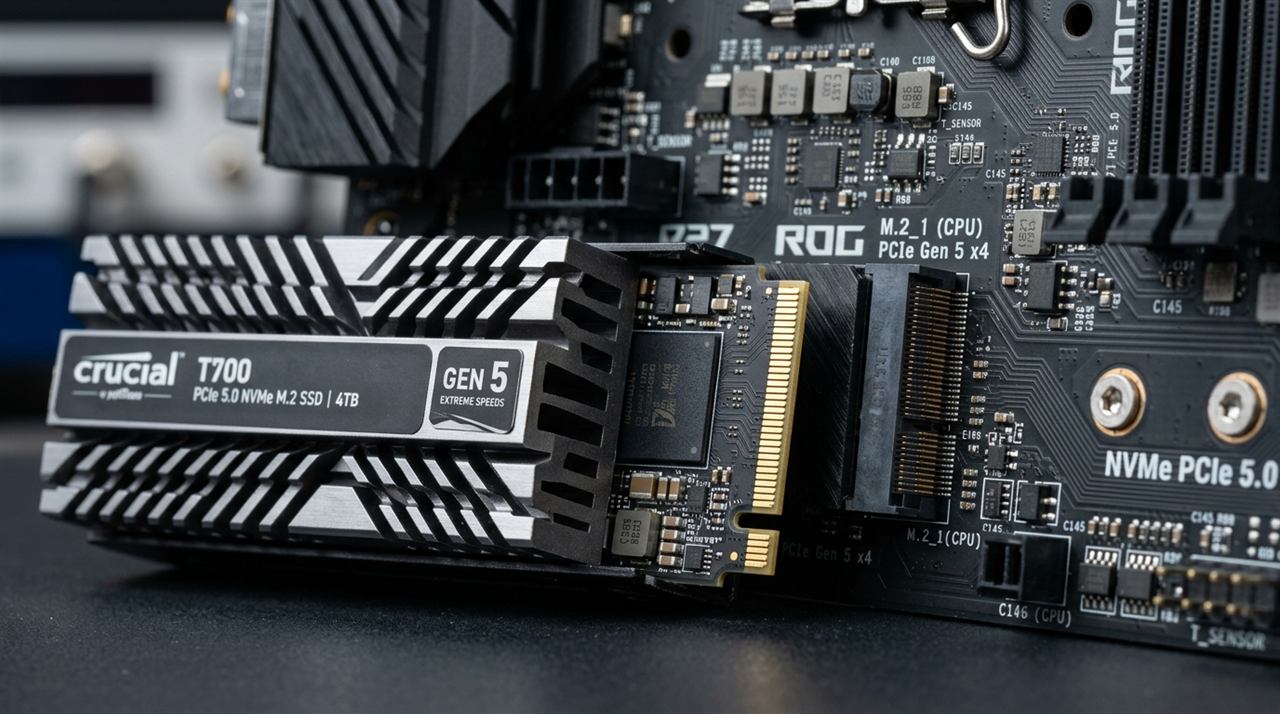 I have about 200 games in my Steam library. Add Epic, GOG, and EA App titles on top of that and the number climbs even higher. For years I let those games pile up wherever the launcher defaulted, and eventually my 1TB SSD was constantly in the red. Load times got worse. Windows updates started failing because there was no room. I finally sat down and built a real system, and the difference was immediate. This is what I learned.
How Much Space Do You Actually Need?
Before diving into organization, let's get honest about capacity. Modern AAA titles have exploded in size — Call of Duty can easily occupy 180GB+, Baldur's Gate 3 takes ~140GB, and Star Wars Jedi: Survivor clocks in at 130GB.
- A 500 GB drive (which yields ~465 GB usable, minus ~70 GB for Windows and staging) fits only 2 to 3 modern AAA games before running dangerously low on space. It requires constant juggling and uninstalling.
- A 1 TB drive holds roughly 5 to 8 large AAA games alongside your operating system and apps. It is manageable if you are disciplined about uninstalling finished games.
- A 2 TB drive holds 12 to 18 major titles without breaking a sweat, providing the necessary breathing room to keep SSD write performance and wear leveling optimal.
- A 4 TB+ drive (or secondary drive) is ideal for collectors who maintain active multiplayer rotations and mod-heavy single-player installs.
My personal setup is a two-tier approach: a fast 2 TB Samsung 990 Pro NVMe SSD for active daily games, paired with a high-capacity 4 TB secondary drive for archiving installs I haven't touched in months. That division completely solved my storage anxiety.
The Two-Tier System: Active vs. Inactive Games
The single most impactful organizational decision I made was separating games into two categories.
The first tier is the active tier, living on the fast NVMe SSD. These are games I am currently playing or plan to play within the next few weeks. They benefit from fast load times and quick shader compilation. Think Baldur's Gate 3, Elden Ring, whatever I picked up last week.
The second tier is the archive, living on the cheap HDD. These are games I haven't touched in months but don't want to permanently uninstall. The HDD load penalty is noticeable but not a dealbreaker for occasional revisits.
The rule I follow is simple: if I haven't launched a game in 60 days, it gets moved to the archive drive. Takes about 30 seconds to decide, and it keeps my SSD breathing room healthy.
Using Steam Storage Manager Step by Step
Steam's built-in Storage Manager is genuinely useful but a lot of people don't know it exists. Open Steam, go to Settings, then Storage. You will see a bar graph of your drive usage broken down by game.
Click the plus button at the top to add your second drive as a library location. Steam automatically creates a steamapps folder on it. To move a game between drives, just check the box next to it and click Move. Steam handles the transfer without re-downloading — files physically move, they don't copy. Set your preferred drive as the default install location so new purchases land on the fast SSD automatically.
I move 4 to 5 games to my HDD archive every month this way. It takes less than 10 minutes and keeps my SSD from hitting the danger zone.
Epic, GOG Galaxy, and EA App Multi-Library Setup
Steam isn't the only launcher you are managing:
- Epic Games: Still lacks a native "Move" button. To move an Epic game without redownloading 100GB: (1) Copy the game's folder to your new drive, (2) Uninstall the game in the Epic launcher, (3) Start installing the game to the new destination drive and pause/cancel the download at 2%, (4) Paste your copied files into the new directory, overwriting files, and (5) Click Resume/Install. Epic will verify the existing files in 2 minutes instead of redownloading.
- GOG Galaxy: Has a built-in move tool. Right-click any game, go to Manage Installation > Move Folder, and pick your target drive.
- EA App: Click the three dots on the game tile, select Move Game, and pick the new directory. The app relinks without redownloading.
Junction Points and Symbolic Links for Game Saves
Some older games store save files inside their installation directory rather than in Saved Games, Documents, or the Steam Cloud. When you archive those games to a slower drive, the saves travel with them. Windows NTFS junctions and symlinks solve this elegantly:
- Directory Junction (
mklink /J): Best for local drives. Does not require running Command Prompt as Administrator:mklink /J "D:\Games\Title\Saves" "C:\Users\YourName\Saved Games\Title" - Directory Symlink (
mklink /D): Works across network shares as well, but requires Command Prompt run as Administrator (or Windows Developer Mode enabled).
The game reads and writes to the save folder exactly as before, completely unaware that the files actually live on a different physical drive.
Controlling Launcher Cache Locations
Launchers accumulate cache over time and it all lands on your system drive by default. Steam's shader and download cache can grow to several gigabytes. Clearing it periodically via Settings and Downloads doesn't break anything and reclaims useful space.
Epic stores its cache in your AppData folder. You can't easily redirect it, but periodically clearing the WebCache subfolder when Epic is closed reclaims space. The EA App has a Clear Cache button in its settings that you should hit every few months, because EA's cache can bloat past 10 GB if you play online-heavy titles.
Preventing the SSD from Filling Up
A full SSD doesn't just run out of space — it performs noticeably worse. Most NVMe drives need at least 10 to 15 percent free space for optimal write speeds due to how NAND wear leveling works.
I set a personal 15% free space rule. On a 2 TB SSD, that means I start moving games to the archive drive once I drop below ~300 GB free. I enable cloud saves everywhere possible so I can safely delete and reinstall without losing progress. I audit my drive with WinDirStat or TreeSize Free quarterly to find hidden space hogs — shader caches, Windows temp files, and old launcher installers are frequent offenders. I also turn on Storage Sense in Windows settings, which automatically clears temp files and empties the Recycle Bin.
My Actual Setup
My primary drive is a 2 TB Samsung 990 Pro NVMe holding Windows, my active game rotation, and launchers. My secondary drive is a 4 TB Seagate BarraCuda holding inactive game archives, shadowplay recordings, and installer backups. I keep an external WD Elements drive for cold backups of local save games and screenshots.
That combination has kept me organized for two years. The key isn't having the most space — it's using a system that makes maintenance automatic rather than something you have to actively think about every week.
Related Guides
← Back to home