 Zyrox
ZyroxHow to Spot a Failing Hard Drive Before It Fails
Learn the warning signs of a failing hard drive, from SMART errors to unusual sounds, and how to back up before data loss happens.
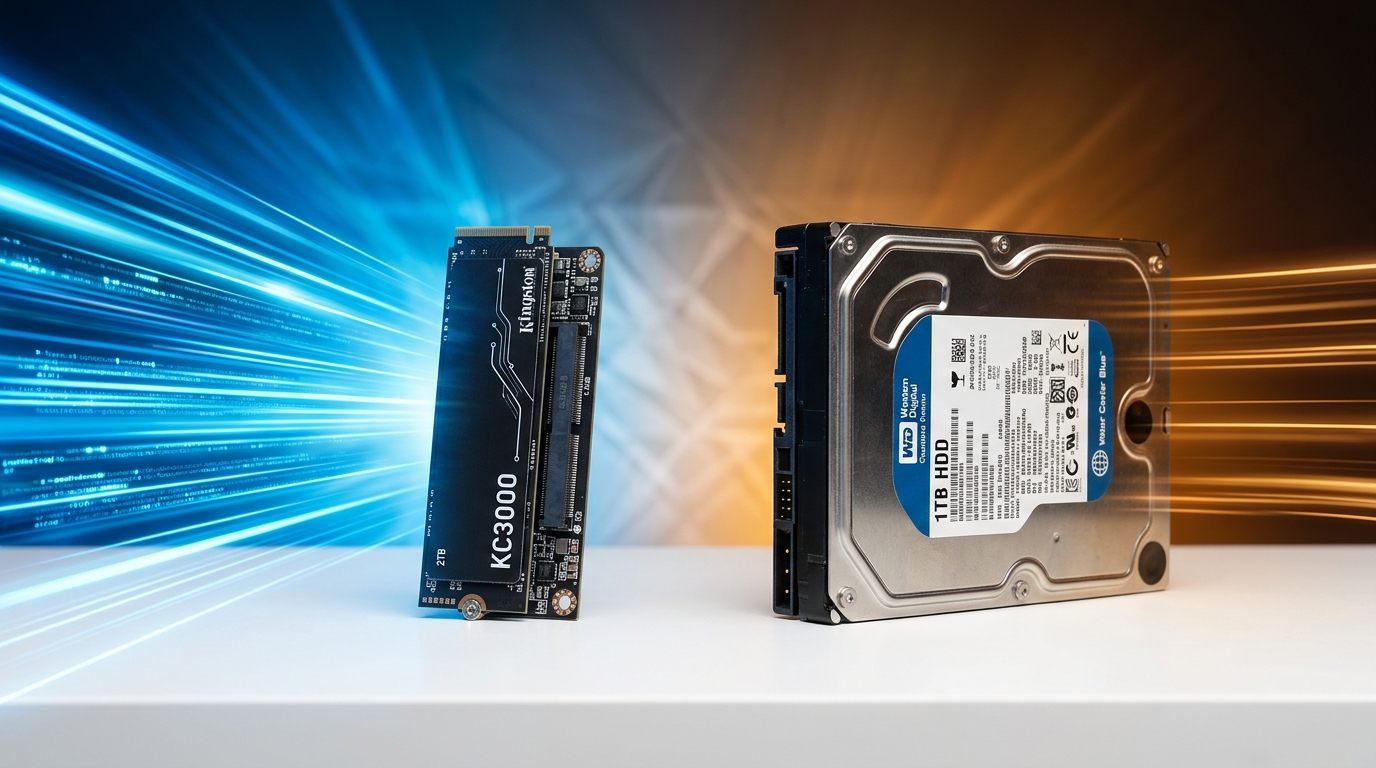 The first time I lost data to a failing hard drive, I had ignored four separate warning signs over the course of three weeks. The boot times had gotten longer. A folder occasionally took five seconds to open instead of one. I heard a faint clicking sound once or twice that I dismissed as case vibration. Then one morning the drive simply did not appear in Windows Explorer. Three years of photography projects, documents, and project files — gone.
The second time it happened, I caught it early. I had learned to read the signs. I ran diagnostics, identified the problem before it became catastrophic, cloned the drive to a new one, and never lost a single file. The difference between those two outcomes came down entirely to knowing what to look for.
This guide covers everything I learned the hard way: the S.M.A.R.T. values that actually matter, the tools that surface them clearly, the sounds that should make you nervous, and the exact steps to take when you suspect a drive is on its way out.
What is S.M.A.R.T. and Why Does It Matter
S.M.A.R.T. stands for Self-Monitoring, Analysis, and Reporting Technology. It is a monitoring system built into virtually every modern hard drive and SSD. The drive itself logs dozens of operational metrics continuously, and diagnostic software reads those logs to give you an early picture of drive health.
The problem is that S.M.A.R.T. data is full of values that look alarming but are harmless, and a few values that look boring but signal serious trouble. Knowing which is which is the whole point.
The S.M.A.R.T. Values That Actually Matter
Reallocated Sectors Count (ID 05) is the single most important value to watch. When the drive finds a bad sector — a part of the disk that can no longer reliably hold data — it marks it as bad and replaces it with a spare sector from a reserve pool. A value of zero is ideal. Any non-zero value means the drive has already experienced surface damage. A steadily increasing value means the damage is ongoing, and you need to replace it immediately.
Spin Retry Count (ID 0A) counts how many times the drive had to retry spinning its platters up to operating speed. On a healthy drive this should be zero. A non-zero and climbing count often means the spindle motor is wearing out or the bearings are deteriorating — both are signs of imminent mechanical failure.
Current Pending Sector Count (ID C5) tracks unstable sectors that returned read errors and are awaiting re-testing. Crucially, a hard drive cannot reallocate a bad sector during a read operation; reallocation occurs only when the drive attempts to write to that sector. If a subsequent write operation succeeds and ECC verifies the data, the sector returns to normal service and the C5 count decreases. If the write fails, the drive permanently remaps the sector to a spare from the reserve pool, decrementing C5 and incrementing ID 05 (Reallocated Sectors Count). A non-zero pending sector count indicates active surface instability.
Uncorrectable Sector Count (ID C6) and Reported Uncorrectable Errors (ID BB) are massive red flags. These measure sectors that have been read, failed, retried, and cannot be corrected by on-the-fly ECC. Any non-zero value here means actual data has become unreadable and the drive was unable to recover it. Stop relying on this drive immediately.
Power-On Hours (ID 09) tracks total operating time. While a drive with 40,000+ power-on hours (~4.5 years of 24/7 runtime) has experienced significant mechanical wear, it is not an immediate death sentence on its own. Extensive drive reliability studies by Backblaze show that thousands of enterprise and consumer drives run stably past 50,000 to 70,000 hours. Treat high hours as context: pair it with climbing error counts (05, C5, 0A) to judge replacement urgency.
CrystalDiskInfo: Step-by-Step Diagnosis Guide
CrystalDiskInfo is the tool I use for every drive I work with. It is free, lightweight, and reads S.M.A.R.T. data in a clear, color-coded format that makes it easy to spot problems without decoding raw hex values.
Download it directly from the official crystalmark.info site to avoid bundled adware. When it opens, each drive in your system gets a health status at the top: Good, Caution, or Bad. A "Caution" status means at least one S.M.A.R.T. value has moved into a warning threshold. "Bad" means the drive has triggered a critical threshold and should be considered entirely unreliable.
Pay attention to the color-coded attribute list:
- The "Current" value is the normalized present reading (typically starting at 100 or 200 and counting downward).
- "Worst" is the lowest historical reading logged by the drive.
- "Threshold" is the manufacturer's failure trigger point. If the Current value drops to or below the Threshold for a critical attribute, that attribute has officially breached its limit, and the drive's S.M.A.R.T. health status trips to Bad / Failing. (Note: this is separate from running an active S.M.A.R.T. Self-Test like Short DST or Extended DST, which are diagnostic routines you can trigger manually in tools like HDDScan or SeaTools).
I highly recommend enabling "Resident" mode in the Function menu so CrystalDiskInfo runs in the background and alerts you if the status changes. Set it to alert on "Caution", because an early warning is exactly what you need.
Also, check the drive temperature. HDDs prefer to run between 25°C and 45°C. A drive that runs consistently above 50°C is shortening its lifespan, and a sudden temperature spike can indicate failing drive electronics.
Audible Symptoms: The Click of Death and What Else to Listen For
The "click of death" is exactly what it sounds like — a rhythmic clicking sound coming from the drive, often accompanied by the system freezing or the drive disappearing from File Explorer. This sound is the read/write head repeatedly failing to find its servo positioning tracks, retracting to the landing ramp, and trying again. It is a sign of a head crash or severe platter damage. By the time you hear it, the drive is in deep trouble.
There are subtler sounds worth knowing. Repetitive clicking or ticking, at a lower frequency than the click of death, can mean the heads are struggling to read a damaged sector. Grinding or scraping indicates physical contact between the heads and the platters — if you hear this, shut the drive down immediately to prevent deeper damage. A high-pitched whine that changes pitch points to spindle bearing wear, common in older drives.
However, keep in mind that not every new sound is fatal. Minor changes in acoustic tone can be caused by case panel resonance, loose drive caddy screws, chassis fan vibrations, or power management features like aggressive head parking (APM). The rule of thumb: take any new acoustic symptom seriously, avoid aggressive writes, and verify the drive's health immediately using S.M.A.R.T. logs before jumping to conclusions.
Slow Performance Patterns That Indicate HDD Failure
Performance degradation before audible failure is incredibly common. Dramatically longer boot times are a major hint. If a system that used to boot in 30 seconds now takes three minutes, and the boot drive is an HDD, it's likely retrying reads on damaged sectors in the system partition.
Watch for file copy operations stalling or slowing to zero. A healthy drive copies at a consistent rate. A failing drive will suddenly drop to near-zero bytes per second when it hits a bad sector region, then speed up again.
Similarly, random system freezes of 30 to 60 seconds where the hard drive activity light stays lit solid before resuming is a classic indicator of a drive retrying failed reads. The default disk I/O timeout in the Windows storage subsystem is 60 seconds. When an unreadable sector stalls the queue, Windows waits for the hardware timeout before logging an Event ID 129 or Event ID 153 I/O error and continuing.
HDD vs SSD Failure Modes Compared
Understanding how each type fails helps you know what to watch for:
- HDDs primarily fail due to mechanical wear, head crashes, and platter damage. While they often give advance notice via audible noise or S.M.A.R.T. sector reallocation, large-scale studies (from Google and Backblaze) demonstrate that roughly 25% to 30% of drive failures occur without any preceding S.M.A.R.T. alert.
- SSDs fail without mechanical warning. They are completely silent, and while controller locks into read-only mode can preserve data, sudden electrical controller death leaves zero warning. When evaluating SSD health, look at Percentage Used and Available Spare on modern NVMe drives (or Wear Leveling Count and TBW on legacy SATA SSDs).
Because hardware can die without warning on both architectures, automated daily backups are the only true safety net.
HDDScan for Surface Testing
While CrystalDiskInfo reads logs, HDDScan actually scans the drive surface by reading every sector and measuring response times. This catches physical damage the drive hasn't officially logged yet.
Download it from hddscan.com. Select your target drive (never run surface verification on an active system drive under heavy OS load). Click "Surface Tests", choose "Read Test", and let it run across the LBA map:
- <5ms (White), <20ms (Light Gray), <50ms (Dark Gray): Fast, optimal sector response.
- 50–150ms (Green): Acceptable read delay, but healthy drives should have very few (typically fewer than 20–50 across the entire drive).
- 150–500ms (Orange): Slow response sectors indicating weak magnetic signals or multiple internal ECC retries.
- >500ms (Red): Severely degraded sectors requiring maximum error correction. These blocks are still readable, but indicate physical platter degradation.
- 'B' / Bad (Blue): Completely unreadable sectors where the read operation timed out or suffered an uncorrectable CRC error.
Step 1: Emergency Data Rescue (Do This Before Anything Else!)
If you suspect a drive is failing, stop writing to it immediately. Do not install new software, download files, or run disk-intensive benchmarks.
1. Best Method for Damaged Drives: GNU ddrescue
Standard cloning utilities or Windows Explorer file transfers will freeze indefinitely when they encounter a cluster of bad sectors. The industry gold standard for rescue is GNU ddrescue (available on free bootable Linux live USBs like SystemRescue).
ddrescue uses an automated mapfile (logfile) to copy all healthy, easily readable sectors first at full speed, and only loops back to slowly scrape damaged sectors on subsequent passes without torturing the drive heads:
# Phase 1: Rapid copy of all healthy sectors without retries
ddrescue -d -n /dev/sdb /dev/sdc rescue.map

# Phase 2: Scrape damaged areas with up to 3 retries
ddrescue -d -r 3 /dev/sdb /dev/sdc rescue.map
2. Resilient File Copying with Robocopy
If you only need to salvage specific directories and cannot do block-level imaging, use Windows Robocopy with short retry intervals:
robocopy D:\PersonalFiles E:\Backup /e /r:1 /w:1
Setting /r:1 /w:1 tells Windows to retry failed reads only once and wait only one second before moving on, preventing the transfer from hanging indefinitely on unreadable sectors.
Step 2: The CHKDSK Warning (Why You Must NOT Run It First)
A dangerous mistake many users make is immediately running chkdsk /f /r on a suspected dying drive.
Do not run chkdsk /f /r on a failing drive before securing your data.
chkdsk /r forces the drive to read every sector and attempts to move data and rewrite file allocation pointers in the Master File Table (MFT). On a drive suffering mechanical head failure or degrading platters, an intensive 6-hour CHKDSK torture test can completely destroy the read heads or permanently scramble recoverable file metadata.
Run CHKDSK only after your critical files are backed up, or run it directly against the healthy cloned image.
Recovery Options If It Is Already Failing
- Deleted Files vs. Bad Sectors: Tools like Recuva are designed strictly for undeleting accidentally erased files on functioning drives. Do not use Recuva on a physically degraded drive with bad sectors, as it is not equipped to handle hardware I/O timeouts and will hang indefinitely.
- Partition Table Repair: Use TestDisk to restore corrupted MBR or GPT partition headers.
- Raw File Carving: Use PhotoRec to extract raw photos, videos, and documents based on file signatures, bypassing corrupted file systems entirely.
- Physical Head Crashes: If the drive is clicking, grinding, or not spinning at all, do not attempt internet "freezer tricks" or percussive maintenance. Shut it down immediately and contact a professional cleanroom data recovery lab (like DriveSavers or Ontrack).
Related Guides
← Back to home