 Zyrox
ZyroxHow to Improve Laptop Battery Life Without Sacrificing Comfort
Small changes to settings and habits can extend laptop battery life significantly without making the machine feel slower or less usable.
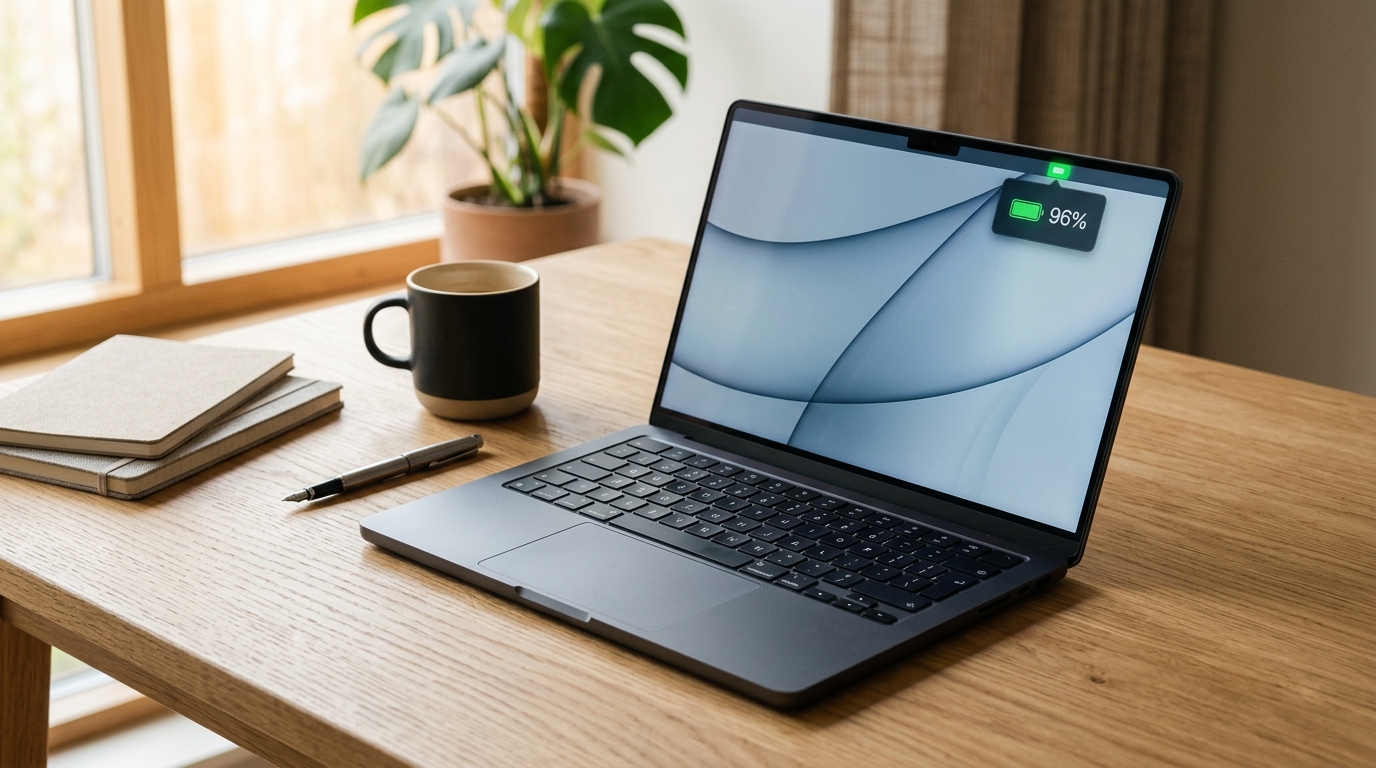 I've been working from coffee shops and airport lounges for the better part of three years, and the one thing that changes the quality of a day more than any other is how long my laptop actually lasts. Not the spec-sheet number — the real-world number. The one where I've got a browser open, a couple of documents running, Spotify in the background, and no power outlet in sight.
Over time I've learned that battery life isn't a fixed property of a laptop. It's a result of a dozen small decisions — some made once in Settings, some made every single day. This guide covers everything I've found that actually moves the needle.
Step 1: Run a Battery Health Report in Windows
Before changing anything, you need to know what you're working with. Windows has a built-in command that generates an HTML diagnostic report showing capacity degradation and cycle history.
Open Terminal or Command Prompt (admin is optional, but recommended for clean folder write access). Type:
powercfg /batteryreport /output "%USERPROFILE%\Desktop\battery-report.html"
Press Enter. Windows will generate a clean report directly on your desktop. Double-click it to open it in your browser.
Scroll to Installed batteries and compare Full Charge Capacity against Design Capacity:
- Above 80% health: Your battery is in good condition; software optimizations and power modes will make a noticeable difference.
- Below 70% health (over 30% wear): Physical chemical degradation has occurred. No software tweak can restore lost lithium-ion cell chemistry. At this point, runtime degradation is a hardware limitation, and planning a genuine OEM battery replacement is the only permanent solution.
Step 2: Modern Windows 11 Power Modes (Settings, Not Control Panel)
On modern laptops running Windows 11 (especially 23H2 and 24H2), legacy Control Panel power plans (High Performance / Power Saver) are deprecated or hidden by OEM ACPI firmware. Managing power is now handled via Settings → System → Power & battery → Power mode:
- Best power efficiency: Caps aggressive CPU turbo boost multipliers and reduces background polling frequency. Ideal for travel, web browsing, and document editing.
- Balanced (Default): Dynamically scales CPU frequency based on demand. For 90% of mixed workflows, this provides the best compromise between responsiveness and power draw.
- Best performance: Keeps clock frequencies pinned high and disables PCIe link power management (ASPM). Only use this when connected to AC power for intensive tasks like compiling or rendering.
Step 3: Screen Brightness and Refresh Rate
The display panel is almost always the single largest direct consumer of power on a modern laptop, especially on OLED and high-refresh IPS panels.
- Brightness: Lowering display brightness from 100% to 50% can cut panel consumption significantly—often saving 3W to 5W depending on screen size and backlight type. On a typical 50–70Wh battery, that difference alone translates to an extra 45 to 90 minutes of screen-on time.
- Dynamic Refresh Rate (DRR): If your laptop has a 120Hz or 165Hz screen, go to Settings → System → Display → Advanced display and choose Dynamic (e.g., 60Hz or 120Hz) or lock it to 60Hz while on battery. Running a constant 120Hz+ forces the GPU and display engine to draw unnecessary power even when viewing static text.
- Dark Mode on OLED: If your laptop uses an OLED screen (where individual pixels turn off for true black), enabling system-wide Dark Mode produces measurable power savings. On standard IPS/VA panels with global LED backlights, dark mode reduces eye strain but does not impact battery draw.
Step 4: Audit Startup Apps and Background Processes
A fresh Windows install runs efficiently, but installed utilities accumulate background helpers over time.
Open Task Manager (Ctrl + Shift + Esc) and go to the Startup apps tab:
- Disable non-essential startup tasks such as game launchers, Spotify, Discord, and Adobe/Teams update helpers.
- Switch to the Processes tab and sort by CPU and Power Usage. Background utilities polling at 3–5% CPU prevent the processor from dropping into deep low-power sleep states (C-states like C8/C10), keeping the package power elevated.
Step 5: Windows 11 Energy Saver (Replacing Legacy Battery Saver)
In Windows 11 (24H2 and newer), Microsoft replaced the old "Battery Saver" with Energy Saver:
- What it does: It reduces energy consumption by extending battery-saving policies (dimming brightness, throttling background sync, disabling OneDrive file sync, and pausing transparency effects).
- Where to find it: Go to Settings → System → Power & battery → Energy saver.
- Key improvement: Unlike legacy Battery Saver, Energy Saver can be enabled both on battery and when plugged in. You can configure it to engage automatically when the battery reaches a set threshold (typically 20% or 30%) or toggle it manually from Quick Settings (
Win + A).
Under the same menu, review the Battery usage graph (filtered by the last 24 hours or 7 days) to identify specific power-hungry applications.
Step 6: Sleep, Modern Standby (S0ix), and Hibernate
How you put your laptop away determines whether you open a fresh battery or a warm, drained machine:
- Traditional Sleep (S3) vs. Modern Standby (S0 Low Power Idle): Modern Windows laptops use Modern Standby. Unlike classic S3 sleep (which powered only RAM), Modern Standby keeps the Wi-Fi/NIC stack active to fetch updates in the background. If an application hangs or prevents sleep, your laptop can drain rapidly inside a backpack.
- Hibernate (The Safest Option for Storage): Hibernate writes the active RAM contents to the SSD (
hiberfil.sys) and cuts power completely (0W draw). When stowing your laptop in a bag for travel or leaving it overnight, always use Hibernate. - Enabling Hibernate: If Hibernate does not appear in your Start menu power options:
- Open Terminal as administrator and run:
powercfg /hibernate on - In Windows Search, type Control Panel → Power Options → Choose what the power buttons do. Click Change settings that are currently unavailable, check Hibernate, and save changes.
- Open Terminal as administrator and run:
Step 7: Browser Efficiency and Tab Management
Browsers are often where 80% of daily battery drain occurs. Modern browser architecture has shifted significantly:
- Microsoft Edge: Features native Windows integration with Sleeping Tabs (putting inactive background tabs into low-memory suspension after a set period) and Efficiency Mode (optimizing background rendering and video playback).
- Google Chrome: Chrome now includes built-in Memory Saver (freeing RAM from inactive tabs) and Energy Saver (reducing background web effects and video frame rates when battery drops below 20% or whenever unplugged). Turn both on in Chrome Settings → Performance.
- Firefox: In modern multi-tab testing on Windows, Firefox generally consumes more battery than optimized Chromium browsers because its background tab throttling and hardware-accelerated video decoding are less tightly coupled with Windows power states.
Step 8: Battery Charge Thresholds (Longevity vs. Daily Runtime)
Lithium-ion cells degrade fastest when held at 100% state-of-charge under high ambient temperatures:
- The 80% Limit (Battery Protection Mode): Manufacturers (Lenovo Vantage, ASUS MyASUS, Dell Command, Samsung Settings) allow you to cap maximum charge at 80% (or 85%). If your laptop spends most of its life connected to a desk charger, enable this feature. It significantly slows chemical capacity degradation.
- The Trade-Off: Understand that capping charge at 80% reduces your daily runtime on that specific day by 20%. If you know you will be traveling away from wall outlets for a full workday, toggle the limit back to 100% the night before.
Step 9: Thermal Cleanliness and Fan Workload
When dust clogs laptop heatsink fins, cooling fans are forced to run at maximum RPM (drawing an extra 1–2W continuously). Furthermore, while thermal throttling decreases momentary peak power draw by slowing down clock speeds, heavily throttled systems take substantially longer to complete rendering or compilation tasks, keeping the CPU in an elevated power state for a longer duration.
- Keep ventilation intake grills clear of fabric surfaces (avoid soft blankets or carpets that block intake airflow).
- Use compressed air every 6 to 12 months to clear dust out of the cooling fins.
- Internal repasting is only recommended on older out-of-warranty machines where dried paste causes severe overheating; on modern laptops, clean intake vents and a firm desk surface provide the primary thermal gains without risking warranty loss or internal battery damage.
When to Replace the Battery
If your powercfg /batteryreport indicates your Full Charge Capacity is below 70% of Design Capacity, or if Windows displays a persistent "Consider replacing your battery" notification, software adjustments will have diminishing returns. Replacing the worn pack with an authentic OEM unit restores original runtime instantly.
Related Guides
← Back to home