 Zyrox
ZyroxHow to Keep a PC Running Well for Years
Learn how to keep your PC running fast and stable for years. A master maintenance schedule covering dust cleaning, thermal paste, driver staging, and 3-2-1 backups.
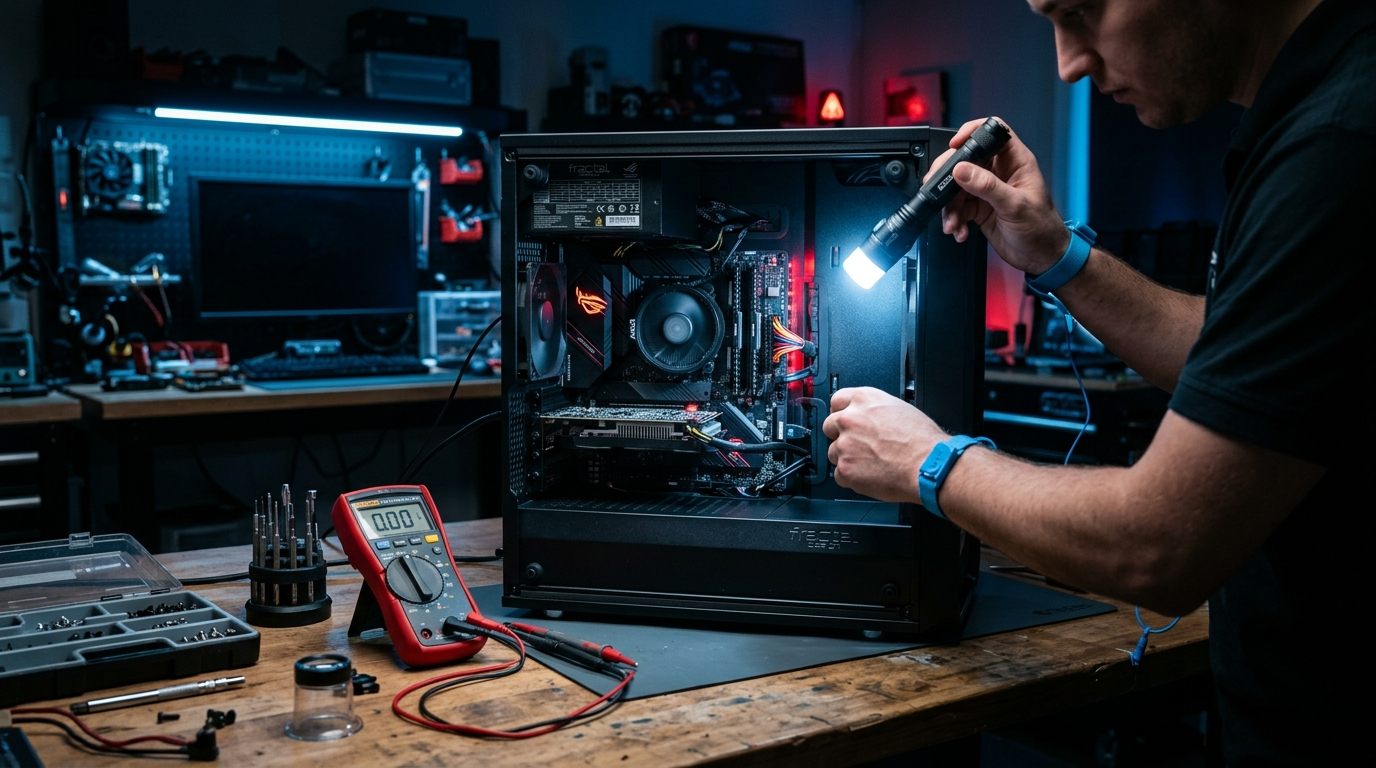 I have a desktop that I built six years ago. It still runs fast, stays cool, and has never had an unexpected failure. That isn't luck — it's the result of an incredibly boring maintenance routine that takes maybe two hours per year total. The machine has had thermal paste replaced once, its fans cleaned four times, two driver updates reverted after they caused problems, and one SSD health check that caught an early warning before it became a real issue.
Most PC problems aren't random. They are predictable and preventable. Dust accumulates on a predictable schedule. Thermal paste dries out on a predictable timeline. SSDs degrade in a way you can monitor. Windows bloat builds up gradually. If you address these things before they become problems, the machine just keeps working. If you ignore them, you end up troubleshooting a crash at the worst possible time.
This guide covers exactly what I do and when I do it, so you can adapt it to your own situation.
The Master Maintenance Schedule
You don't need to spend every weekend tweaking your PC. A solid maintenance schedule breaks down by priority. Dusting the filters and fans should happen every 3 to 6 months and is a high priority. Checking and trimming your startup apps takes 5 minutes a month. Windows security patches should be installed monthly, but major feature updates should actually be deferred for a month or two until bugs are ironed out.
Every six months, take five minutes to check your SSD health with CrystalDiskInfo. Replacing thermal paste is a big job, but you only need to do it every 3 to 5 years. Checking cable routing and inspecting for component wear should happen annually.
Dust Cleaning: How Often Depends on Your Environment
Dust is the single biggest cause of preventable thermal degradation. It clogs heatsink fins, coats fan blades, blocks intake filters, and can eventually cause components to throttle or fail from sustained overheating.
The standard advice is "clean every 6 months," but that is way too vague. If you have a clean office with no pets, every 6 to 12 months is fine. But if you have a home with carpet and pets, you need to clean every 2 to 3 months. A workshop PC needs cleaning every 4 to 6 weeks. If you use a laptop on your bed or couch, the vents will clog in 6 to 8 weeks.
To clean it properly, power off completely and unplug it. Take the case outside. Use compressed air in short bursts, and physically hold the fans still while blowing — spinning them with compressed air can actually damage the bearings. Focus on the heatsink fins, intake filters, GPU heatsink, and blow through the PSU vents. Never use a household vacuum directly on components because of the static electricity risk.
Driver Update Strategy: When to Update vs When to Wait
The common instinct is to always update drivers to the latest version immediately. That's a mistake. Driver updates can introduce new bugs, break compatibility, and destabilize a working system.
You should update immediately for security-critical patches (like network adapters and chipsets), or if a major game releases a day-one GPU patch, or if a driver explicitly fixes a bug you are experiencing.
You should wait 2 to 4 weeks before updating major GPU drivers, as NVIDIA and AMD both have a history of releasing buggy drivers that get patched a month later. You should completely ignore audio drivers, NIC drivers, and USB drivers unless they are actively broken.
When you do update a GPU driver, use Display Driver Uninstaller (DDU) in Safe Mode to fully remove the old driver before installing the new one. Always note which version you had before, just in case you need to roll back.
Windows Update Management
Microsoft pushes two types of updates: security patches and feature updates. Treat them differently.
Security patches (cumulative updates) should be installed promptly. They close real vulnerabilities and rarely cause instability.
Feature updates (like the jump to Windows 11 24H2) should be deferred by at least 4 to 6 weeks. Early adopters regularly run into compatibility issues and new bugs. You can pause these in Settings → Windows Update → Advanced options. Let the beta testers find the bugs, not you.
Thermal Paste Replacement
Thermal paste fills the microscopic air gaps between your CPU and the heatsink. Over time, it dries out and becomes less effective. If your CPU temperatures are noticeably higher than they were two years ago under the same workloads, or if you're hitting thermal throttling, it's time to replace it.
Pre-applied stock pads usually last 2 to 3 years. High-viscosity compounds like Arctic MX-6 or Noctua NT-H2 resist pump-out and easily last 4 to 6 years, while phase-change materials like Honeywell PTM7950 can last the entire operational lifetime of the device without degradation. Be cautious with thin enthusiast pastes (such as Thermal Grizzly Kryonaut); while excellent for short benchmarks, they degrade and pump out much faster when subjected to sustained 80°C+ daily operating loads. Replacing thermal paste is straightforward on desktops but requires careful disassembly on laptops. Use 90%+ isopropyl alcohol to thoroughly clean the old compound before applying a fresh 5-dot or thin spread pattern.
SSD Health Monitoring Schedule
SSDs don't last forever. They have a rated TBW (terabytes written) value that indicates their expected lifespan. For most consumer SSDs, this is 150 to 600TB, which is plenty for home use, but you should still monitor it.
Download CrystalDiskInfo (it's free). Every 6 months, check the health status — it should say "Good." Check the Total Host Writes against your drive's TBW rating. Look at the Reallocated Sectors or Uncorrectable Errors; any non-zero value here is a massive warning sign. If CrystalDiskInfo ever shows a "Caution" or "Bad" status, back up your data immediately and buy a replacement. Do not wait for it to die.
Backup System: The 3-2-1 Rule
Every PC maintenance routine needs a backup strategy. The 3-2-1 rule is the industry standard: 3 copies of your data, on 2 different media types, with 1 copy stored offsite.
For practical implementation, your primary copy is your internal SSD. Your local backup should be an external drive, using a reliable tool like Veeam Agent for Windows Free or Hasleo Backup Suite. Your offsite backup should be an encrypted cloud service like Backblaze, OneDrive, or iDrive. Even if a fire occurs or your PC is stolen, you can restore to a new machine in a few hours. Crucially, verify your backups quarterly by doing a test restore of a few files. A backup you've never tested isn't a real backup.
Cable Management for Long-Term Airflow
Cables crammed into a case without routing don't just look messy — they restrict airflow and make future maintenance incredibly annoying.
Route your power cables behind the motherboard tray. Bundle SATA cables with Velcro ties, not zip ties, so you can adjust them later without scissors. Keep all cables out of the main airflow path between the front intake fans and the CPU cooler. Cases with good cable routing routinely run 2 to 5°C cooler across the board.
Power Surge Protection: UPS vs Surge Protector
Power events are one of the most underappreciated threats to PC hardware. A surge can damage PSUs and motherboards in ways that only show up weeks later.
A basic $5 power strip offers zero protection. Do not use one for a PC. A $20 surge protector is the bare minimum acceptable standard. However, a UPS (Uninterruptible Power Supply) is vastly superior for desktop PCs. An offline UPS costs $60 to $120 and protects against surges and brief outages. A line-interactive UPS costs $120 to $250 and adds voltage regulation, which is fantastic for workstations. If you have a desktop, invest in a good UPS. For laptops, the battery acts as a UPS, so just ensure your charger is plugged into a basic surge protector.
Signs a Component Needs Replacing Early
Don't wait for a catastrophic failure. Warning signs usually appear weeks or months in advance.
If your HDD makes clicking sounds, or file operations get very slow, it's dying. If your PSU causes random shutdowns under load or develops severe coil whine, replace it. Blue screens with MEMORY_MANAGEMENT errors point straight to dying RAM. If your GPU shows visual artifacts or the fans make grinding noises, start saving for a replacement.
When you notice any of these signs, don't ignore them. Early replacement is always cheaper and less stressful than emergency data recovery.
Related Guides
← Back to home